Controlflow
Overview
Controlflow is the rule-based automation engine in Braiins Manager. You define rules that combine targets, optional conditions, and either an action or a load bound. Controlflow evaluates rules on a schedule or on a polling interval and applies the result to every qualifying worker.
Controlflow supports three rule types:
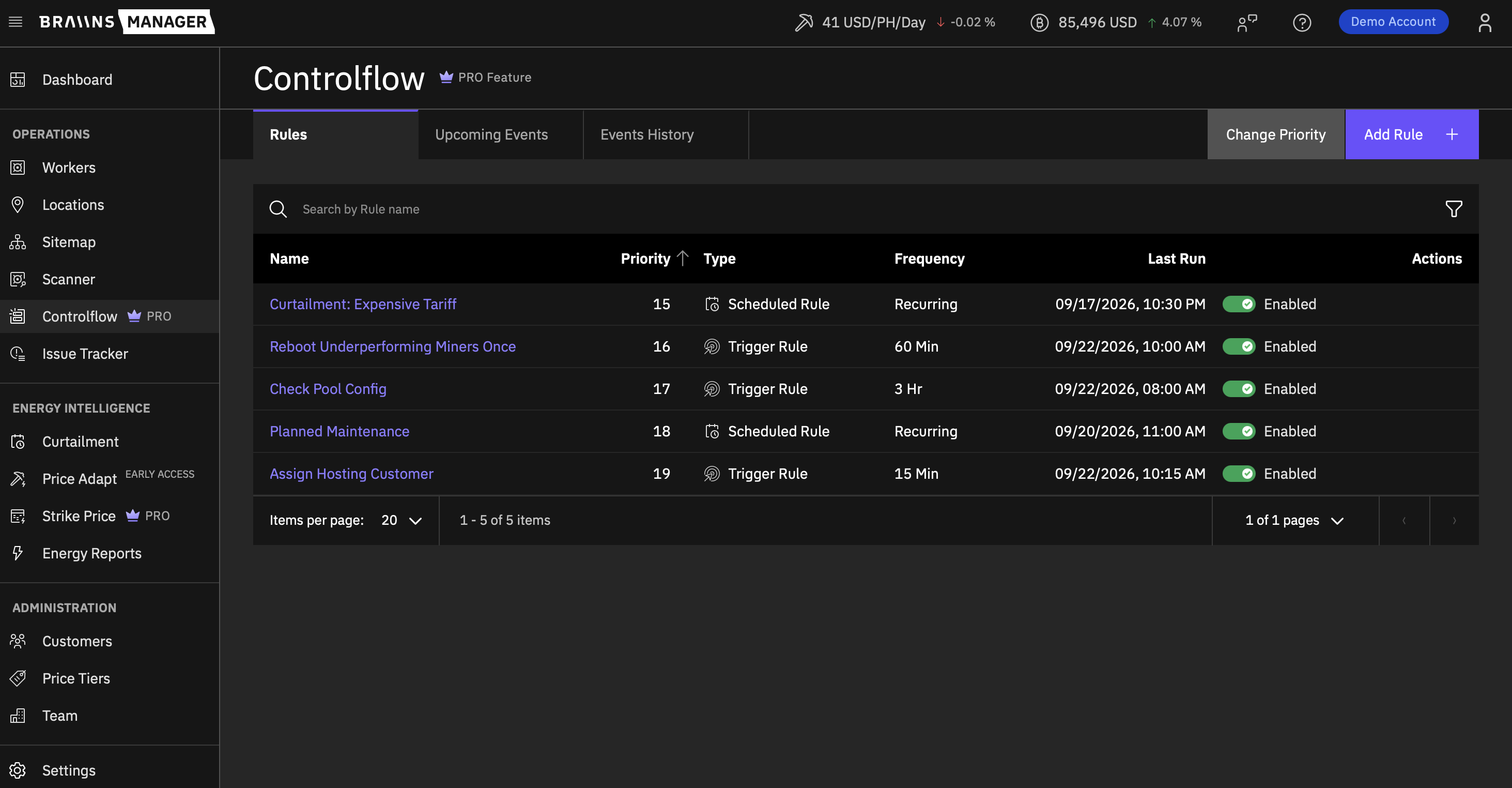
- Scheduled Rules: Time-based. Run once or recur on a daily, weekly, or monthly schedule. Conditions are optional.
- Trigger Rules: Interval-based. Poll on a fixed cadence (15, 30, 45, 60 minutes, or a custom 2 to 12 hour interval). Conditions are optional for most actions and required for the Do Nothing action.
- Balancing Rules: Interval-based, on the same cadence as Trigger Rules. Instead of an action you set a load bound in MW for one Location, and Controlflow pauses and resumes whole workers to hold the combined power draw of that Location inside the bound. It does not scale power targets.
Common automation patterns include scheduled curtailment, thermal protection, pool-drift correction, automated customer assignment after onboarding, and holding a site inside its power envelope.
Access and Permissions
Controlflow is part of the Pro Plan. Providers without an active subscription see a promotional page instead of the Controlflow UI.
- Provider Admin can self-start a time-limited trial and has full access to Controlflow across the provider account.
- Provider Account with access to the Controlflow component can use Controlflow within their permitted Locations. Some users are restricted to a single Location; those users can only target that Location and the Groups and Racks inside it.
If a rule targets a Location you do not have access to, editing and status changes for that rule are blocked. For a Balancing Rule the Location check runs before anything opens: the form or confirmation modal stays closed and an error message explains that the rule includes a Location you cannot access.
If the Pro Plan subscription or trial expires, all Controlflow rules are disabled automatically, whatever their type, and stay disabled until the plan is restored.
Key Concepts
- Rule: The top-level automation object. Has a name (max 48 characters), an active flag, one or more targets, an optional timezone, and a priority. It is Scheduled, Trigger, or Balancing.
- Event: A sub-unit of a rule that pairs a start time (Scheduled) or a polling slot (Trigger and Balancing) with an action and optional conditions. A Scheduled Rule may have up to 5 events; Trigger and Balancing Rules have a single event.
- Cohort: The set of workers a Balancing Rule measures and adjusts, determined by its targets.
- Scaling Behavior: The mode of a Balancing Rule. It decides whether the rule pauses workers above a maximum load, resumes workers below a minimum load, or holds the cohort between both.
- Target: The set of workers the rule applies to. Multiple target types on a single rule are intersected: a worker must match all target criteria to be eligible.
- Condition: An optional filter applied at execution time. Workers that fail the conditions are excluded from the action.
- Action: The operation Controlflow performs on qualifying workers.
- Priority: A numeric rank from 1 to 1000 that determines execution order when multiple rules fire in the same polling window. Lower numbers run first. The sequence is shared by all three rule types.
- Execution Window: The look-back used when evaluating numeric conditions. Immediate uses the most recent value (up to 7 minutes old); a rolling window of 10 to 60 minutes (in 5-minute steps) supports Average, Median, Min, or Max aggregation.
- Invalid Configuration: A flag set automatically on a rule when a Location, Customer, Group, Rack, or license preset it references is deleted. The rule is auto-disabled. The flag does not clear automatically; you must edit and re-save the rule.
- Rule History: An immutable log of executions. Retained for 2 months.
Create a Rule
- Open Controlflow from the main navigation.
- Click Add Rule and pick Add Trigger Rule, Add Scheduled Rule, or Add Balancing Rule.
- Enter a name (up to 48 characters).
- Select one or more targets.
- For a Scheduled Rule, pick a timezone. For a Trigger or Balancing Rule, pick a polling frequency.
- Configure what the rule does. A Scheduled Rule takes up to 5 events, each with its own action, optional conditions, a start time, and optional recurrence. A Trigger Rule takes one action with optional conditions. A Balancing Rule takes a load bound instead of an action.
- Optionally configure aggregation gating, per-device execution limits, and notifications.
- Review the Targeted Device Count preview - the form shows a live count of workers that match the current target configuration.
- Save the rule. It becomes active immediately.
Trigger Rules
Trigger Rules poll on a fixed cadence and act when the targets (and any conditions) match at that moment. Available frequencies:
- 15, 30, 45, or 60 minutes
- Custom interval from 2 to 12 hours (must be a multiple of 60 minutes when above 60)
Trigger run slots are pre-generated 2 days ahead and replenished daily by a background job.
Scheduled Rules
Scheduled Rules execute at specific calendar times. Each event can be:
- One-time at a specific date and time, or
- Recurring daily, weekly on chosen weekdays, or monthly on a chosen day, with a configurable repeat interval.
Scheduled run slots are pre-generated 31 days ahead and replenished daily.
Each event in a rule must have a unique start time, and Scheduled events must have a start time in the future at save time.
Balancing Rules
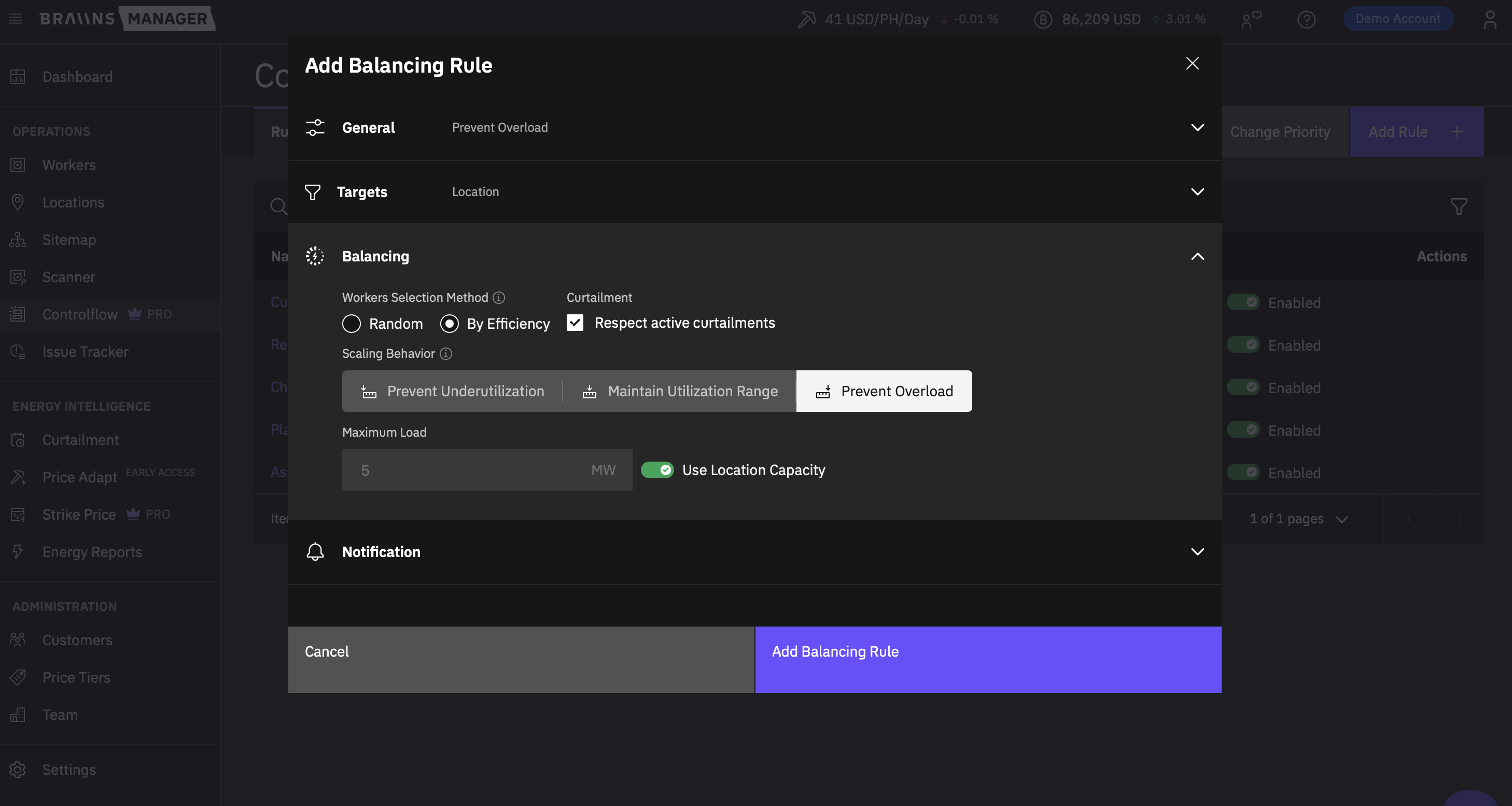
Balancing Rules poll on the same cadence as Trigger Rules and hold the combined power draw of one Location inside a load bound. The form has four sections:
- General: the name, the Enable toggle, and the polling Frequency.
- Targets: exactly one Location, which cannot be removed, optionally narrowed by Group and Rack rows from that same Location.
- Balancing: the Scaling Behavior and its load bounds, the Workers Selection Method, and the Respect active curtailments toggle. See Load Balancing.
- Notification: optional Telegram recipients.
A Balancing Rule has a single event and no action or conditions. It works by pausing and resuming whole workers, never by adjusting their power output. Priority is not a form field: a new rule is placed last in the shared priority order, and you reorder it afterwards. Run slots are pre-generated 2 days ahead, the same as Trigger Rules.
Duplicate Detection
Two rules with the same type, targets, action, and timing are treated as duplicates. The second save is rejected.
Targets
A rule must have at least one target. When multiple target types are added, they are intersected - a worker must satisfy all criteria to be eligible.
Available target types:
- Locations
- Customers
- Sitemap Groups (from the Sitemap)
- Sitemap Racks
- Device Models
- IP Ranges
- Firmware Type (Braiins OS or stock)
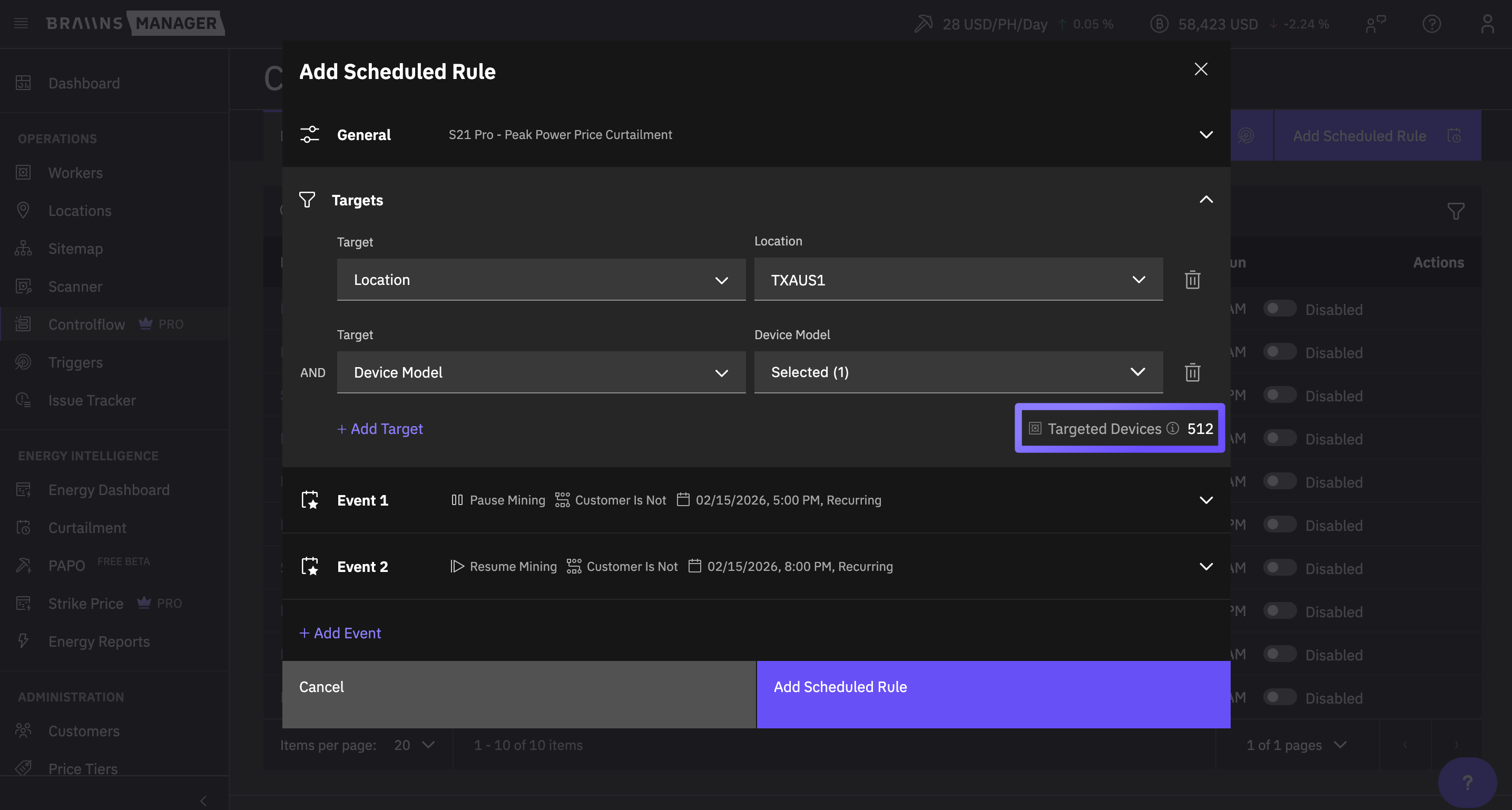
A Balancing Rule is the exception. It targets exactly one Location, optionally narrowed by Sitemap Groups and Racks inside that Location; the other target types are not available to it.
A location-restricted Provider has their Location automatically injected into the target calculation, so the preview always reflects only their permitted scope.
Actions
The available actions are:
- Pause Mining
- Resume Mining
- Reboot Device
- Set Performance Mode (stock firmware only)
- Set Power Target (BraiinsOS) (Braiins OS only)
- Set Pool Configuration
- Assign Customer
- Apply License (BraiinsOS) (license-based, Braiins OS only)
- Check License (BraiinsOS) (Braiins OS only)
- Do Nothing (notification-only - requires at least one condition)
Firmware-specific actions auto-append a firmware filter to the target list. For example, Set Power Target (BraiinsOS) forces a Braiins OS firmware target even if you set a different firmware type as a target. Picking a stock-firmware action against a Braiins OS-only target set will leave no eligible workers.
A location-restricted Provider can only use license presets assigned to their Location.
Balancing Rules have no action. They pause and resume workers to hold the cohort inside its load bounds; see Load Balancing.
Conditions
Conditions filter workers at execution time so the action runs only against the subset you want. Conditions are optional for normal actions; the Do Nothing action requires at least one condition. Balancing Rules do not use conditions.
Numeric Conditions
Apply thresholds to live telemetry. Available metrics:
- Power (W)
- Temperature (degrees)
- Hashrate (TH/s)
For each numeric condition, you choose:
- Operator (greater than, less than, between, etc.)
- Threshold value
- Execution Window - Immediate (last reported value, up to 7 minutes old) or a rolling window of 10 to 60 minutes in 5-minute steps, with Average, Median, Min, or Max aggregation.
If no telemetry point exists within the look-back window, the worker is treated as no match and excluded from the action.
Avoid the Equals operator for numeric conditions - it evaluates to TRUE only when the metric matches the threshold exactly. Use inequality operators (greater than, less than, between) for real-world scenarios.
Status and Lifecycle Conditions
- Is Under Curtailment - workers currently in an active Curtailment window.
- Customer Is Not - excludes one or more specific customers.
- Agent Is Offline - workers attached to a Location whose Agent is currently offline.
- Pool Configuration Is Different - workers whose active pool configuration does not match a specified desired pool set.
- Hashing Status Transition - workers that have transitioned from a chosen "from" status to one of the chosen "to" statuses within the evaluation window, with no intermediate transitions in between.
- License State (Braiins OS only) - workers in a specific Braiins OS license state.
Time Range (Trigger Rules only)
The Time Range condition gates the entire trigger run by a daily window relative to the rule's timezone. If the current time is outside the window, the run is skipped entirely; workers are not individually filtered.
Aggregation, Limits, and Notifications
These three controls are configured per event and shape when and how often an action runs. Aggregation gating and per-device execution limits apply to Trigger and Scheduled Rules; notifications are available on all three rule types.
Aggregation Gating
Aggregation gating evaluates after conditions have been applied. The action runs only if the matching worker set satisfies a threshold:
- Count - the number of matching workers meets a threshold.
- Percentage - the ratio of matching workers to all targeted workers meets a threshold.
- Load - the combined power draw (MW) of matching workers meets a threshold.
If the gate fails, the run still moves to history with an affected-worker count of zero. If zero workers match the conditions, the action is not executed.
Per-Device Execution Limit
Limit how many times a worker can receive the action per day, from 1 to 96. A worker that has already received the action the allowed number of times in the current day is excluded from further runs until the daily reset.
Notifications
You can attach a Telegram bot recipient to an event. Notifications fire only when at least one worker was affected. Configure recipients in Settings > Integrations before referencing them here.
Telegram is currently the only supported notification channel.
Load Balancing
A Balancing Rule keeps the combined power draw of its cohort inside a load bound. On each polling cycle it measures the cohort's total load and pauses or resumes whole workers until the total is back inside the bound.
Balancing works by pausing and resuming workers only. It never sets a power target, and it never applies a partial adjustment to a worker that keeps running. To hold a load bound by throttling output instead of stopping workers, use the Set Power Target (BraiinsOS) or Set Performance Mode action on a Trigger Rule.
A rule acts in one direction per cycle: a single run never both pauses and resumes workers. If the total is already inside the bound, the run changes nothing and is still recorded in history with zero affected workers.
Scaling Behavior
Pick one of three modes in the Balancing section of the form:
- Prevent Overload (default): pauses workers while the cohort total is above Maximum Load. It never resumes workers.
- Prevent Underutilization: resumes paused workers while the cohort total is below Minimum Load. It never pauses workers.
- Maintain Utilization Range: holds the total inside a band. It pauses workers above Maximum Load and resumes workers below Minimum Load.
Switching between scaling behaviour modes clears the load fields, so enter the bounds again after you change the mode.
Load Bounds
- Maximum Load and Minimum Load are set in MW, from 0.001 to 1,000, with up to three decimals.
- In Maintain Utilization Range, Minimum Load must be lower than Maximum Load.
- Use Location Capacity binds Maximum Load to the Location's configured capacity and makes the field read-only. The capacity is read at each run rather than fixed at save time. The toggle is offered in Prevent Overload and Maintain Utilization Range, and only when the Location is the rule's only target and has a capacity configured. Adding a Group or Rack target turns the toggle off and makes Maximum Load editable again.
- There is no equivalent binding for Minimum Load.
If the Location capacity is cleared while Use Location Capacity is on, the next run is skipped with zero affected workers and a warning is written once to the Location event log. The rule stays active and resumes on its own once a capacity is set again.
Workers Selection Method
The selection method sets the order in which eligible workers are picked:
- Random (default): eligible workers are shuffled.
- By Efficiency: eligible workers are ranked by efficiency in J/TH, calculated as power in watts divided by hashrate in TH/s, where a lower value is more efficient. When reducing load, the least efficient workers are paused first. When raising load, the most efficient workers are resumed first.
Efficiency is measured per worker, not per model, so two workers of the same model can rank differently. Controlflow uses the last polled measurement with a non-zero hashrate from the past 7 days; for a paused worker that is its last measurement before it was paused. A worker that has never reported a hashrate is ranked on the nominal values for its model, and a worker with neither falls to the end of the order. Workers with the same efficiency are picked at random. If ranking data is missing, the run still goes ahead and records a warning in its history entry.
Curtailment and Execution
- Respect active curtailments is on by default. While at least one worker in the cohort is inside an active Curtailment window, the whole run is skipped: no worker is paused or resumed, and the run is recorded with zero affected workers.
- A Balancing Rule pauses only running workers and resumes only stopped ones. A resumed worker returns to full hash power; its expected contribution comes from its power target on Braiins OS, or from the catalog rating on stock firmware.
- Workers already acted on by a higher-priority rule in the same cycle are skipped, and workers the Balancing Rule adjusts are skipped by lower-priority rules in that cycle.
- The set of workers to act on is calculated from measured load before anything is paused or resumed, so the cohort total can end up past the bound by up to one worker's load.
Priority and Conflict Resolution
Priority is one shared sequence across Trigger, Scheduled, and Balancing Rules. When multiple rules fire in the same polling cycle, Controlflow resolves overlap as follows:
- Sort rules by priority (lowest number first), then by rule creation timestamp, then by event index.
- Execute rules in that order.
- A worker acted on by a higher-priority rule is excluded from lower-priority rules in the same cycle. (Other workers in the lower-priority rule's set are still processed.)
This avoids double-execution while still letting independent rules act on disjoint worker sets.
Reorder Priorities
To change the order:
- Click Change Priority on the Rules tab.
- A drag-and-drop modal lists all rules of every type, ordered by current priority.
- Reorder and save. Priorities update atomically; duplicate priorities are rejected.
Reordering is available to Provider Admins and to Providers who are not Location-restricted.
Manage Rules
The Rules tab is the main place to view and manage your automations. Before you create your first rule, the tab shows one card per rule type in place of the table, each card opening the matching creation form.
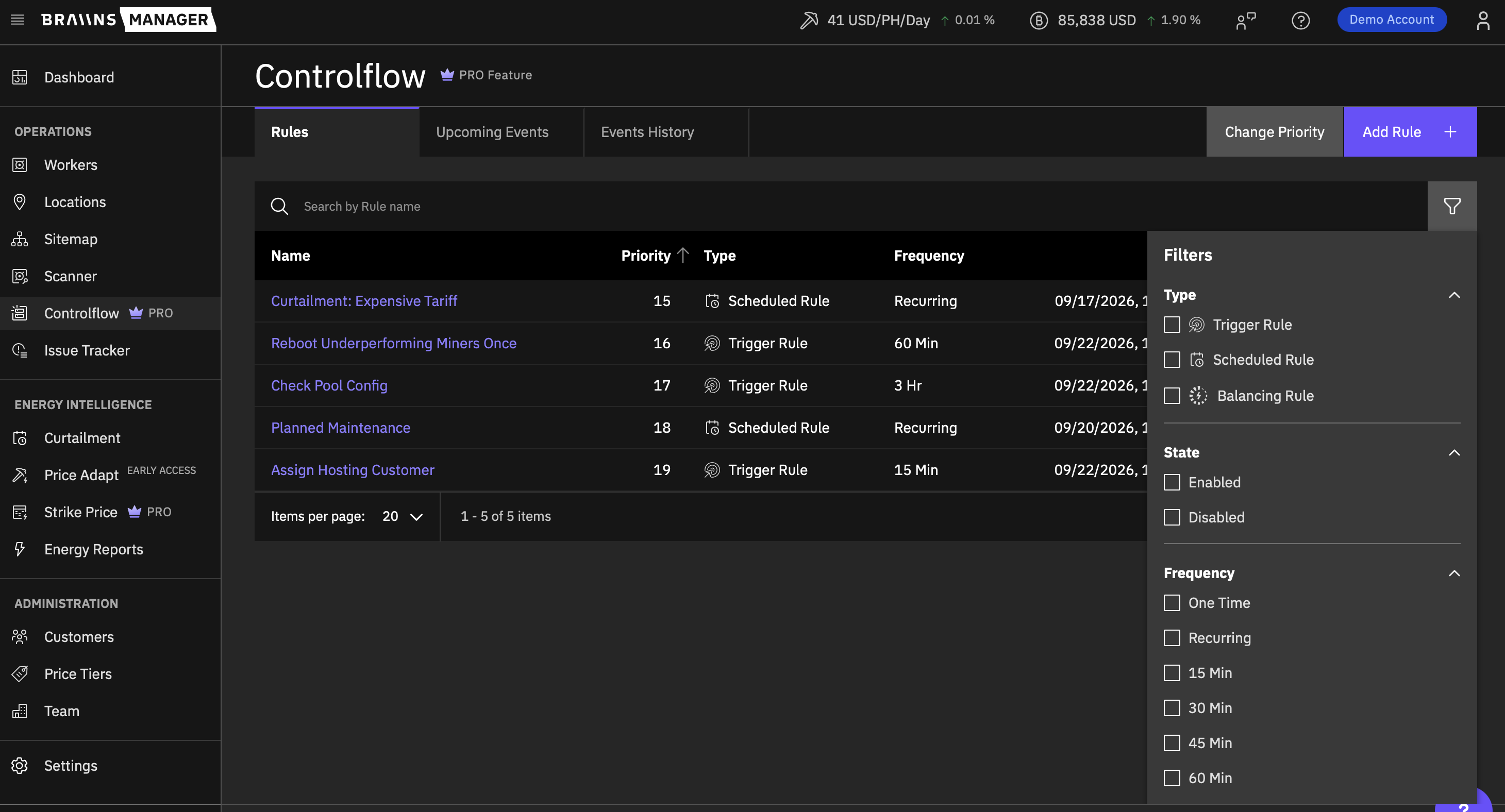
From the Rules tab you can:
- Search and filter rules by state, type (Trigger Rule, Scheduled Rule, or Balancing Rule), frequency, action, Location, or Customer.
- Toggle a rule active or inactive (a confirmation modal appears for the disable direction).
- Edit, clone, or remove rules.
- Open a quick-view panel with full rule details.
Removing a rule is permanent. Its upcoming runs are discarded, changes it already applied to workers stay in place, and its history entries remain for the retention period with the rule name shown as plain text.
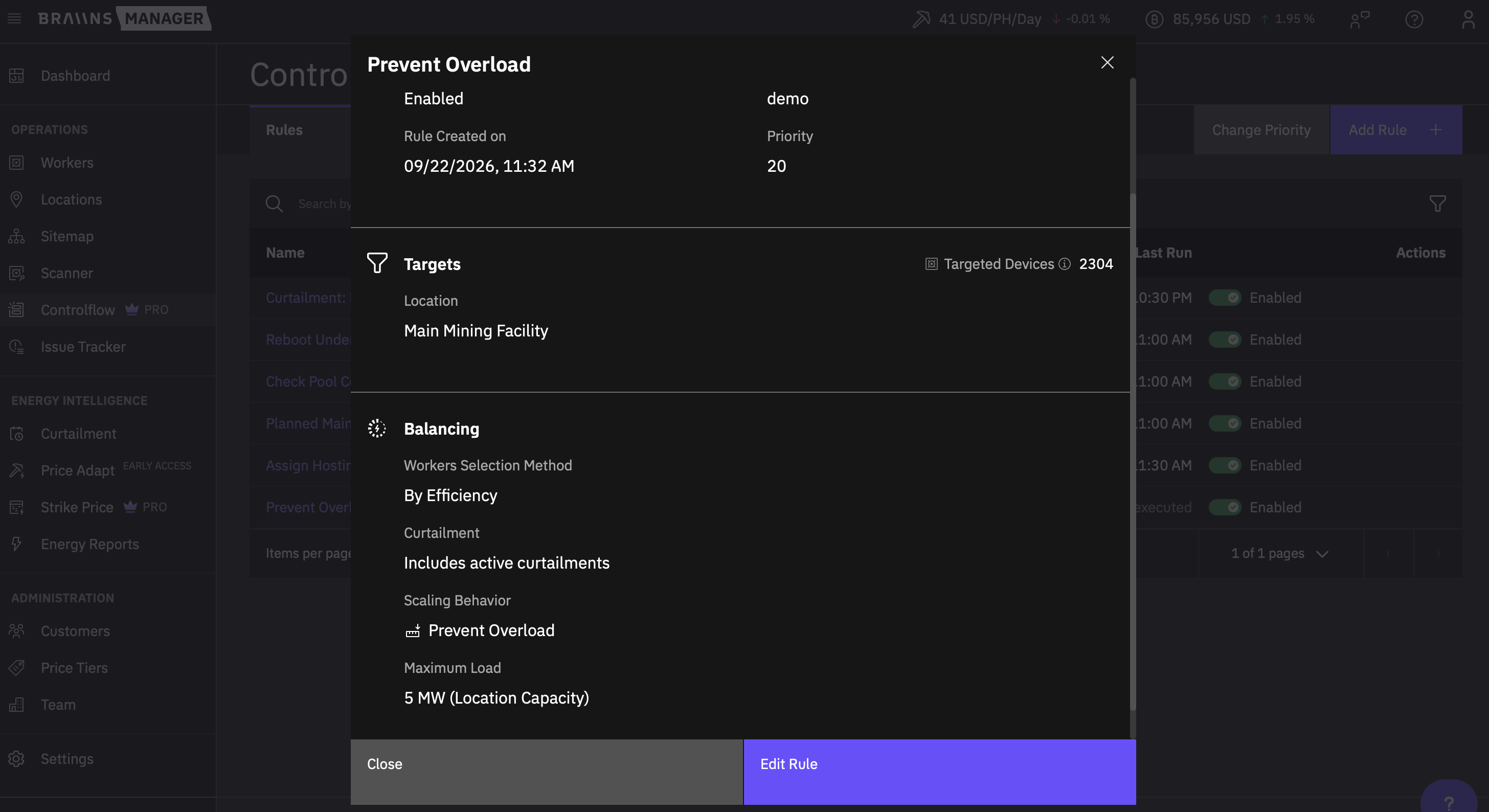
For a Balancing Rule, the quick-view panel replaces the Action and Conditions sections with a Balancing section listing the Workers Selection Method, the curtailment setting, the Scaling Behavior, and the configured load bounds.
Enabling and Disabling
- On enable: future runs are regenerated for Trigger Rules; existing future runs are re-activated for Scheduled Rules. Re-enabling a Trigger Rule discards any pre-generated stale runs and regenerates them from the current moment, avoiding backlog catch-up.
- On disable: all future runs are marked inactive and will not execute.
- Disabling a Balancing Rule stops the cohort from being adjusted and writes no further balancing history. Workers keep their current state; nothing the rule already applied is reverted. Enabling resumes balancing from the next polling cycle with the configuration and priority position unchanged.
Invalid Configuration
If a rule references a resource that is later deleted (Location, Customer, Sitemap Group or Rack, license preset), Controlflow:
- Auto-disables the rule.
- Sets the Invalid Configuration flag.
- Writes a warning event to the provider event log.
The flag does not clear when the underlying issue is fixed - edit the rule, adjust the broken reference, and re-save to clear it.
Upcoming Events
The Upcoming Events tab is a calendar view of pending Scheduled and Trigger run slots.
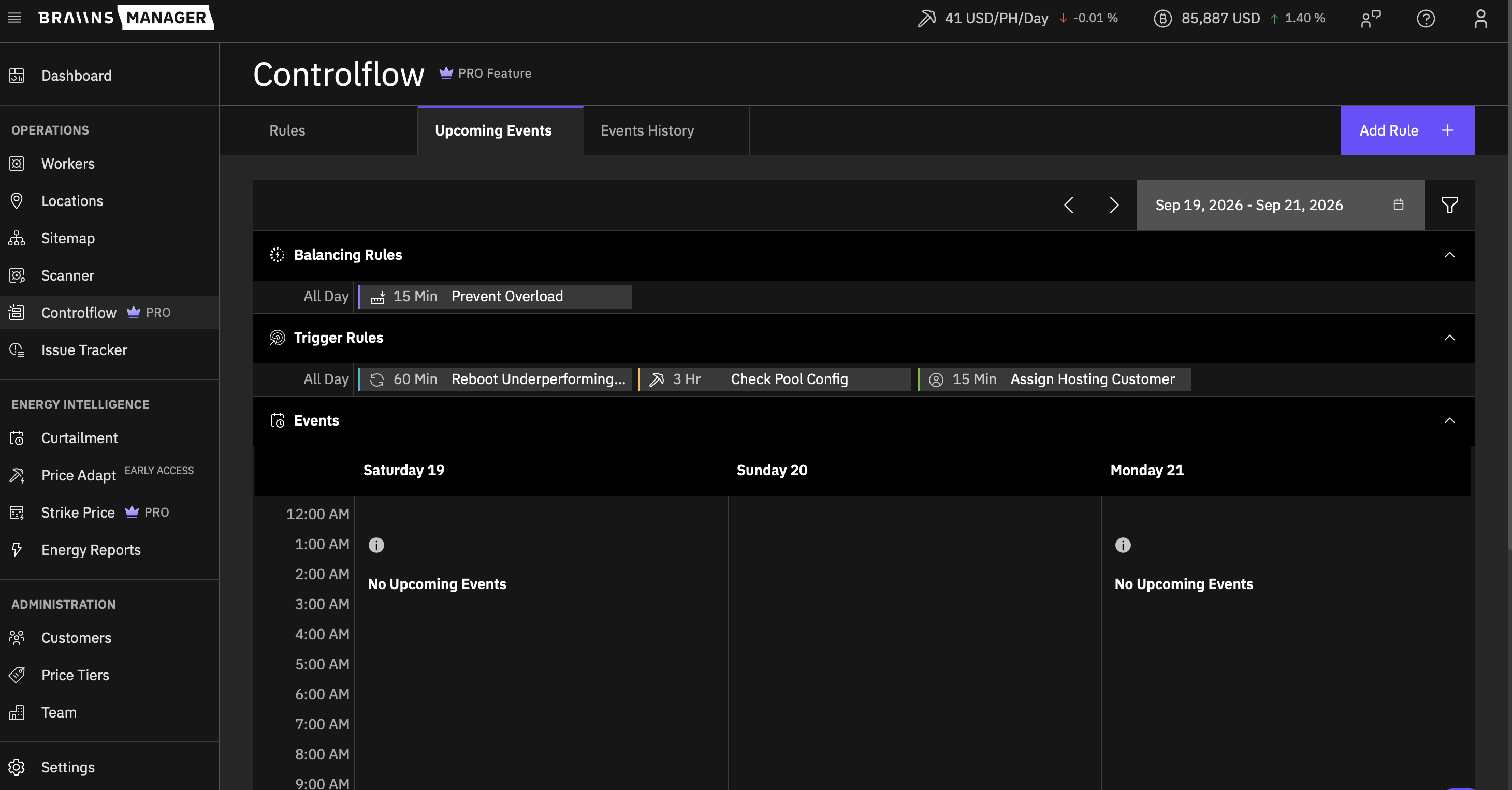
- The view spans a date range of up to 5 days (past or future).
- Balancing Rules and Trigger Rules each get their own band above the calendar, listing the rules that poll in the selected range. Only Scheduled runs are placed on the calendar grid itself.
- Click a run to see its rule, targets, action, and conditions in a quick-view panel.
- Skip an individual upcoming run to prevent it from executing without disabling the whole rule. A skipped run stays visible in the calendar and can be re-enabled before it fires.
History
The History tab logs every rule execution.
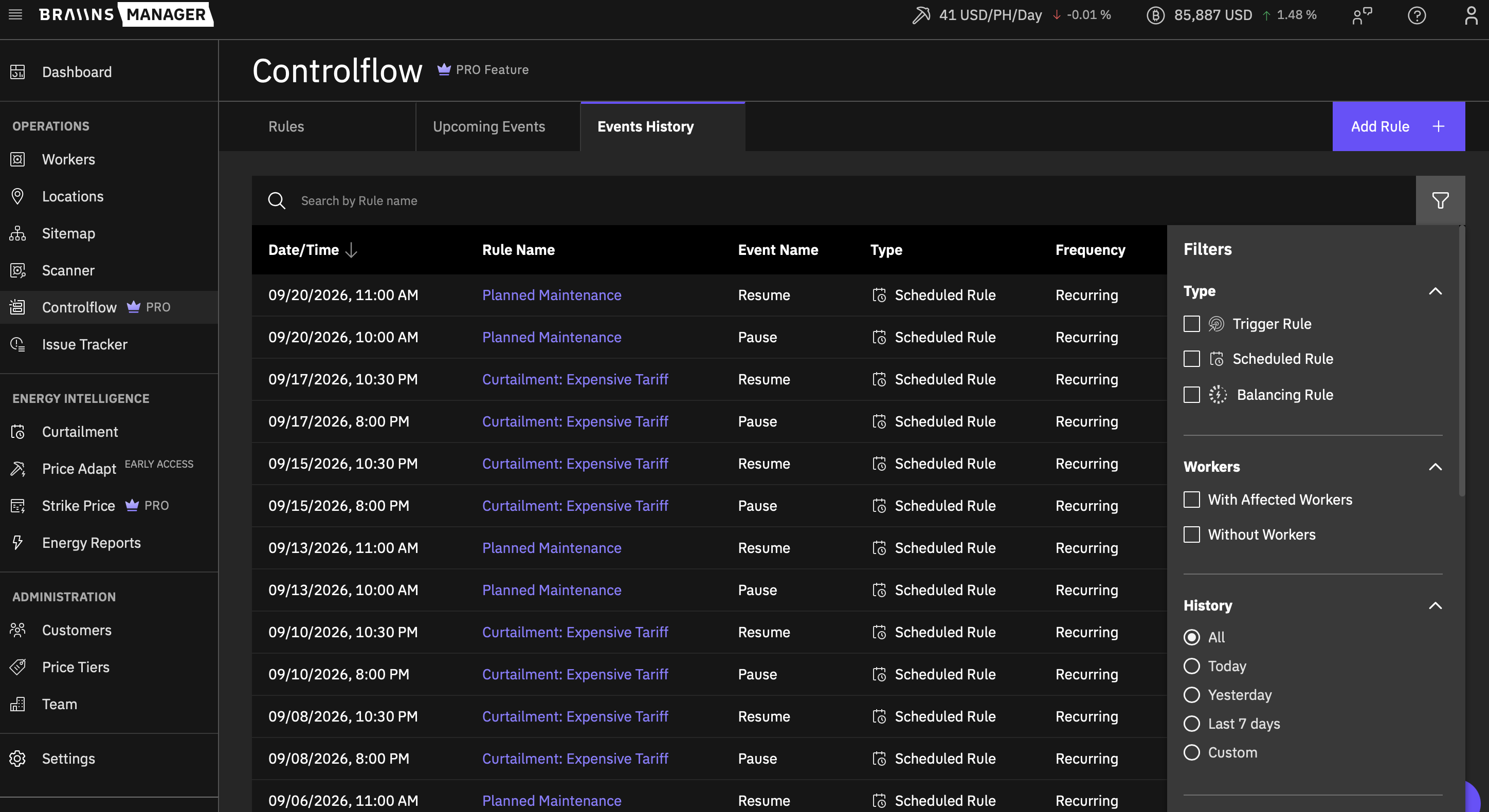
Each entry records the timestamp, the rule name, the Event Name (the event inside the rule that ran, so a multi-event Scheduled Rule produces one row per event), the rule type, the frequency, the action, and the affected-worker count. From the tab you can:
- Filter by date range, action type, Location, Customer, rule type (Trigger Rule, Scheduled Rule, or Balancing Rule), or affected-workers flag.
- Search by rule name.
- Open the per-worker drilldown to see the individual workers acted on for recent runs (worker ID, IP, and MAC for each).
Balancing Rule Runs
Every Balancing Rule run is logged, including runs that changed nothing. A Trigger Rule run that affected no workers writes no history entry, but Scheduled and Balancing runs are always recorded.
- The Action Executed column shows the Scaling Behavior the run used (Prevent Overload, Prevent Underutilization, or Maintain Utilization Range), taken from the configuration stored with that run. Changing the rule later does not change what a past entry shows.
- A run where the cohort was already inside its bounds, or that was skipped because of an active curtailment, is recorded with an affected-worker count of zero.
- The drilldown lists the workers the run paused or resumed, the same per-worker view used by the other rule types. A no-op run has nothing to list.
History records are retained for 2 months, after which a background job removes them.
Real-World Examples
Common patterns customers run with Controlflow:
- Scheduled curtailment: Pause and resume mining around known energy-tariff windows; combine with Curtailment for price-driven shutdowns.
- Reactive thermal protection: A Trigger Rule that pauses mining or reduces power when temperature exceeds a threshold, with a per-device daily execution limit to avoid loops.
- Underperforming worker reboot: A Trigger Rule that reboots workers whose hashrate is below target and whose temperature is within safe limits, capped at a daily execution count.
- Pool-drift correction: A Trigger Rule using the Pool Configuration Is Different condition with Set Pool Configuration as the action.
- Automated customer assignment: A Scheduled Rule that runs once after onboarding to assign workers to a Customer by IP range or Location.
- Coordinated maintenance: Scheduled Rules that pause and resume mining for a targeted Group or Rack during a maintenance window.
- Site power cap: A Balancing Rule in Prevent Overload with Use Location Capacity on, so a Location never draws more than its contracted capacity.
- Contracted minimum load: A Balancing Rule in Prevent Underutilization that resumes paused workers when the site falls below the load it is committed to draw.
- Load band: A Balancing Rule in Maintain Utilization Range that keeps a site between a floor and a ceiling, pausing the least efficient workers first and resuming the most efficient ones first.
More patterns on the Braiins blog:
- Introducing Controlflow: Advanced Automation in Braiins Manager
- Controlflow Update: New Trigger Rules
Best Practices
- Start small. Build a rule against one Location or a single Group, watch it run for a cycle or two, and then widen the scope.
- Use conditions to prevent unnecessary work. A Trigger Rule with no conditions will act on every targeted worker each cycle.
- Set per-device execution limits on Trigger Rules that issue heavy actions (reboot, set power target) to avoid runaway loops.
- Check firmware compatibility. Some actions are firmware-specific and will short-circuit if your target set has no matching workers.
- Watch priorities. Two rules that target overlapping worker sets should have meaningful priority ordering, otherwise execution within a cycle is determined by creation timestamp.
- Leave room in a load band. In Maintain Utilization Range, set the gap between Minimum and Maximum Load wider than the draw of your largest worker. A narrower band can leave the rule adjusting on every cycle without ever settling.
- Expect the bound to be approximate. Balancing pauses and resumes whole workers and calculates the set before it acts, so the cohort total can end up past the bound by up to one worker's load.
- Bind the ceiling to the Location. With Use Location Capacity on, Maximum Load follows the Location's configured capacity instead of a number you maintain by hand.
- Re-save rules after deletions. When you remove a Location, Customer, Group, Rack, or license preset, any rule referencing it is auto-disabled with an Invalid Configuration flag - edit and re-save to clear it.