Sitemap
Overview
The Sitemap is a structured, visual representation of how your workers are physically organized within a Location. You map hardware to Racks and Groups (buildings, rooms, rows, containers), monitor per-rack telemetry at a glance, and target specific groups or racks when applying Controlflow rules or Curtailment events.
A Sitemap is created per Location and is optional. Without one, a Location's workers have no physical context.
Key Concepts
- Location: The top-level entity in the hierarchy. Each Location has exactly one Sitemap.
- Group: A logical folder that organizes racks or other sub-groups. Represents real-world divisions such as a building, room, row, or container. Groups can be nested.
- Rack: A physical or logical unit that holds worker slots in a grid. Defined by a width (columns) and height (rows), each between 1 and 100.
- Slot: A single cell in a rack grid. A slot may hold one worker or be empty.
- Allocation mode: How workers are placed into slots. Three options: Sequential, Dynamic, and Manual.
- Sorting key: When allocation is Sequential or Dynamic, workers are ordered by IP address or Worker Name before placement.
- Distribution direction: The fill pattern for Sequential or Dynamic allocation. Four corner-to-corner directions are available (for example, top-left to bottom-right).
- Device assignment mode: How workers reach a rack. Auto By IP assigns workers whose IP matches the rack IP ranges; Manually Selected uses an explicit worker list; Assign Later leaves slots empty at creation.
- Re-sort: An automatic process that clears and refills slots in a rack when its rules or contents change.
Create Groups and Racks
From the Sitemap page for a Location with no Sitemap yet, you have three starting options: Add Group, Add Rack, or Import Data.
- Groups are higher-level containers (buildings, rooms, aisles) and can be nested.
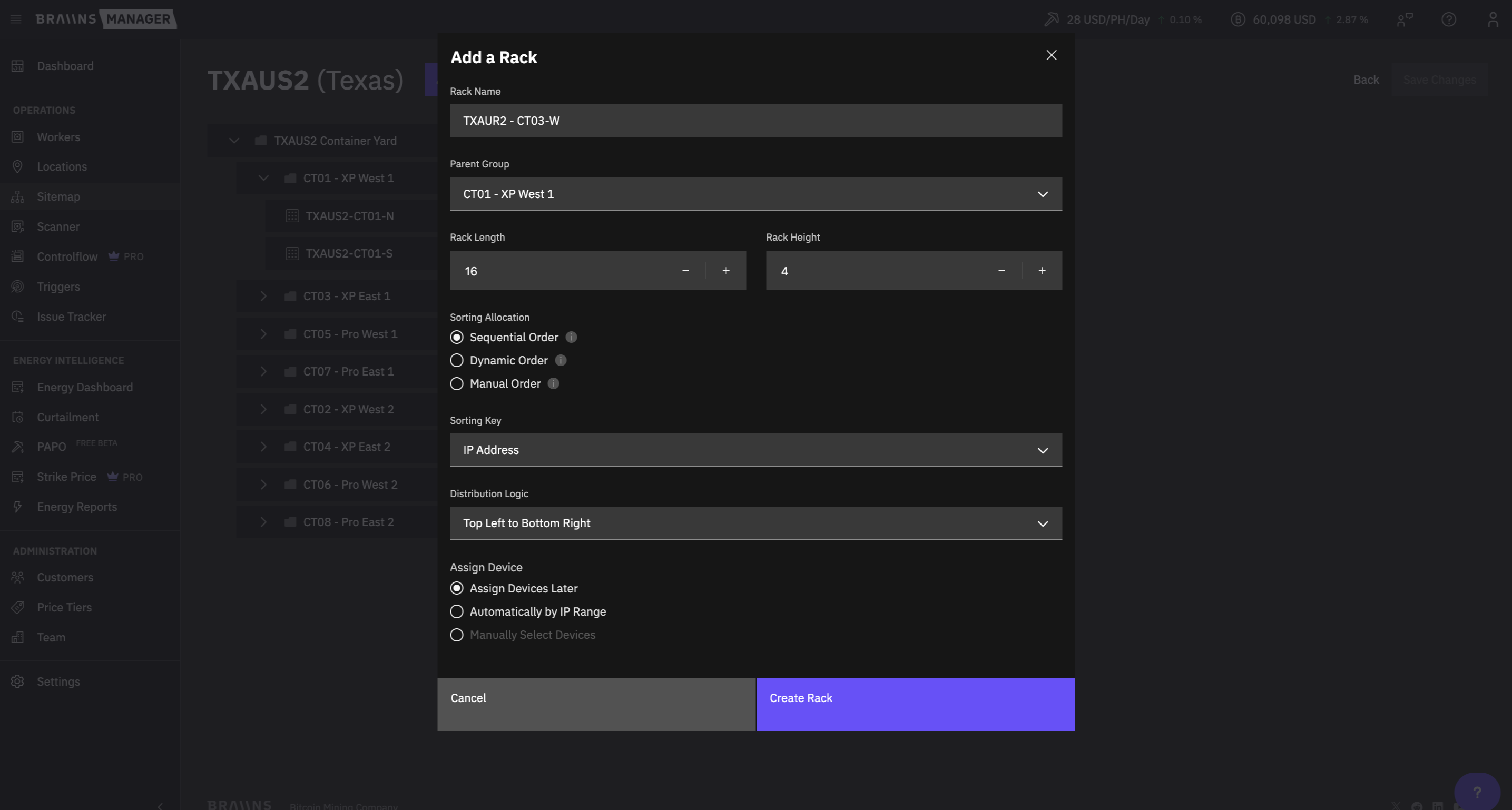
- Racks are the bottom-level entity where workers are assigned. When creating a Rack you define:
- Rack Name
- Parent Group (optional)
- Rack Size (Width and Height, each between 1 and 100)
- Slot Allocation
- Device Assignment
Naming rules
- Group and Rack names must be 1 to 64 characters.
- A Group name must be unique within its parent Group (or at root level).
- A Rack name must be unique across the entire Location, not just within its parent Group.
Slot Allocation
- Sorting Key: IP address or Worker Name.
- Distribution Logic: choose placement direction (for example, Top Left to Bottom Right).
- Device Assignment: choose Assign Later, Auto By IP, or Manually Selected.
Behavior: Workers fill positions in a fixed order based on the sorting key, with placeholders reserved for missing entries. This keeps numbering consistent but may leave gaps until all workers are present.
- Sorting Key: IP address or Worker Name.
- Distribution Logic: choose placement direction.
- Empty Slots: reserve specific slot numbers as empty so the layout matches the physical rack.
- Device Assignment: choose Assign Later, Auto By IP, or Manually Selected.
Behavior: Workers fill only the active (non-empty) slot numbers, in the order defined by the sorting key and distribution direction. No placeholders are kept for missing entries.
Workers are placed by hand from the rack detail view after the rack is created. There is no sorting key, distribution direction, or automatic re-sort.
Behavior: Ideal for setups that do not follow IP or name order. Existing placements are preserved when the rack is resized; only slots that fall outside the new dimensions are dropped.
Distribution Logic
For Sequential and Dynamic allocation, choose how workers are placed:
- Top Left to Bottom Right
- Bottom Left to Top Right
- Top Right to Bottom Left
- Bottom Right to Top Left
Device Assignment
- Assign Later: Add workers at a later time. Slots stay empty on creation.
- Auto By IP: Workers whose IP matches the rack's IP ranges are assigned automatically. You define one or more IP ranges when creating or editing the rack.
- Manually Selected: Pick specific workers from a searchable Workers list.
Empty Slots
Used only by Dynamic allocation. Reserve specific slot numbers as empty so the layout reflects the real physical rack (for example, a missing shelf or a reserved spot).
Import from CSV
For large Locations, the Import Data option lets you create a Sitemap from a CSV file instead of clicking through groups and racks.
Two CSV flows are available:
- Layout CSV: Defines the group and rack hierarchy. The system validates the file (name lengths, width and height limits, duplicate names) and returns a preview with group count, rack count, and per-row error counts before anything is saved. On confirmation, all racks are created with Manual allocation and no assigned workers.
- Device CSV: Bulk-assigns workers to rack slots. Workers are matched by MAC address or IP address (the system detects which column is present). Workers not found in the system, and workers whose specified position falls outside the rack dimensions, are reported separately and skipped.
The maximum CSV upload size is 5 MB for both layout and device imports.
Organize the Sitemap
Click Organize to enter the Group Tree editor. The tree renders all groups (folder icons) and racks (rack icons) as draggable nodes in the left-side navigation.
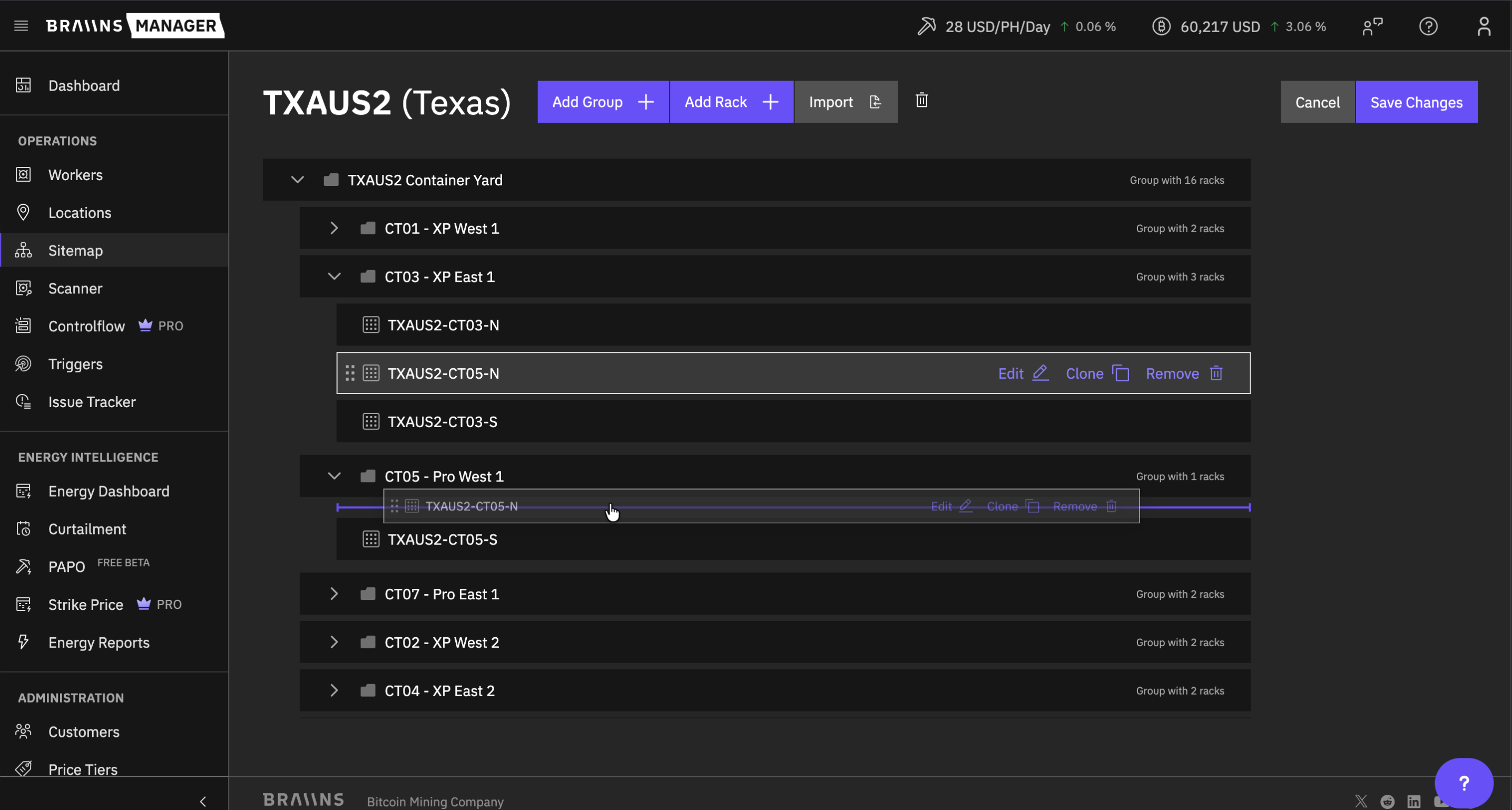
- Drag a group or rack to a new parent position. The new parent can be any group or the root of the Location.
- The system blocks the drop if a name conflict exists at the target parent level.
- Click Save Changes to persist the new order, or Cancel to discard everything.
- Deleting a group from the organizer recursively removes all child groups and racks. Deleting a rack removes its slot assignments.
When a Rack or Group is deleted, Braiins Manager notifies Controlflow so any rules that target the removed element can be invalidated.
Edit and Clone Racks
From the organizer, click Edit on a rack row to change any property (name, dimensions, allocation, IP ranges, sorting key, distribution).
Re-sort behavior on edit
- For Sequential or Dynamic racks, changing a relevant property (dimensions, sorting key, IP ranges, distribution, or allocation mode itself) clears all slot assignments and re-sorts them according to the updated rules. A confirmation message indicates whether re-sorting occurred.
- For Manual racks, resizing preserves existing worker-to-slot mappings within the new bounds. Slots outside the new bounds are dropped.
- Changing a rack from Manual to Sequential or Dynamic triggers a full re-sort.
Cloning
Select Clone on a rack or group, then provide a name, optional parent, and clone count.
- Up to 50 clones per action for racks; up to 10 for groups.
- Cloning a group copies the full sub-tree (groups and racks) but never worker assignments.
- Clones are created with Assign Later device assignment so you can stage layouts without disturbing live mappings.
- Clone names for index 2 onward receive an underscore-number suffix.
Automatic re-sort triggers
Even outside an Edit action, a re-sort is queued automatically whenever:
- A worker is added to the system.
- A worker's Location changes.
- An Agent completes a network scan.
Only racks affected by the changed IP range are re-sorted, not the entire Location. Re-sorts are processed asynchronously, so the Sitemap may briefly show stale slot positions after a scan.
Assign Workers Manually
Open a rack in the Rack View and click Edit Devices to manage slot assignments. Browse available workers (paginated and searchable by host, customer, worker name, or model) and place them into specific column/row positions on the grid.
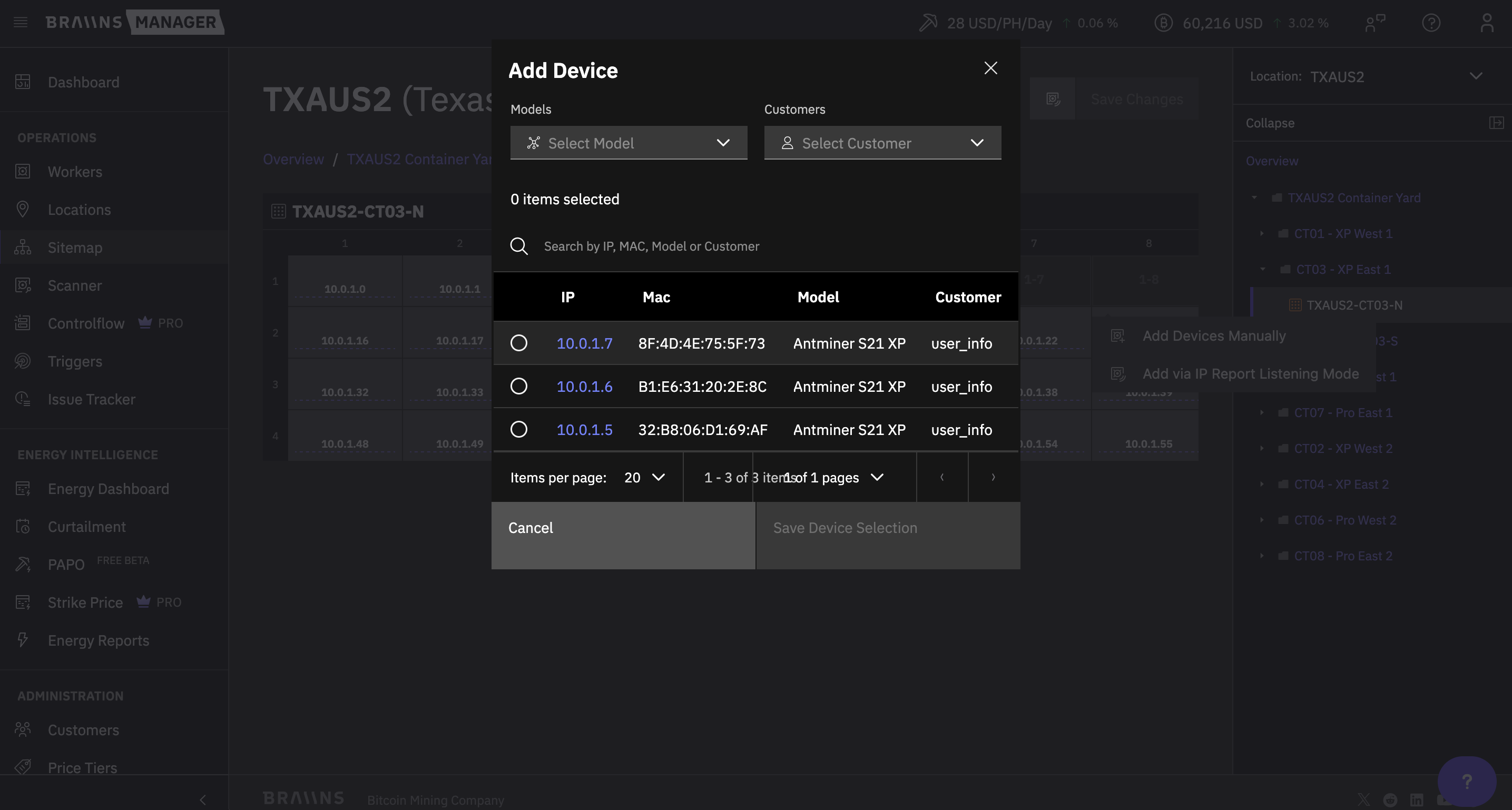
- Workers already assigned to another rack are flagged.
- The system blocks save if you try to assign the same worker to two racks at once.
Assign Workers via IP Report
When a worker's IP is unknown or has changed, you can identify it directly from the network instead of typing it in. IP Report uses the Agent to listen for a device's announcement on the local network and match it to an existing Worker record by MAC address. Two flows are available from Edit Devices:
- Single IP Report assignment: Click an empty slot, then choose Add via IP Report. The Agent listens for the next announcing device and places it into that slot.
- Bulk IP Report listening: Start a Location-wide listening session. The session ends automatically after 10 minutes of inactivity (no new device responses).
Temporary assignments made through IP Report stay pending in the editor until you click Save Changes. Cancel discards them.
IP Report requires:
- A running Agent at the Location. If the Agent is offline, the listening session returns an error immediately.
- A network path that supports UDP broadcast. The Agent and the workers must share the same subnet; broadcasts do not cross subnets.
Avalon and IceRiver miners are out of scope for IP Report and will not be matched by this flow.
Sitemap Overview Page
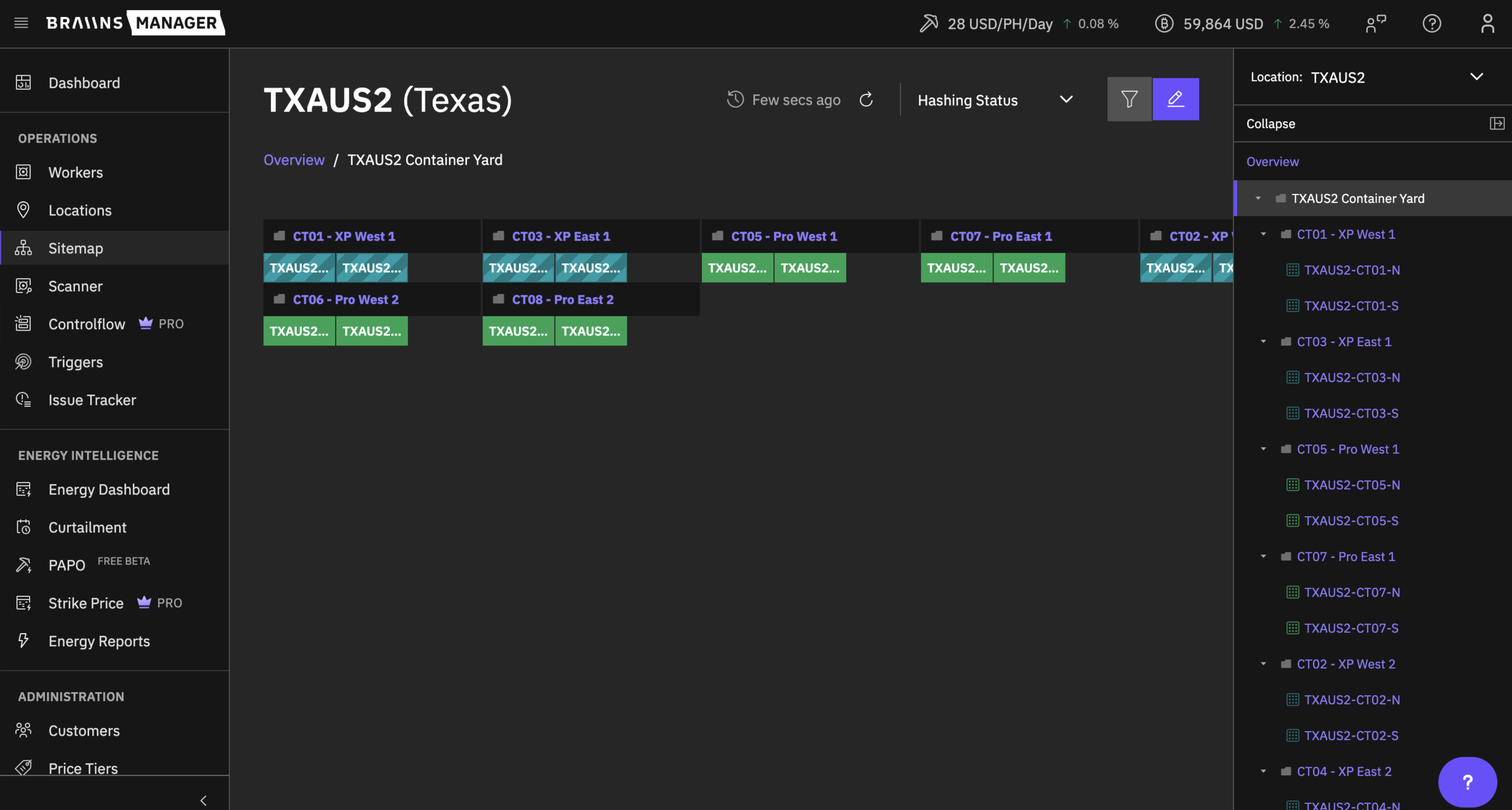
The Overview is the read view of all racks in a Location, grouped by their parent group. Each rack card shows aggregated hashrate, power, temperature, and connectivity status, color-coded for fast scanning.
Navigation
- The left-side navigation tree mirrors the group hierarchy and lets you drill into any group or rack.
- A breadcrumb at the top of the central view shows your current position and lets you traverse back up.
Filters
You can narrow the Overview by:
- Customer
- Group
- Rack
- Hashing status
- Hashrate threshold
- Power threshold
Active filters persist per Location in your browser storage, so returning to the Sitemap restores the last view you used.
Clicking a rack card opens the rack detail view with the slot grid and per-worker status. Clicking a worker in the grid navigates to that worker's detail page in Workers.
Color-Coding
The default attribute for coloring Racks and Workers is Status. Color cues let you spot operational issues or outliers at a glance. Switch the attribute on the Overview page to view Power, Hashrate, or Temperature instead.
Racks
- Green: All workers are operational and hashing.
- Grey: Workers are in curtailment, stopped, or paused.
- Yellow: Mixed statuses or underperforming devices.
- Red: Error status (for example,
DOWN,NEEDS_REPAIR). - Dark Grey: Rack is empty or unassigned.
- Green: Actual power within +/-10% of nominal.
- Yellow: Underutilized (Actual <90% of nominal).
- Blue: Overclocked (Actual > 110% of nominal).
- Grey: Curtailment, stopped, sleep, or paused.
- Dark Grey: Rack is empty or unassigned.
- Green: Actual hashrate within +/-10% of nominal.
- Yellow: Underperforming (Actual <90% of nominal).
- Blue: Overclocked (Actual > 110% of nominal).
- Dark Grey: Rack is empty or unassigned.
- Green: Average temperature <= 70 degC.
- Yellow: Temperature between 70 degC and 85 degC.
- Red: Temperature > 85 degC.
- Dark Grey: Rack is empty or unassigned.
Workers
- Green: Worker is operational and hashing.
- Yellow: Worker is in
STOPPEDorSLEEPmode. - Red: Worker is
DOWNor has errors (for example,AUTH_ERROR,UNDER_PERFORMING). - Grey: No status data (for example,
UNKNOWN,REMOVED,MAINTENANCE).
- Blue: Power exceeds +5% of nominal (overclocked).
- Green: Power within +/-5% of nominal.
- Yellow: Power below -5% of nominal (underclocked or underperforming).
- Grey: No power data available.
- Blue: Hashrate exceeds +5% of nominal.
- Green: Hashrate within +/-5% of nominal.
- Yellow: Hashrate below -5% of nominal (underperforming).
- Grey: No hashrate data available.
- Green: Maximum temperature <= 70 degC.
- Yellow: Maximum temperature between 70 degC and 85 degC.
- Red: Maximum temperature >= 85 degC.
- Grey: No temperature data available.
Delete Sitemap Structure
The Delete Sitemap Structure action removes all groups, racks, and slot assignments for a Location at once. The Location itself and its workers are untouched.
You must type the Location name to confirm. Deletion is irreversible and cascades through all nested groups and racks.
How to Use the Sitemap
- Navigate: Open the Sitemap from the left-hand menu and pick a Location.
- Create Groups and Racks: Click Add to create groups and racks, or use CSV import for large layouts.
- Organize: Use drag-and-drop to match the physical layout of your site.
- Assign Workers: Use Auto By IP, Manually Selected, or assign workers by hand from the rack detail view.
- Monitor: Use the Overview to spot overheating racks, underperforming workers, or airflow issues.
- Target: Reference groups or racks in Controlflow rules and Curtailment events to act on slices of your fleet.