Using gRPCui with Braiins OS
Introduction
grpcui is a command-line tool that lets you interact with gRPC servers via a browser.
It's sort of like Postman, but for gRPC APIs instead of REST.
In some ways, this is like an extension to grpcurl. Whereas grpcurl is a command-line interface,
grpcui provides a web/browser-based GUI. This lets you interactively construct requests to send to a gRPC server.
Installation and Setup
You can install grpcui from the source code or use precompiled binaries. We will cover Precompiled Binaries in this guide.
Installation Method: Using Precompiled Binaries
grpcui has prebuilt binaries for Linux, macOS, and Windows and you can use the prebuilt binary for your platform from the releases page.
Open the terminal app and navigate to the path that you downloaded the binary.
Move grpcui to a suitable location in your system path:
Add to PATH (if necessary)
Add the following line to the end of the file:
You can verify the installation by running the command below to print out the Help message:
Getting Started
To start grpcui, you need to provide the address of the gRPC server and the port it's listening on.
The port for the BOS Public API is 50051*.
Exploring Services
To explore services on a gRPC server, there are two primary approaches:
- Launching by using Server Reflection : This method allows you to dynamically discover available services on the server, offering a straightforward way to understand its capabilities without external dependencies.
- Launching by importing Proto Files: For more details, gRPC services can be defined and interacted with through Protocol Buffers (proto files). Importing these proto file definitions is essential for accessing the service specifications.
In the end, you choose which approach fits better for your use cases, but we will continue to use Refection Support to interact with the Braiins OS Public API for the rest of the guide.
Launching grpcui For the First Time
Launching grpcui by Using Server Reflection
The normal workflow is to launch grpcui against a running gRPC service (Reflection Support):
Sample Command:
Replace <MINER_IP> with the IP address of your miner.
This starts a web server and opens an interactive UI in your browser for the gRPC service on http://127.0.0.1:12345.
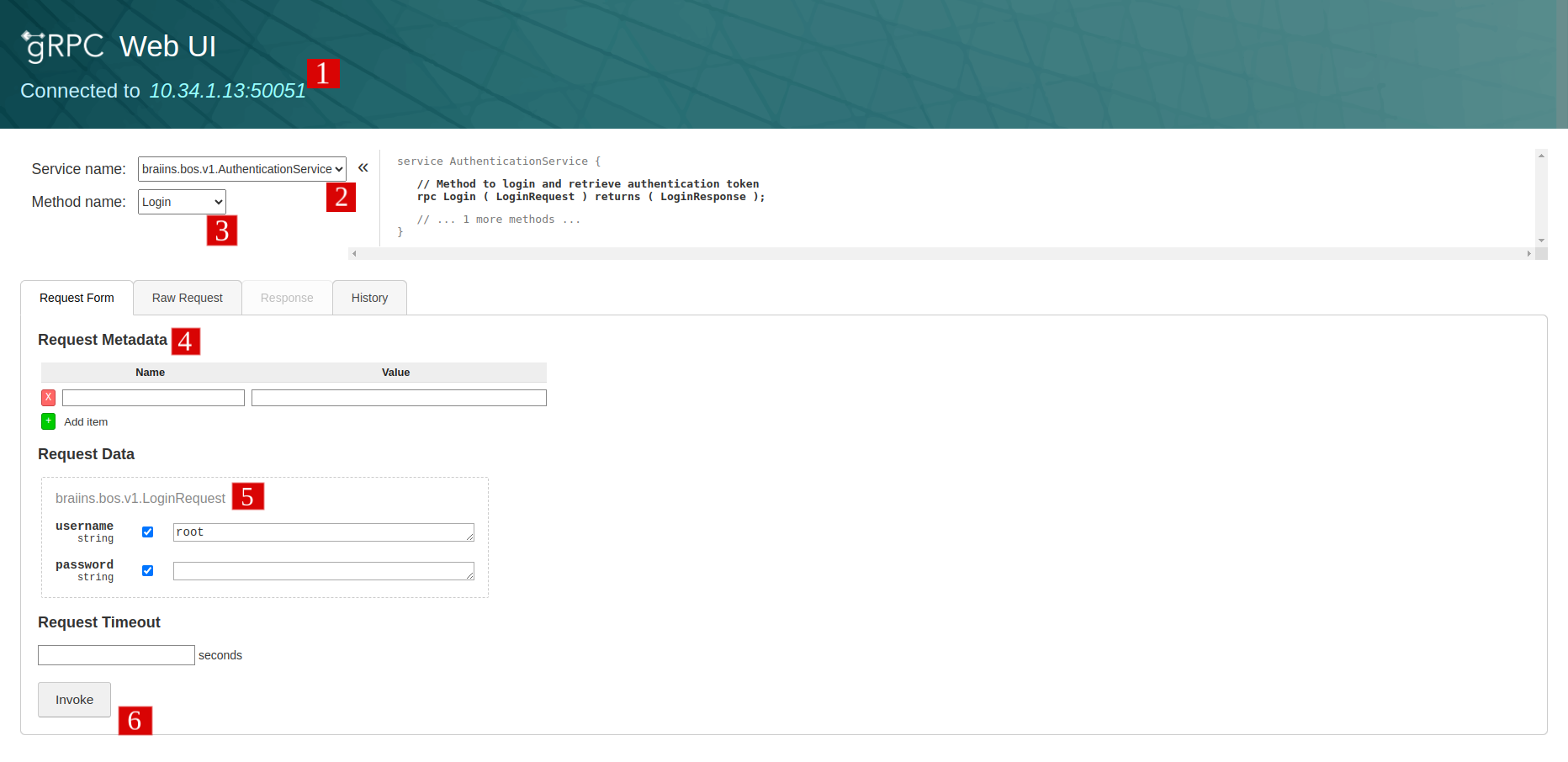
- The miner IP address and port that you entered the command.
- A dropdown list of available services.
- A dropdown list of available methods for the selected service.
- The Request Metadata form for Authorization token.
- The Request Data form for the selected method.
- The Invoke button to send the request.
Launching grpcui by Importing Proto Files
If you wish to work with a specific service or need to interact with a service that requires a specific proto file, you can import the proto file directly.
You can download the proto files from the Braiins OS Public API repository and use them with grpcui.
Here we are using the -proto option to specify proto file's path and -import-path option to specify the path to the directory containing the proto files.
Suppose you have the miner.proto file located in the ./bos-plus-api/proto/bos/v1/ directory. Remember to use the -proto flag to specify the path to the proto file, especially if there are any dependencies on the proto file.
Sample Command:
Setting up an Entry point for grpcui (Obtaining a Session Token)
To make it easier and automated to fetch the Token and set it as metadata on every request on your workspace, you can follow the steps below:
Step 1: Create an Entry Point
Create a new text file, copy and paste the code below into it, and save it as "start.sh" in your desired location.
Give it execution permissions:
Step 2: Run the Entry Point
Run the script:
It will ask for the IP address of the miner:
So enter any miner IP that you want to use as a reflection server and hit Enter,
then it will open the grpcui web UI with the provided IP address on http://127.0.0.1:12345
with preset Authorization token and ready to use.
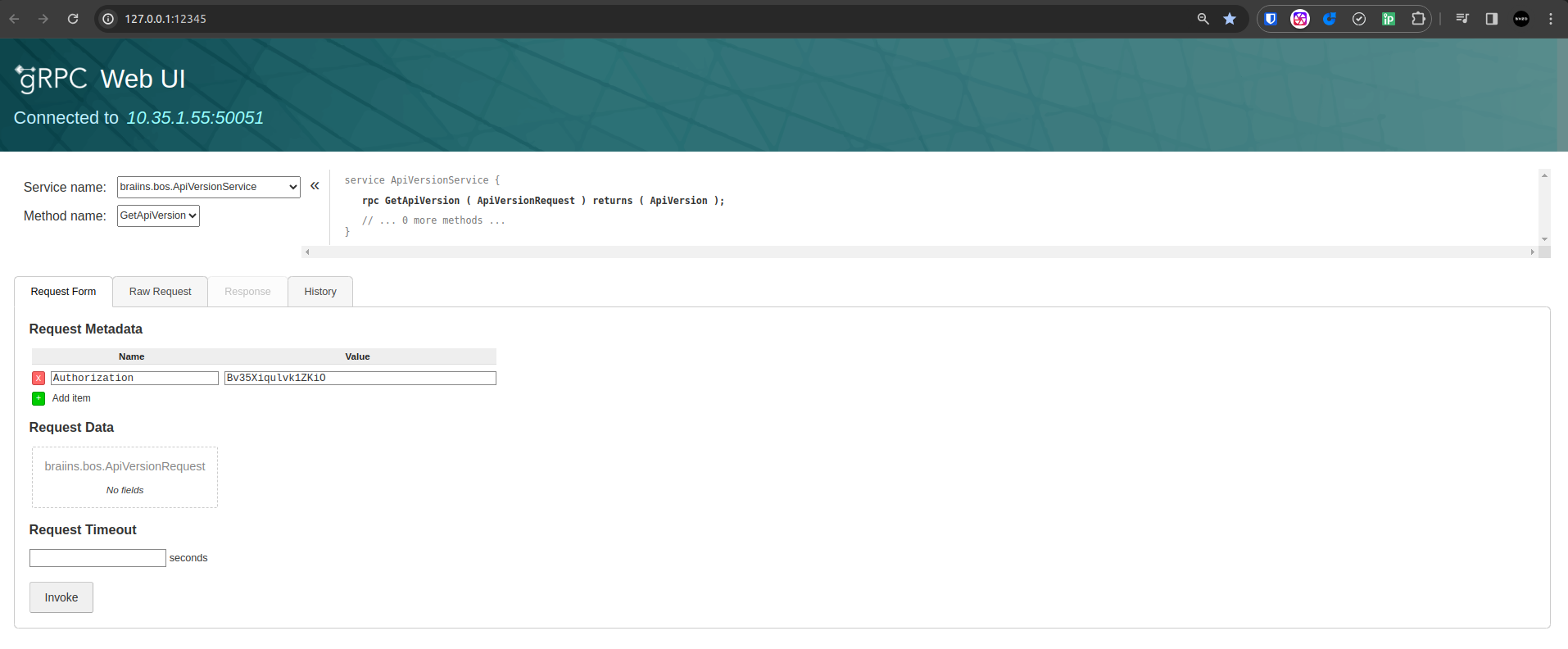
Making Authenticated API Calls
Your requests are authenticated since the ./start.sh is running and the session token is valid, so you can select any services and relative methods from the web UI. (Note: If the token is expired, you can stop the script and run again).
Examples
Get Request:
Mostly used for retrieving information, the Get request is a common operation in API interactions. Here are a few examples of Get requests using the Braiins OS Public API.
Get Tuner State
- Select
PerformanceServicefrom the Service dropdown list. - Select the
GetTunerStatefrom the Method dropdown list. - Click on the Invoke button to get the response.
Get Miner Details
- Select
MinerServicefrom the Service dropdown list. - Select the
GetMinerDetailsfrom the Method dropdown list. - Click on the Invoke button to get the response.
Set Request:
The Set request is used to modify configurations or settings on the miner.
Set Power Target
- Select
PerformanceServicefrom the Service dropdown list. - Select the
SetPowerTargetfrom the Method dropdown list. - Fill out the Request Data form, for this case you need to specify e.g.:
save_action:SAVE_ACTION_SAVE_AND_APPLYpower_target(w):1850
- Click on the Invoke button to get the response.
Save Action Field Explanation
The SaveAction field specifies how changes made via API calls should be handled regarding the miner's configuration:
SAVE_ACTION_UNSPECIFIED(0): Default behavior without explicit save action.SAVE_ACTION_SAVE(1): Saves changes without applying them immediately.SAVE_ACTION_SAVE_AND_APPLY(2): Saves and applies changes right away.SAVE_ACTION_SAVE_AND_FORCE_APPLY(3): Forces immediate application of changes, bypassing any normal checks.
Stream Request:
The Stream request is used to receive continuous updates or data from the miner. e.g., GetMinerStatus method.
grpcui supports all kinds of RPC methods, including streaming methods. However, it requires you to construct the entire stream of request messages all at once and then renders the entire resulting stream of response messages all at once. This means that you can't interact with bidirectional streams the way that grpcurl can.
Get Miner Status
- Select
MinerServicefrom the Service dropdown list. - Select the
GetMinerStatusfrom the Method dropdown list. - Set Request Timeout in seconds, e.g.,
1. - Click on the Invoke button to get the response.
Footnotes
Port 50051
BOS Public API uses port number 50051 and it's open on Braiins OS, Only if you are using Braiins OS 23.03 you need to open API port manually ssh root@MINER_IP 'iptables -A INPUT -p tcp --dport 50051 -j ACCEPT'.
External Resources
- grpcui GitHub: This is the official GitHub repository for
grpcui. It contains all the source code, along with detailed documentation on how to install, use, and contribute togrpcui. The README file provides extensive examples and explanations of all features. - gRPC Official Site: The official gRPC website has comprehensive documentation on gRPC concepts, tutorials for various programming languages, and best practices. While this site focuses more on gRPC itself, the information is highly relevant to users of
grpcuias it helps in understanding the protocols and methods thatgrpcuiinteracts with. - Protocol Buffers GitHub: Since
grpcuiworks with gRPC services that use protocol buffers, understanding how to define and compile.protofiles is crucial. This link to the Protocol Buffers' GitHub repository offers resources on proto syntax, usage, and compilation methods. hat allows for making gRPC calls from terminal environments. Understanding grpcurl can provide additional command-line capabilities that complement the GUI features of grpcui. - grpcurl GitHub:
grpcurlis a command-line counterpart togrpcuithat allows for making gRPC calls from terminal environments. Understandinggrpcurlcan provide additional command-line capabilities that complement the GUI features ofgrpcui.