Configuration
Pool and Workername settings
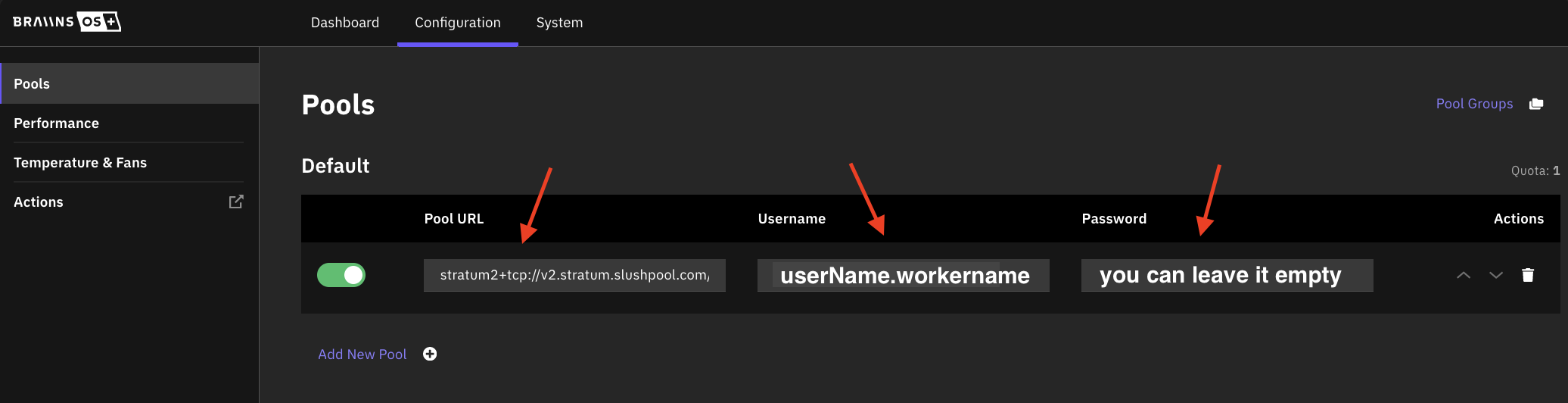
Navigate to Top menu > Configuration > Pools
Split hashrate with the pool groups
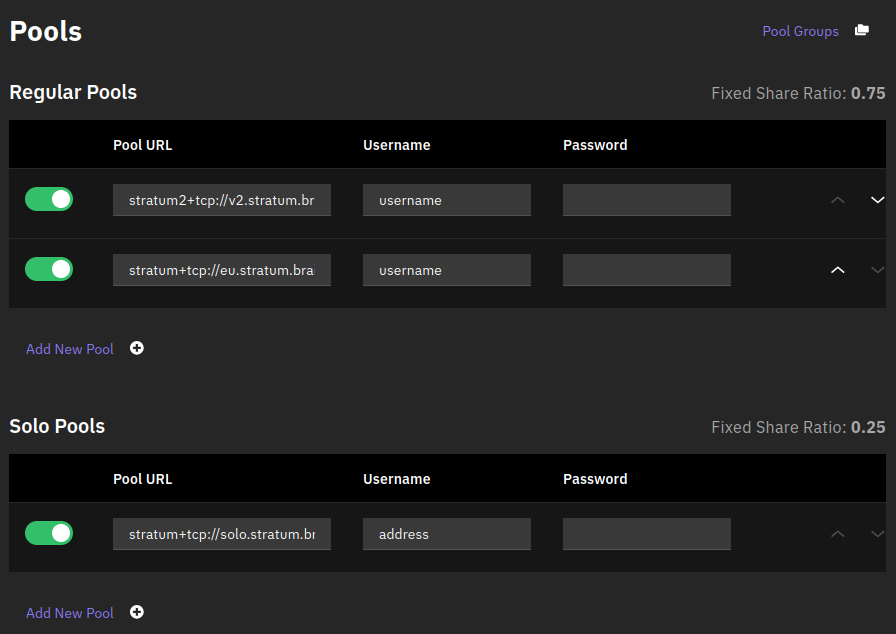
Pool groups allow you to split hashrate into multiple groups where each receives defined portion of hashrate. Each group has its own pools configured. There are two methods you can use - quota or fixed share ratio.
The example below shows two pool groups where the first one receives 75% of the hashrate and has two pools configured, while the second group receives 25% of the hashrate and has only one pool configured.
When all pools in any group become unavailable, the hashrate split is recalculated automatically to exclude the non-working group.
Quota
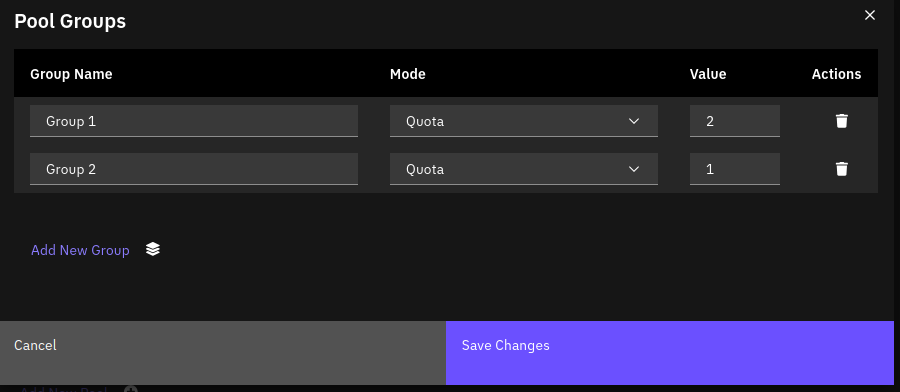
Quota will split hashrate according to the ratio of each quota to the sum of all quotas. In the example below, group 1 will receive 2 parts of the hashrate (2/3), while group 2 will receive only 1 part of the hashrate (1/3).
Fixed share ratio
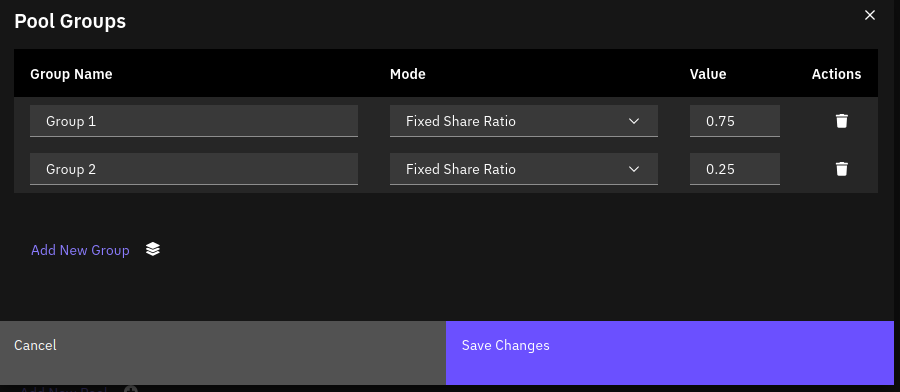
Fixed share ratio splits the work according to specified percentages. The total of assigned values must equal 100%; otherwise, an error is returned.
Autotuning configuration
Autotuning is available for Power Target or Hashrate Target.
- The Power target refers to a predefined power consumption level or limit that you want your miner to operate within.
- The Hashrate target refers to the desired level of computational power or mining efficiency that you want to achieve with your mining hardware.
- Navigate to Configuration → Performance and click on "Enable Autotuning"
- Set the Power/Hashrate Target according to your requirements
- The progress of the autotuning can be viewed in the Dashboard under "Tuner status"
- Once the Tuner Status shows "Stable," your miner is autotuned for your Power/Hashrate target
You can use autotuning to adjust your miner for multiple Power/Hashrate target profiles.
If Dynamic Performance Scaling is enabled due to reaching Hot temperature, Power/Hashrate target will be decreased to the values defined in Dynamic Performance Scaling. If you already have tuner profiles for reduced values, you will not need to wait for a new autotuning process.
Tuner reset
Based on the device control board, the command is different via BOS Toolbox > Command tab:
Zynq/Xilinx devices
BBB/AML devices
Custom DNS setting
To add a custom DNS to your device network settings, please navigate to Top menu > System > Network
If you are using DHCP Client Protocol
If you have DHCP Client protocol > Click on Settings > Uncheck the Use DNS servers advertised by peer and add a custom DNS like 8.8.8.8 or 1.1.1.1 in the Use custom DNS servers field.
- Only for Zynq control board, custom DHCP does not work for BBB and AMlogic
If you are using Static IP Protocol
If you have Static address protocol > set the Use custom DNS servers by adding 8.8.8.8 or 1.1.1.1 in the field.
Keep in mind after these changes Restart BOSminer: Top right menu > Quick Action > Restart BOSminer
Cooling Control
Cooling controls allow to choose from three different modes: automatic, manual, and immersion. In all modes you have the possibility to control three levels of temperatures:
- Target Temperature is a temperature miner will target by regulating fans.
- Hot Temperature triggers Dynamic Performance Scaling (if enabled).
- Dangerous Temperature will stop mining. This is useful if there is a cooling failure or extreme temperature change.
We suggest a 10° separation between those values, so an example would be 60°, 70° and 80° if your setup maintains 60° average temperature.
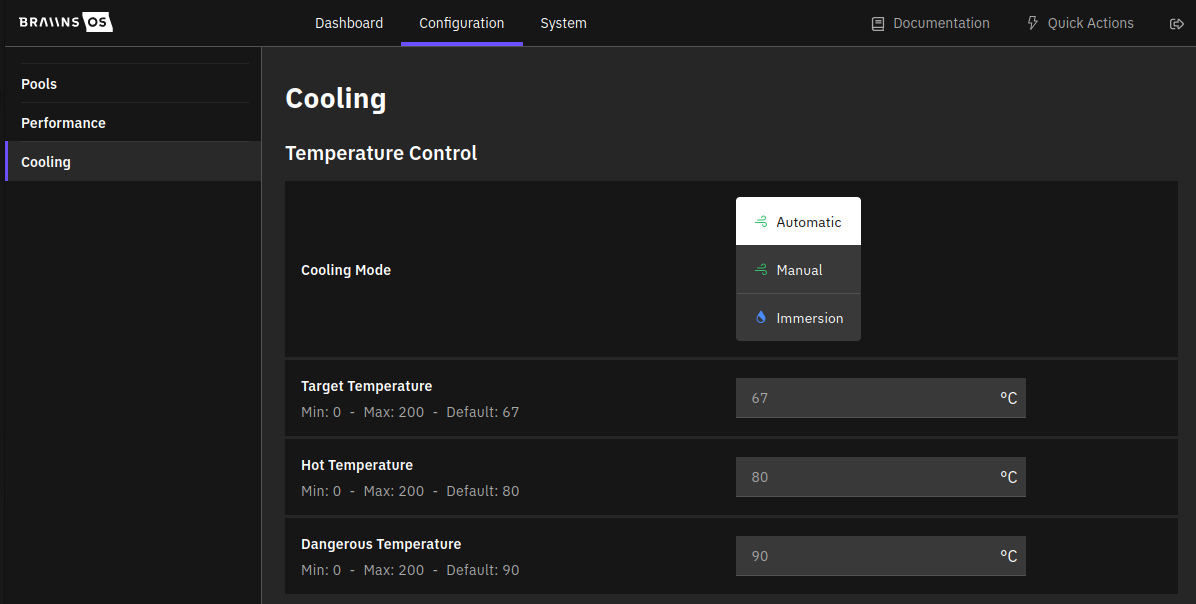
Default (Auto)
In default mode, fans are controlled automatically by the software to reach target temperature. You can also set custom minimum and maximum speed range for the fans.
Immersion
Immersion mode will disable all fan setting controls and only the temperature setting will be available. Make sure to use the setup only when miners are in immersion.
Manual
In manual mode you can choose fixed speed of fans and whether to require check for present fans. Usage of the manual mode is generally not recommended.
Dynamic Performance Scaling
DPS is an adaptive temperature control feature. Documentation is available in Dynamic Performance Scaling
Support and contact
Have questions? Our dev and support teams are always available to help.
Join our Telegram group:
You can also send a VIP request to our support team.