Trading Interface
Market View
The Market View is the main dashboard displaying real-time market data. It provides an overview of the current hashrate market without requiring authentication.
Key components of the Market View:
- Header Bar: Displays current BTC price, hashprice, and your balance (when logged in). Contains currency switcher for your convenience.
- Market Statistics: Current market metrics
- Solo Tiles: Quick link to try your luck and find your block
- Order Book: List of bids and asks aggregated to price levels
- Price Chart: Historical price movements in candlestick format

Order Book
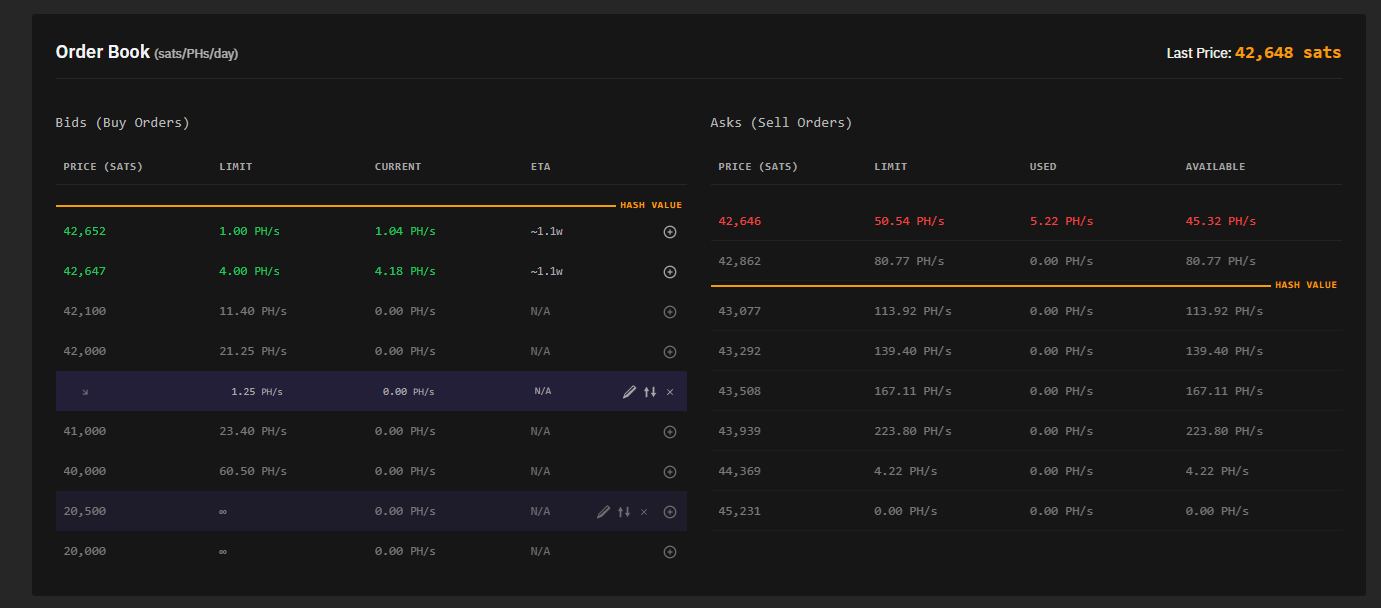
The order book displays all active buy orders (bids) and sell orders (asks) in the market.
Understanding the Order Book
Order Book Features
- Price Levels: Orders are grouped by price level
- Real-time Updates: The order book refreshes automatically every 2 seconds as orders are placed and filled
- Individual bids: Logged-in users will see their individual bids and quick action icons. Bids are displayed either as sub-rows when the price is shared with others, or as a highlighted row if there is only one bid at that price
- Bid actions:
- Place overbid: Create a new bid with a price higher than the current row
- Edit: Edit the bid (same action as from Orders view)
- Move Bid: Quick update of bid price — overbid the next higher, overbid the next lower, or overbid the order with the lowest price currently receiving hashrate. Note: there is a limit on price decreases (1 change every 10 minutes)
- Cancel: Cancel the bid
Price Charts
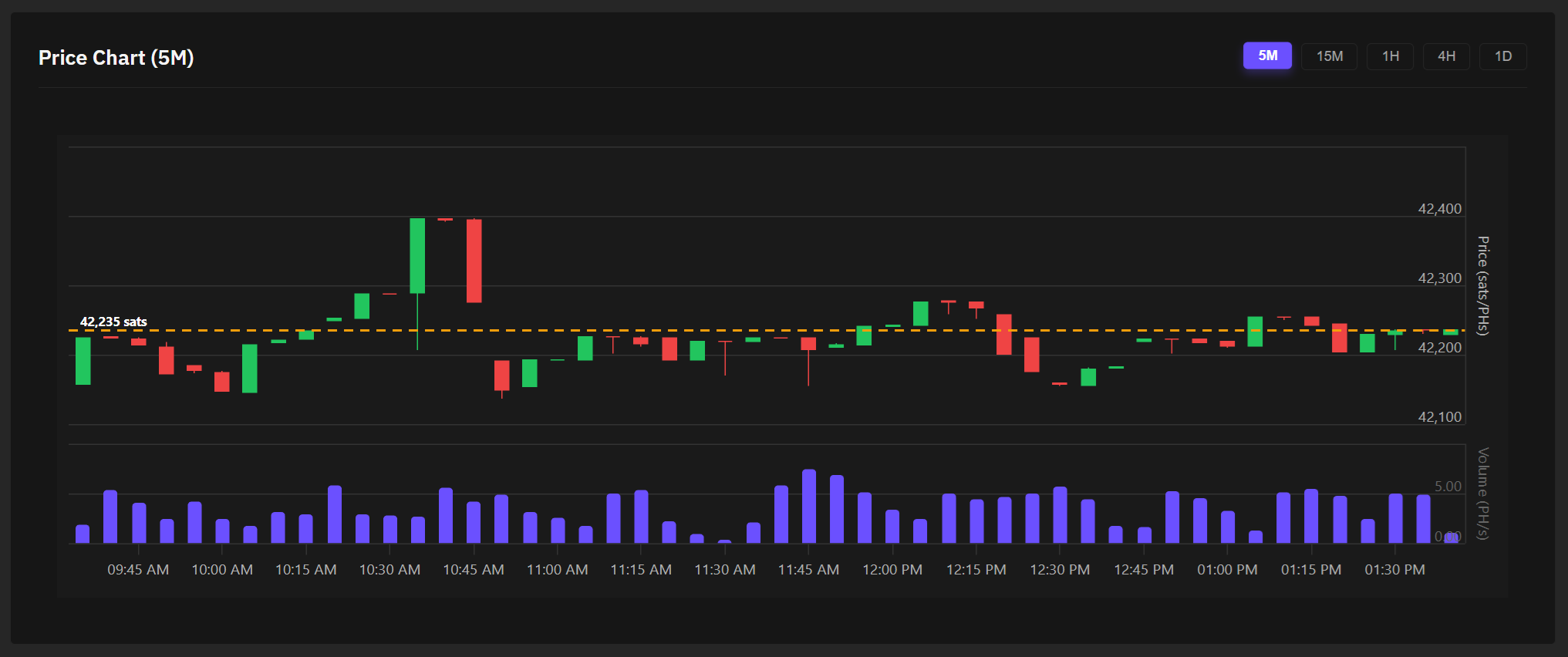
The trading interface includes interactive price charts for market analysis.
Chart Features
- Candlestick Display: OHLCV (Open, High, Low, Close) data visualization
- Open - price at the start of the interval
- High - highest price during the interval
- Low - lowest price during the interval
- Close - price at the end of the interval
- Time Intervals: Select different time periods for analysis
- Volume Bars: Trading volume displayed below the price chart
Reading the Chart
- Green Candles: Price increased during the period (close > open)
- Red Candles: Price decreased during the period (close < open)
- Wicks: Show the high and low prices during the period
- Volume: Height of bars indicates trading activity
Orders View
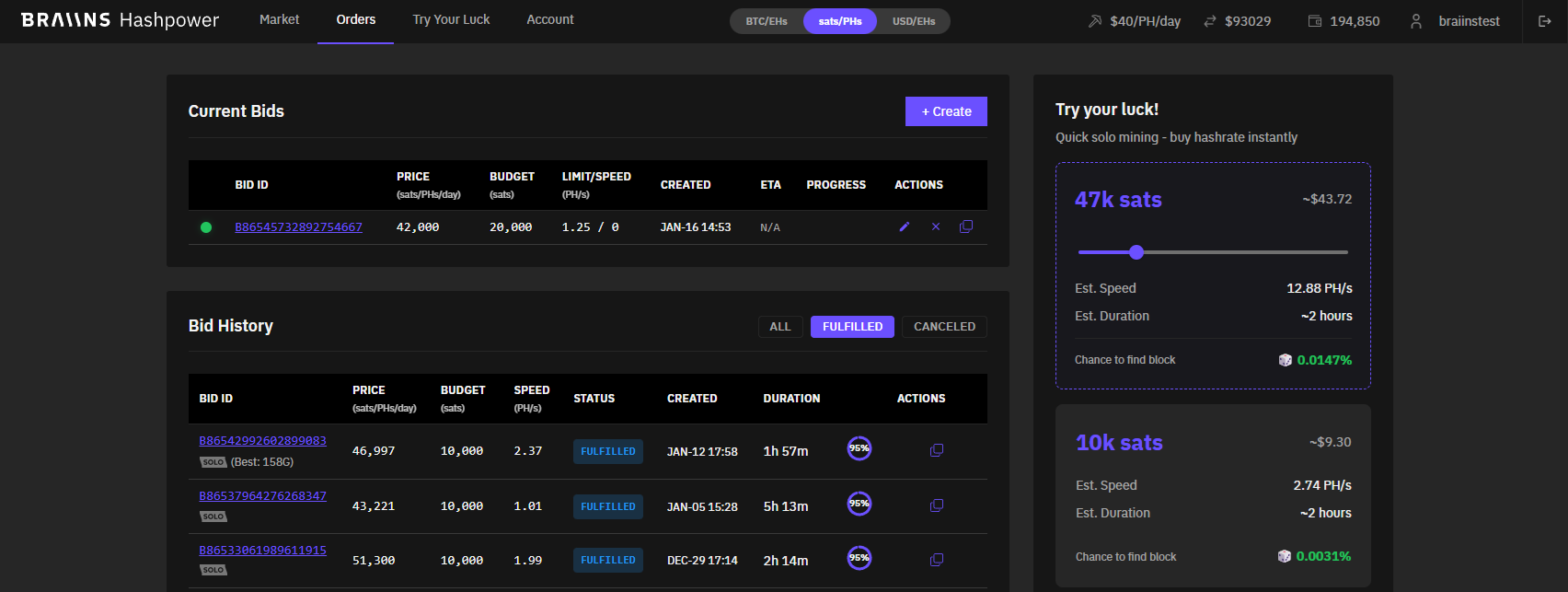
The Orders View is where you create and manage your bids. It requires authentication.
Creating Bids
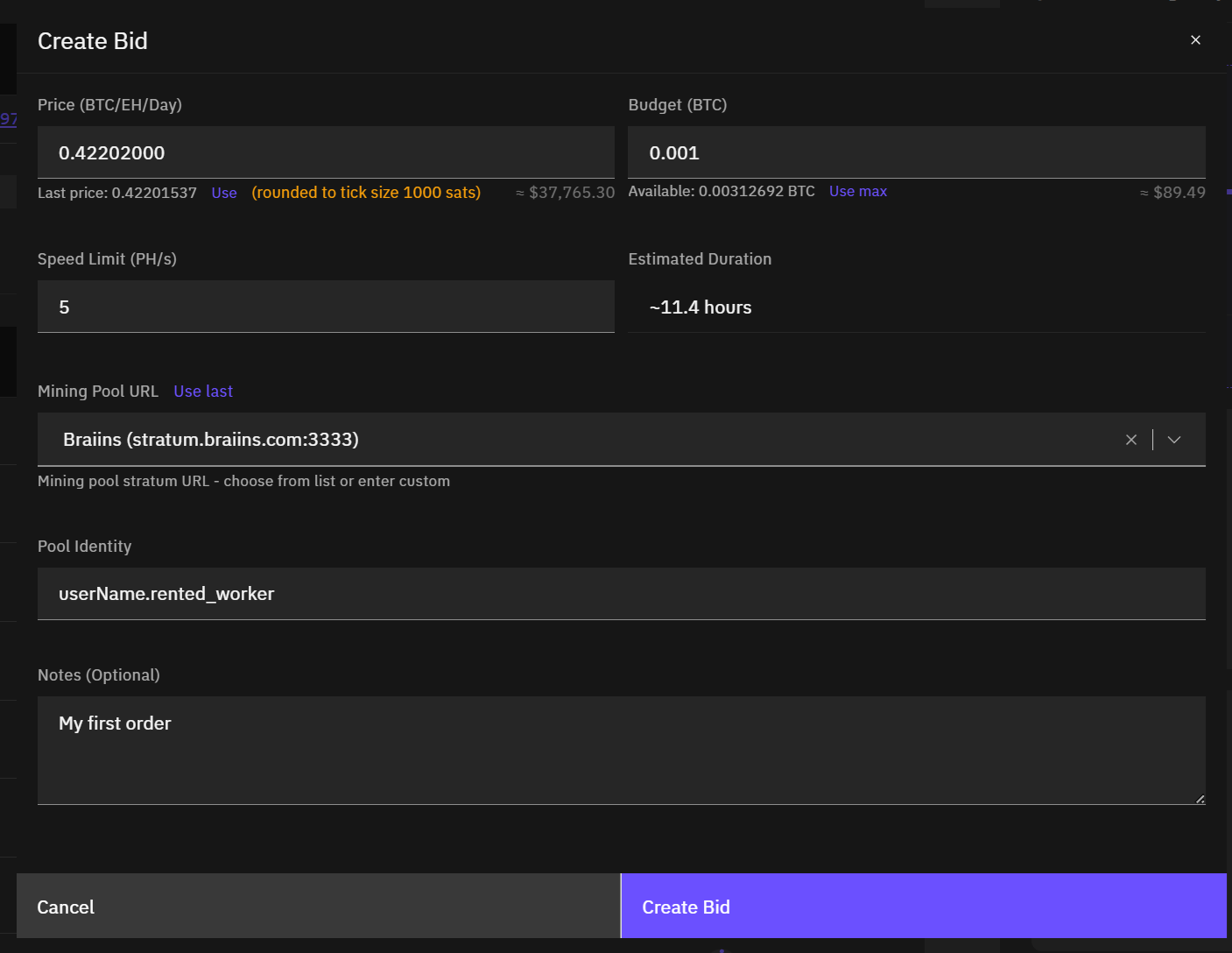
To create a bid for hashrate:
Bid Parameters
Bid Creation Process
- Click Create Bid in the Account View
- Fill in the bid parameters (use the quick links for faster filling)
- Review the USD conversion values displayed inline
- The system validates your pool URL connectivity
- Confirm the bid via Telegram 2FA
- Your bid appears in the order book
Price values are automatically rounded to the market's tick size. You'll be notified if your entered price is adjusted.
Pool Validation
When creating a bid, the platform validates your pool URL by:
- Testing Stratum connection to the specified pool
- Checking protocol compatibility (
extranonce2_size>= 7 required) - Displaying validation results before bid submission
Listing Bids
Current Bids
List of bids in Created, Active, Paused, or Pending Cancel status. Shows:
- Bid ID — unique bid identifier
- Optional SOLO identifier (when mining to Braiins Solo) and best share found
- Price — price user is willing to pay for a unit of hashrate
- Budget — amount user is willing to spend
- Limit/Speed — defined speed limit / actual speed of the delivery
- Created — when the bid was created
- ETA — estimate of remaining duration calculated from price, current speed, and remaining budget
- Progress — percentage of budget already spent on delivered hashrate
- Actions — quick actions in context of the selected bid
Bid History
List of bids in Fulfilled or Canceled status. Shows the same attributes as Current Bids, except:
- Bid ID — unique bid identifier
- Optional SOLO identifier (when mining to Braiins Solo) and best share found
- Price — price user is willing to pay for a unit of hashrate
- Budget — amount user is willing to spend
- Speed — average speed throughout the duration of the bid
- Status — terminal status of the bid
- Created — when the bid was created
- Duration — time difference between terminal status (Fulfilled or Canceled) and Created status
- Progress — how much of the budget was spent. Note: even a fulfilled bid can show e.g. 95% as the remaining funds are too small to be reasonably spent
- Actions — quick actions in context of the selected bid
Managing Bids
Bid Quick Actions
From the order book or your bids list, you can perform quick actions:
| Icon | Action | Description | Available in |
|---|---|---|---|
 | Edit | Modify price, speed limit, or increase budget of an existing bid | Market (Order Book), Orders (Current Bids) |
 | Move | Quickly update price based on surrounding bids | Market (Order Book) |
 | Cancel | Cancel the bid | Market (Order Book), Orders (Current Bids) |
 | Place Overbid | Place a bid one tick higher than the selected row | Market (Order Book) |
 | Copy | Duplicate the bid configuration to create a new bid | Orders (Current Bids, Bid History) |
Bid Statuses
- Created: Bid was created and is waiting for activation
- Active: Bid is ready for the matching algorithm; once matched, it will receive hashrate
- Paused: Bid is paused and cannot receive hashrate (usually due to target pool error)
- Pending Cancel: Cancellation requested, waiting for end of hashrate delivery and financial settlement
- Fulfilled: Bid has been completely filled
- Canceled: Bid was canceled before completion
Bid Details
For active and historical bids, you can view:
- Speed Chart: Visualization of hashrate delivery over time, including rejected hashrate
- Basic information: Current status, timestamps
- Hashrate: All hashrate-related data, including accepted and rejected shares
- Financials: All finance-related data, including spent and remaining budget
- History: Status history. Bold text marks attributes that changed from the previous status.
Currency Display Options
The platform supports three currency display modes, accessible via the toggle in the header:
Your currency preference is saved and persists across sessions. Order creation and update mixes pricing in BTC/EHs and speed in PH/s. USD prices are for reference only.