Troubleshooting
Overview
This guide covers common issues you may encounter when using Braiins Manager and how to resolve them.
1. Agent Not Appearing Online
-
Ensure the Agent is running. Go to the server where the Agent is installed and verify it is online. You can do this by either checking the status in the Agent UI (see image below),
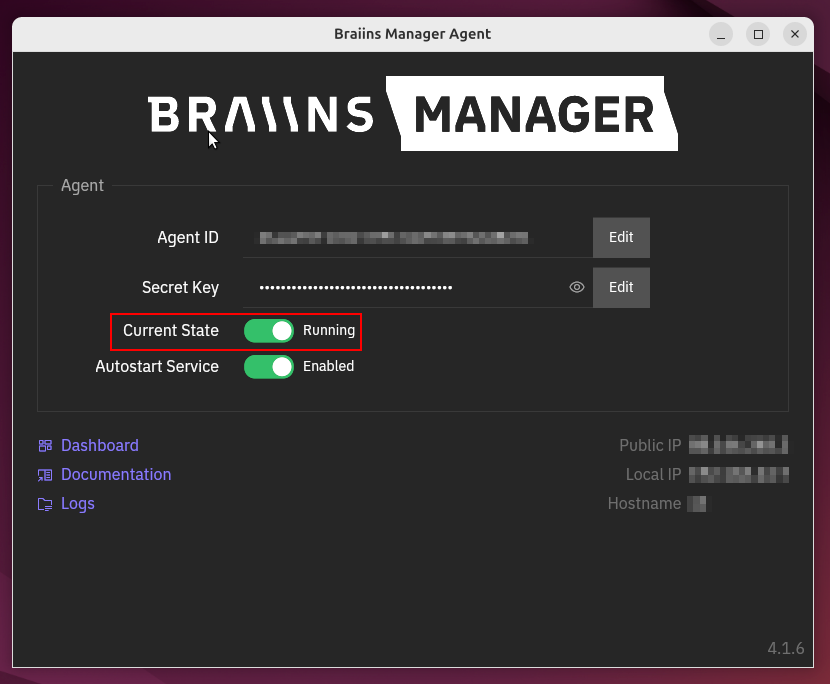
or by running the following command:
-
Check network connectivity and firewall settings.
-
Download and review Agent logs. For instructions, see this guide.
- Check network connectivity and firewall settings.
- Download and review Agent logs. For instructions, see this guide.
2. Scanner Troubleshooting
Miners Not Detected
- Confirm that the correct IP range and credentials are configured.
- Ensure miners are on the same network as the agent.
- Check for firewall restrictions.
Scanner Resync
- Go to Scanner History and trigger a resync if needed.
3. Performance Troubleshooting
Underperforming Miners
- Monitor miner metrics in the monitoring section.
- Ensure miners are not overheating, and verify hashrate stability.
Network Latency
- Check for network latency issues that may impact miner performance.
4. Curtailment Issues
Curtailment Not Functioning
- Verify that your curtailment settings are correctly configured.
- Ensure integration with Curtailment Service Providers (CSPs) is active.
- Check logs for error messages related to curtailment events.
5. Worker Issues
To troubleshoot miner issues, collect the miner logs and review them to identify the root cause.
Collect Logs
To troubleshoot miner issues, collect the miner logs and review them to identify the root cause.
- Open Workers and select the miner you want to diagnose.
- Open the System menu and click Collect Device Logs.
- Confirm the action and wait for the collection to finish (it may take around 1 minute).
This action is available only for Braiins OS and Antminer Stock devices connected via the Braiins Manager Agent version 4.6.0 and newer.
Download Logs
- Go to the worker’s Logs section.
- Open the Collected Device Logs tab.
- Download the latest archive from the table.
- Logs are kept for up to 7 days. If the archive is expired, collect a new one.
- If you plan to contact Braiins Support, include the downloaded archive with your ticket.
6. Additional Support
For further assistance:
- Visit the Support & Contact page.
- Submit a ticket via our Help Desk.
- Join our community on Telegram for real-time help.