Introduction
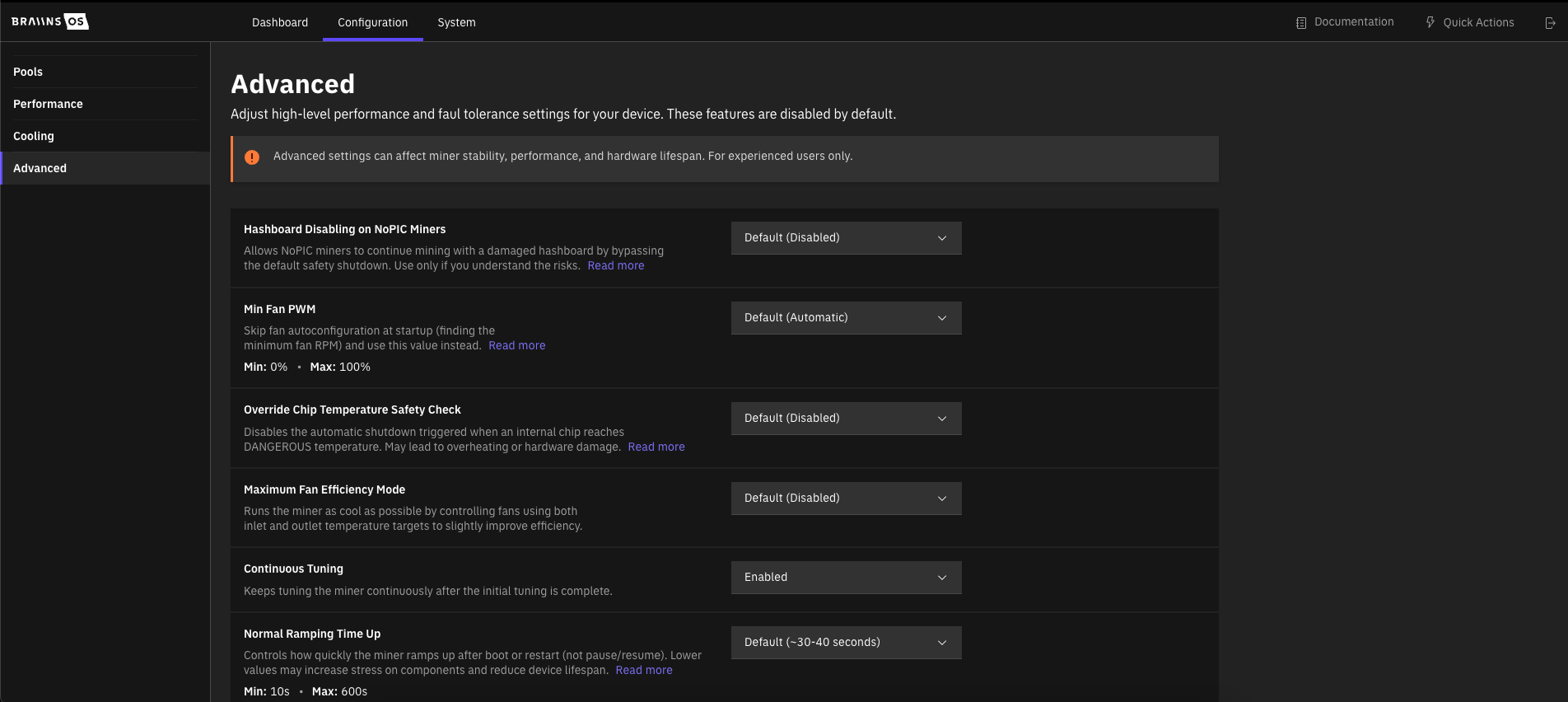
As of version 26.01 we have introduced a graphical user interface in Advanced section of the Configuration for all features available through the experimental.toml file.
In versions 24.09 to 25.11 these feature were only available via creating an experimental configuration file on the miner. This file allows customers to test experimental features and provide feedback before these features are rolled out to all Braiins OS components.
Advanced section in Graphical User Interface (GUI)
All experimental features are available and can be configured in Braiins OS GUI. Make sure to save the changes made on this page by clicking the Save button on the bottom of the page.
File Creation
To begin, you'll need to create the /etc/bosminer-experimental.toml file on the miner's filesystem. You can either generate the file directly on the miner or create it locally and transfer it to the miner using the scp command.
SSH into your miner and create the configuration file:
Any non-specified setting will assume its default value. Look up Loading experimental config in the BOSminer log to confirm that the settings were successfully applied.
To reset all experimental settings to defaults, delete the file:
Configuration File Behavior
We’ve also introduced several safeguards to ensure safe operations while using the experimental configuration file.
- Changes are monitored and applied dynamically every 10 seconds, so there is no need to restart BOSminer
- Unrecognized options are ignored without disruption
- Invalid values automatically revert to default settings
- Deleting the file will also revert the configuration to default settings
Features
Set MIN/MAX Fan Speed
This feature allows users to adjust the range of fan PWM settings. It is only active when the miner is automatically controlling fan speed based on temperature.
Feature Behavior
- The cooling mode needs to be “Auto”
- Does not have an effect when the miner is paused
- Does not have an effect during fan detection (fans are detected during initial sequence to check if they are healthy)
- Out-of-range values are overridden with the default values
- If max_fan_speed is lower than min_fan_speed, the maximum speed is set to 100%
Configuration Options
This experimental feature works only for firmware versions between 24.08.1 and 25.01. In the 25.01 version the feature was stabilized, introduced to GUI & API, and removed from the experimental list.
Enable Hashboard Disabling on NOPIC Miners
This experimental feature lets your NOPIC miner keep running even if one of its hashboards is damaged. Normally, when a hashboard gets damaged, Braiins OS stops all mining to prevent further issues. However, with this feature, you can bypass that safety mechanism.
The term “NOPIC” refers to miners that don’t have a controller to regulate communication between the hashboards. Without this controller, it’s not possible to adjust or control the voltage or current flowing through the miner. This is why, by default, when a hashboard is damaged, it’s considered safer to stop mining completely. Even with a damaged hashboard, electricity would still be flowing through the miner, which could lead to more problems if not carefully managed.
You can read more on this topic on our blog!
Configuration options
To disable, simply use false or remove the line.
This experimental feature was introduced in the 24.09 version
Continuous Tuning
Turning this option on enables the tuning process to run on the miner continuously, ensuring the best possible efficiency in changing environment.
Configuration Options
Possible values are true or false
This experimental feature was introduced in the 26.01 version
Override internal chip temperature sensor check
Besides the regular dangerous temperature limit, Braiins OS also includes a built-in safety check for Antminers with internal chip temperature sensors. If any chip hits 110 °C, the miner will pause mining automatically, just like it would with the DANGEROUS temperature. This limit is hard-coded, but with this update, you can now choose to turn this check on or off.
Configuration Options
Possible values are true or false
This experimental feature was introduced in the 25.03 version
Set minimal fan PWM
This feature lets you set the minimum PWM at which your fans physically start spinning. It is useful for aftermarket fans or fans that the Braiins OS algorithm could not properly identify during initialization.
Configuration Options
The possible range is 0 - 100
This experimental feature was introduced in the 25.03 version
Enable Rambo mode
This experimental feature lets your miner keep running even in case of minor hardware issues. Normally, when hardware has issues (e.g., not all chips are responsive), Braiins OS stops all mining to prevent further damage. However, with this feature, you can bypass that safety mechanism.
Rambo mode will ignore errors related to incorrect chip revisions, incorrect chip count, as well as voltage checks. Using this mode can lead to additional hardware damage and should be used only selectively and with enhanced operational control.
Configuration options
Possible values are 0 - disabled, 1 - cautious, 2 - maximum. It is recommended to start with 1.
To disable, use rambo_mode=0 or remove the line.
This experimental feature was introduced in the 25.07 version
Custom ramp-up and ramp-down time
This experimental feature lets your miner ramp up or ramp down over a different time period. Normally, during standard ramp-up or ramp-down scenarios, the miner will reach the target configuration in approximately 30-40 seconds.
Note that this experimental configuration does NOT affect ramp-up and ramp-down of PAUSE/RESUME commands. It only affects other scenarios such as starting on boot, restart, or graceful shutdown.
Lowering these values can impact the lifespan of the device.
Configuration options
To disable, simply remove these lines.
This experimental feature was introduced in the 25.07 version
Control fans PWM after PAUSE (REMOVED since 25.05)
This experimental feature lets you control your fans after hitting a PAUSE state of the miner. The default setting is 20% of PWM.
Configuration Options
The possible range is 0 - 100
This experimental feature was introduced in the 25.01 version and removed in 25.05 version. In 25.05 version the feature was stabilized, introduced to GUI (Cooling section of Configuration) & API, and removed from the experimental list.
Defrost
When enabled, Defrost heats up hashboards just after the miner starts its operation to prevent booting hardware that is too cold. It runs before and is different from pre-heat built in function, that preheats the boards that have already been initialized.
The Defrost option has 2 parameters that must be set.
Defrost Timeout
Timeout in seconds for the hashboard heat-up routine. If not set, defrost runs until firmware recognizes the hardware temperature as acceptable to begin the startup.
Defrost Temperature Limit
When defrost temperature is reached, miner will stop heating up the hashboards and proceed to boot up.
Recommended value for Immersion and Hydro miners is 10 °C but can be set lower in case the liquid can't reach this limit due to external heating limitations. For air-cooled miners set a temperature that fits your operation.
Keep in mind that booting machines that are too cold or while the cooling liquid is not warm enough may affect hardware health.
Configuration Options
This experimental feature was introduced in the 26.01 version
Auto-recovery after overheating
With this feature enabled, a miner that is in the PAUSE state due to reaching DANGEROUS temperature resumes mining automatically once the temperature has stabilized below 45 °C.
After 3 failed resume attempts, the miner waits 3 hours from the latest resume before trying another set of 3 attempts.
The user may manually RESUME or restart the miner to continue hashing.
Auto-recovery is enabled by default for air-cooled and immersion miners but disabled for Hydro miners (to protect against damage when cooling water is not flowing).
Configuration Options
The modes for auto-recovery are enabled and disabled.
Automatic recovery from DANGEROUS temperature was introduced in the 26.05 version. Previous versions of Braiins OS do not automatically resume mining for any reason.
Cooldown Before Start
Before mining starts or resumes, the miner waits for the chips to cool down to a predefined temperature. This feature lets you cap that wait or skip it altogether.
Keep in mind that attempts to start with chips that are too hot may affect hardware health.
Configuration Options
The modes are timed (wait at most start_cooldown_timeout_s) and disabled (skip the cooldown).
The timeout in timed mode is 60 seconds by default, and can be set to 15—600 seconds.
This experimental feature was introduced in the 26.09 version
Support and contact
Have questions? Our dev and support teams are always available to help.
Join our Telegram group:
You can also send a VIP request to our support team.