Installation
Install Braiins OS on S21 or S19 Series
Installation via Braiins Toolbox
The preferred method for installing Braiins OS is by using the Braiins Toolbox. This tool allows for remote batch installations on all the Antminer S21 and S19 series control boards: Zynq/Xilinx, Amlogic, BeagleBone Black, and Cvitek/CV1835.
SD Card Installation
Braiins OS can be also run on Antminers from the S19 series using Zynq(Xilinx) or BeagleBone Black control boards with a flashed SD card. You will require a Micro SD card with a minimum capacity of 128 MB. Please avoid using cards with capacities greater than 8 GB. The speed or class of the SD card is not relevant.
-
Download the provided SD image.
-
Flash the image from a PC (with
BalenaEtcher,Rufus, ordd)
Note: Simple copy to SD card will not work. The SD card has to be flashed!
-
Insert the SD card into the miner. The miner can be powered-on while doing this.
-
After inserting the SD card, power-up or reboot the miner. The miner will automatically boot Braiins OS from the SD card.
Note: The internal memory is kept intact and Braiins OS does not alter it in any way. After the SD card is removed, the stock firmware will boot, with all the previous settings.
- Enter the miner with a web browser (search its IP with
AngryIPorNmap)
Install Braiins OS on S17 Series
In order to use Braiins OS, you will need Micro SD card with at least 128 MB capacity. Do not use cards with capacity greater than 8 GB. The speed / class of the SD card is irrelevant.
- Download the provided SD image: x17 Zynq/Xilinx/7007 (23.01)
- Flash the image from a PC (with
BalenaEtcher,Rufus, ordd)
Note: Simple copy to SD card will not work. The SD card has to be flashed!
-
Insert the SD card into the miner. The miner can be powered-on while doing this.
-
After inserting the SD card, power-up or reboot the miner. The miner will automatically boot Braiins OS from the SD card.
Note: The internal memory is kept intact and Braiins OS does not alter it in any way. After the SD card is removed, the stock firmware will boot, with all the previous settings.
- Enter the miner with a web browser (search its IP with
AngryIPorNmap)
Install to NAND (Optional)
- Install to NAND from (System > Status >) System > Install to NAND (Only v23.01 or earlier with x17 control boards).
Install Braiins OS on S9, S9i, S9j
Run From SD card
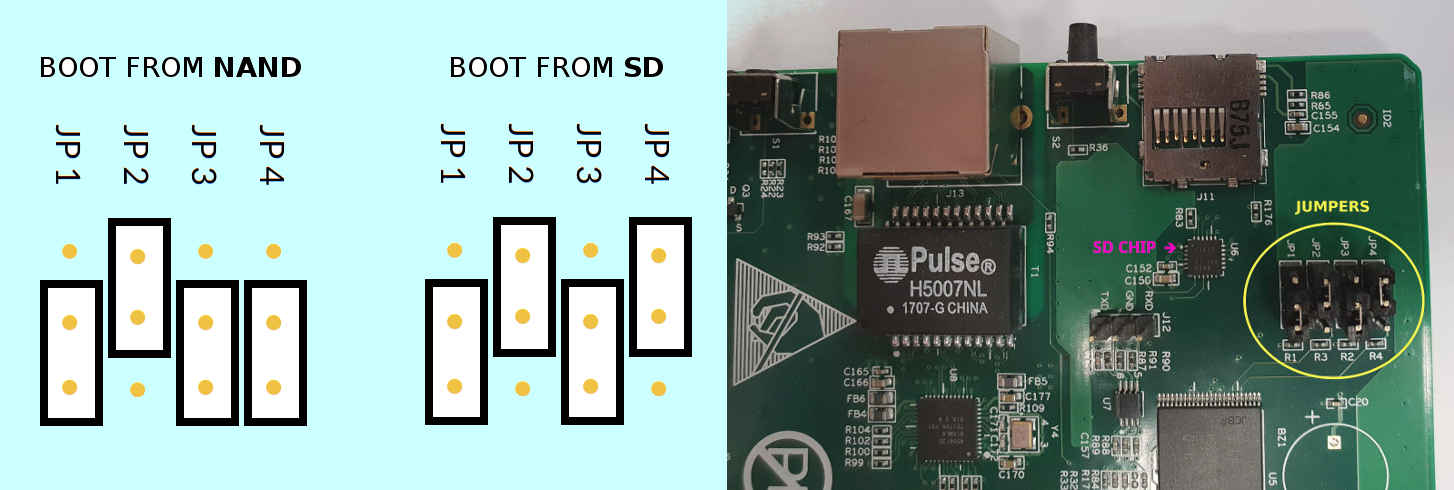
In order to use Braiins OS, you will need Micro SD card with at least 128 MB capacity. Do not use cards with capacity greater than 8 GB. The speed / class of the SD card is irrelevant.
- Download the provided SD image: S9, S9j, S9i Zynq/Xilinx (22.08.1)
- Flash the image from a PC (with
BalenaEtcher,Rufus, ordd)
Note: Simple copy to SD card will not work. The SD card has to be flashed!
-
Change the jumper to the BOOT FROM SD mode to boot from SD
-
Insert the SD card into the miner. The miner can be powered-on while doing this.
-
After inserting the SD card the miner will automatically boot Braiins OS from the SD card.
Note: The internal memory is kept intact and Braiins OS does not alter it in any way. After the SD card is removed, the stock firmware will boot, with all the previous settings.
- Enter the miner with a web browser (search its IP with
AngryIPorNmap)
Install to NAND (Optional)
- Download the provided SD image: S9, S9j, S9i Zynq/Xilinx (22.08.1)
- Flash the image from a PC (with
BalenaEtcher,Rufus, ordd)
Note: Simple copy to SD card will not work. The SD card has to be flashed!
- Change the jumper to the BOOT FROM SD mode to boot from SD
- Insert the SD card into the miner. The miner can be powered-on while doing this.
- After inserting the SD card the miner will automatically boot Braiins OS from the SD card.
Note: The internal memory is kept intact and Braiins OS does not alter it in any way. After the SD card is removed, the stock firmware will boot, with all the previous settings.
-
Navigate to menu System > Install the current system to NAND
-
Wait for the process to be completed
-
Turn off the device and revert back the jumper to the BOOT FROM NAND mode and take out the sd card.
-
Turn on the device.
-
Enter the miner with a web browser (search its IP with
AngryIPorNmap)