Triggers
The Triggers feature has been fully replaced by the more advanced Controlflow and will be decommissioned soon. Please use Controlflow for all new automation.
Overview
The Triggers feature is a powerful tool within Braiins Manager designed to automate various aspects of your mining operation. This feature offers users a straightforward way to streamline their processes by setting up automated actions based on specific conditions. If you're familiar with Linux, you can think of Triggers as a visual representation of cron jobs, but tailored specifically for mining operations.
How Triggers Work
Triggers allow you to define a set of conditions that, when met, will automatically execute predefined actions on selected miners. This can save time, reduce the need for manual intervention, and help ensure your mining operation runs smoothly and efficiently.
Key Components of a Trigger
- Filters: Select the group of miners to which the trigger will apply. You can filter miners based on specific criteria such as IP Range, Location, Customer, or Is Under Curtailment.
- Condition: Define the specific condition under which the trigger will activate. Conditions can range from performance metrics (such as hash rate, temperature, or power consumption) to specific conditions based on mining pool settings or Customer checks.
- Action: Specify the action that will be executed when the condition is met. Actions can include restarting miners, pausing or resuming mining operations, changing mining pools, or assigning miners to a specific Customer.
- Frequency: Decide how often the trigger should be activated. You can set it to fire periodically, from every 5 to 60 minutes, as long as the condition remains true.
Setting Up a Trigger
Setting up a Trigger in Braiins Manager is intuitive and user-friendly:
-
Navigate to the Triggers Section: Access the Triggers feature from the Braiins Manager dashboard.
-
Select Miners: Choose the miners you want the trigger to apply to. You can group miners by various attributes to simplify this process.
-
Define the Condition: Set the specific condition that will trigger the action. For example, you might set a condition to trigger if a miner's temperature exceeds a certain threshold.
-
Choose the Action: Determine what action should be taken when the condition is met. This could be anything from rebooting the affected miner to changing pool settings.
-
Set the Frequency: Choose how often the trigger should check the condition and potentially activate. You can select a frequency from intervals starting at 5 minutes up to 60 minutes, with 5-minute increments. This means you can set the trigger to check the condition every 5, 10, 15 minutes, and so on, up to 60 minutes, depending on your operational needs.
-
Save and Activate: After setting up the trigger, save it and it becomes automatically activated. Braiins Manager will then monitor the selected miners and automatically execute the trigger when the condition is satisfied.
Use Cases for Triggers
Triggers can be used in various scenarios to optimize and automate your mining operations:
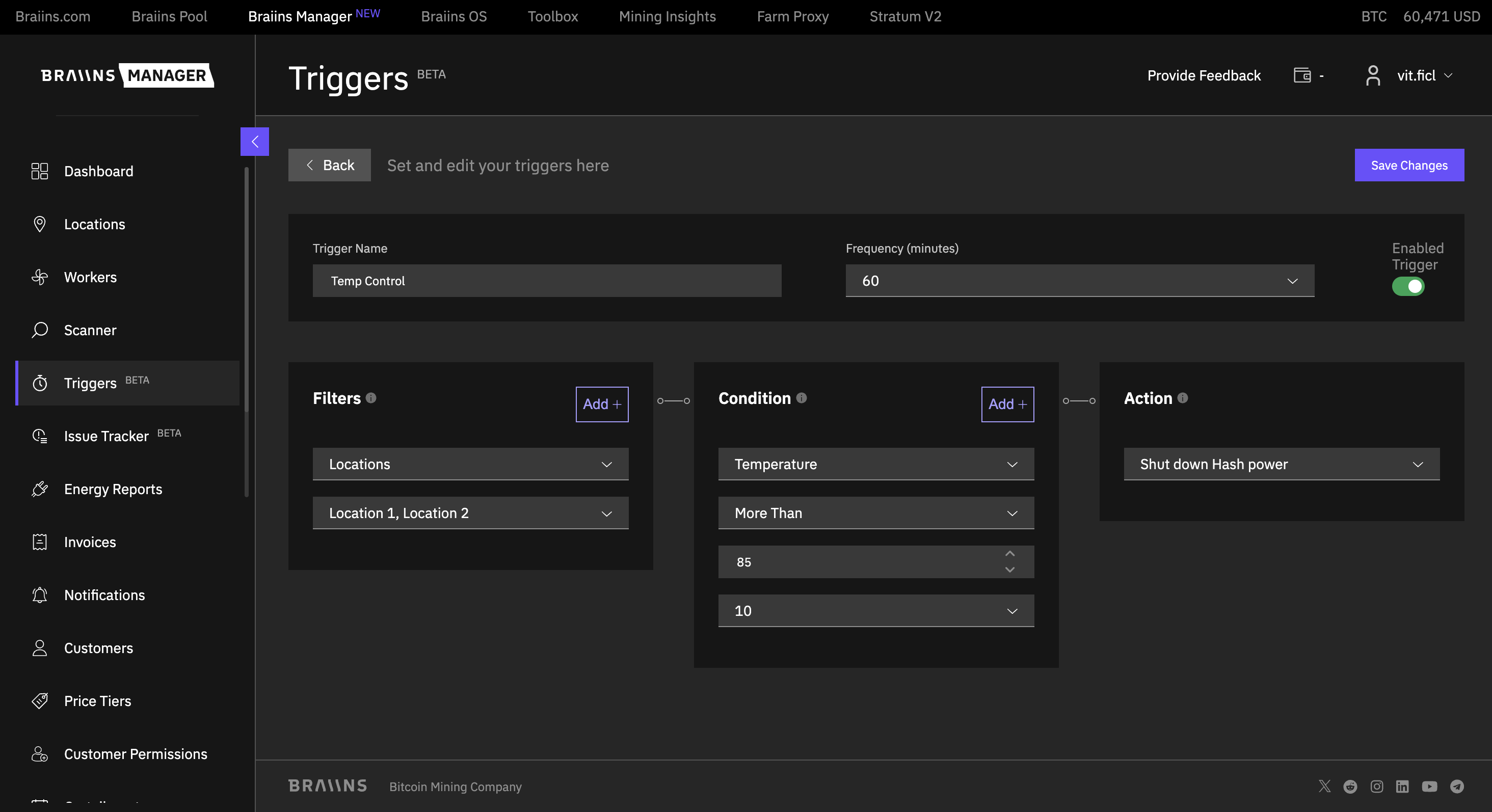
Temperature Control
Automatically shut down miners when their temperature exceeds safe operating levels.
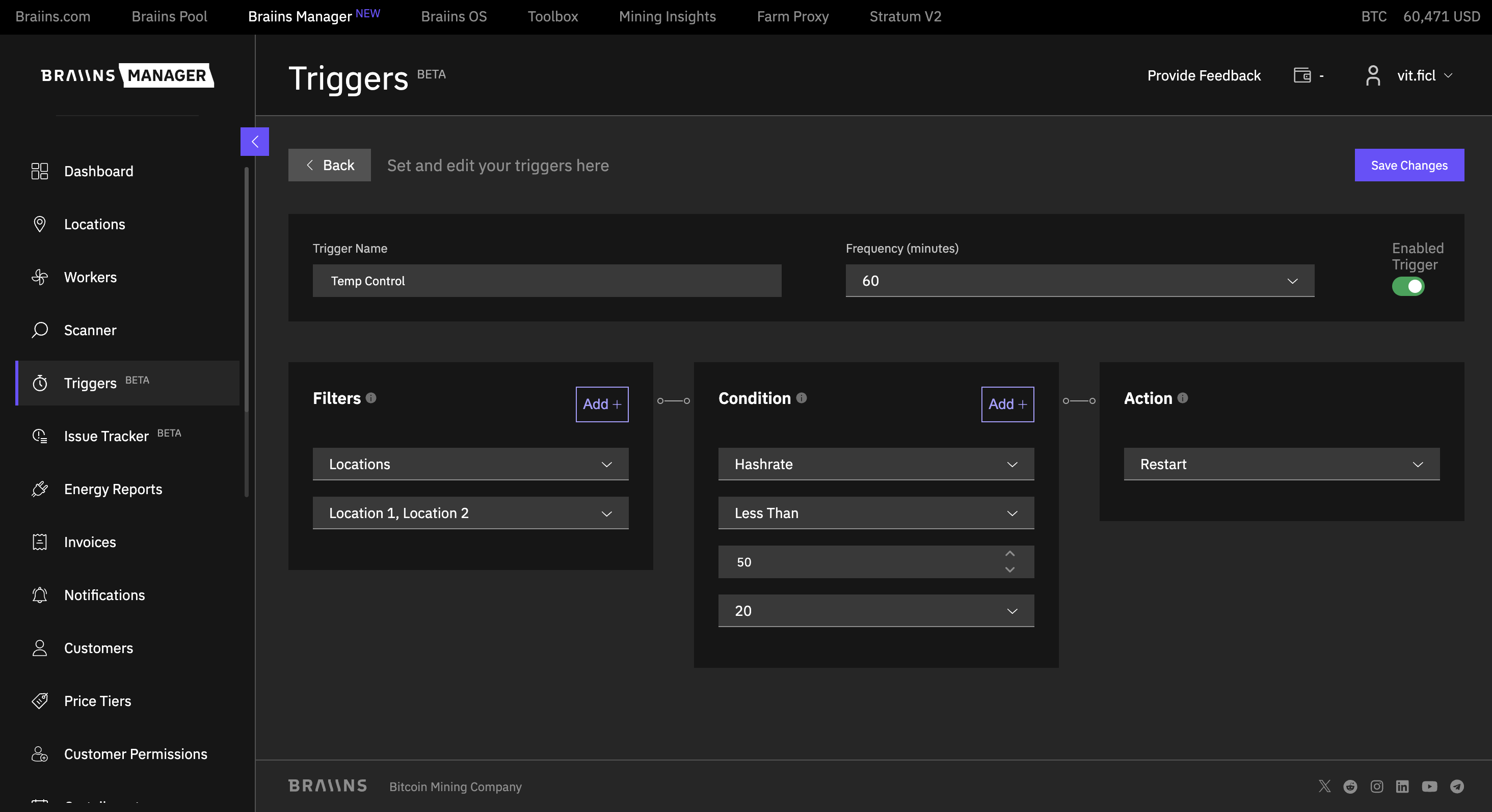
Performance Management
Trigger a reboot if a miner's hash rate drops below a specified threshold.
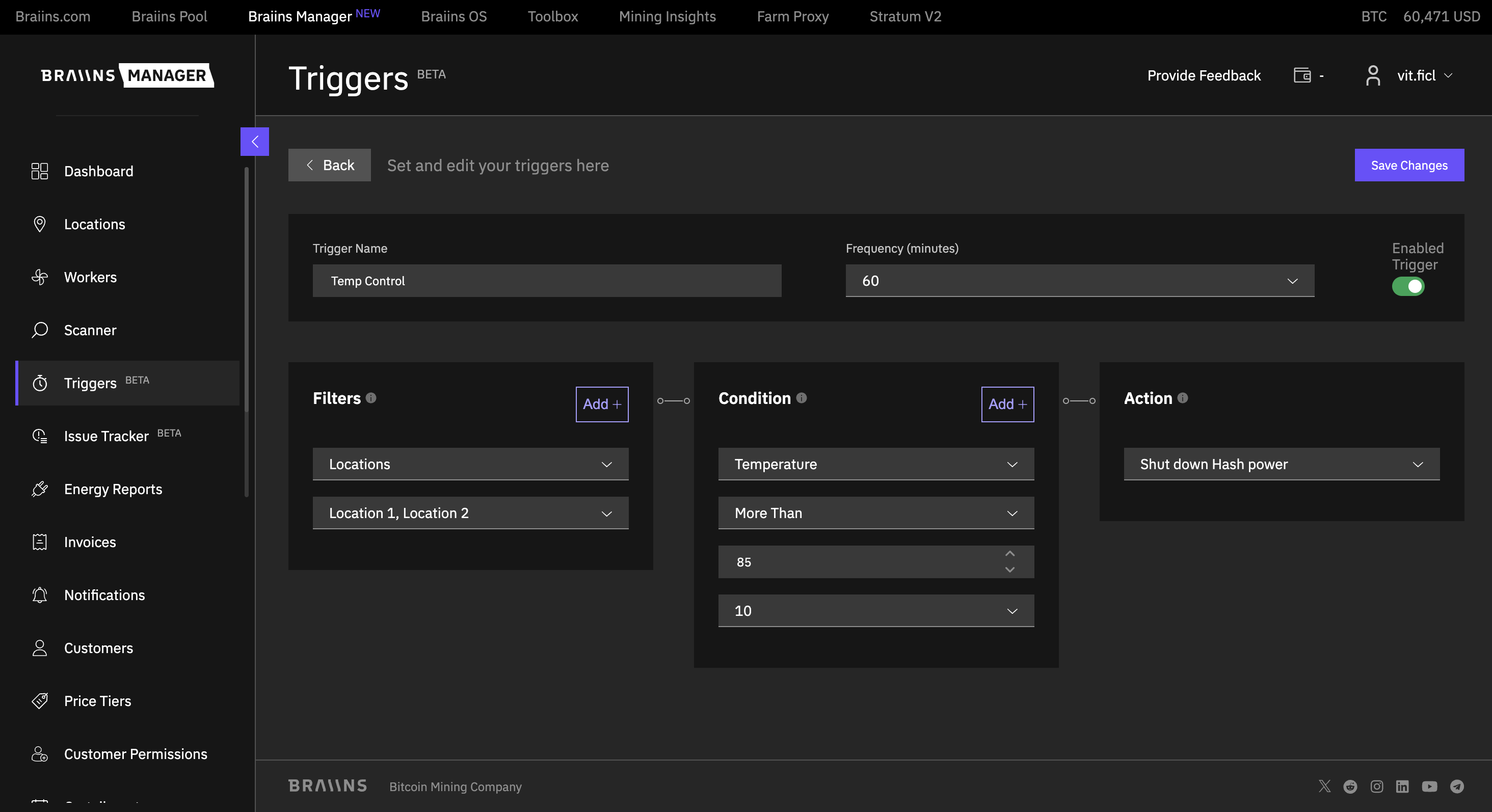
Customer and Pool Settings
If you are a hosting provider, ensure that the miners are assigned to the correct Customer and are mining on the correct mining pool.
Benefits of Using Triggers
- Increased Operational Efficiency: Reduce the need for manual monitoring and intervention by automating routine tasks, leading to more efficient management of your mining operations.
- Enhanced Reliability: Ensure that your mining operation runs smoothly by responding quickly to changes or issues.
- Customization: Tailor Triggers to fit the specific needs of your operation, with a high degree of control over conditions and actions.
- Scalability: As your mining operation grows, Triggers can easily be adapted to manage larger fleets of miners with minimal effort.
Manage Triggers
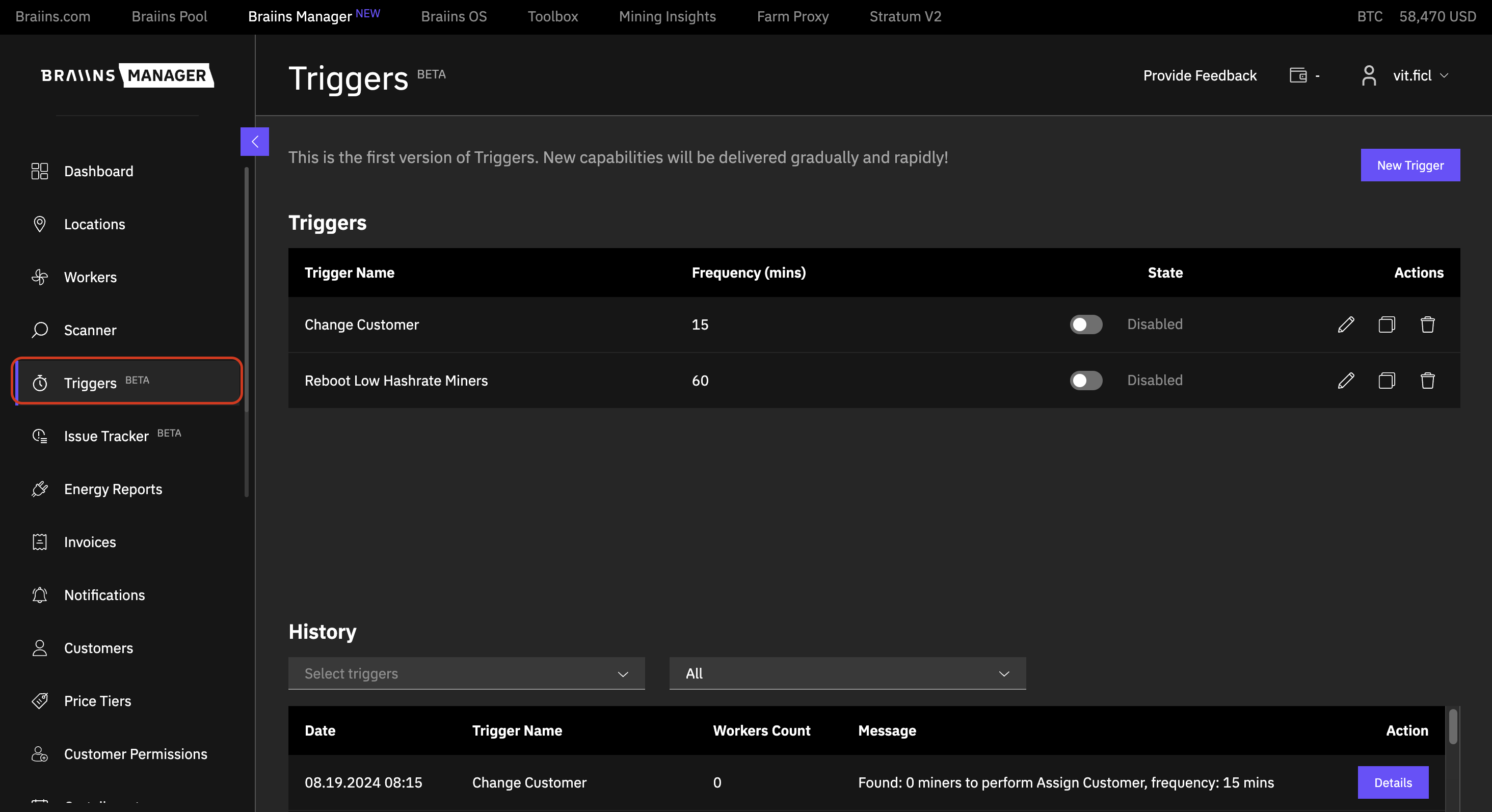
Users can manage all their automation rules on the Triggers page. It's possible to enable or disable them, make edits, or even clone an existing one - especially useful when defining a similar rule with only minor adjustments. Deletion of triggers is also an option when necessary.
History
The history of all activated Triggers can be viewed in the History table on the Triggers page. The table provides information about the time of trigger activation, the trigger name, the number of affected workers, a message describing the specific trigger, and a Details button to view a list of affected miners based on their Worker ID.