Amlogic remote installation guide
Prior to proceeding with the installation process, it is necessary for you to establish a VPN connection on your computer.
Before scheduling a call with our support team, please ensure that you have followed steps 1 and 2.
1. How to set up a VPN connection
Go to the Start menu and click on Settings
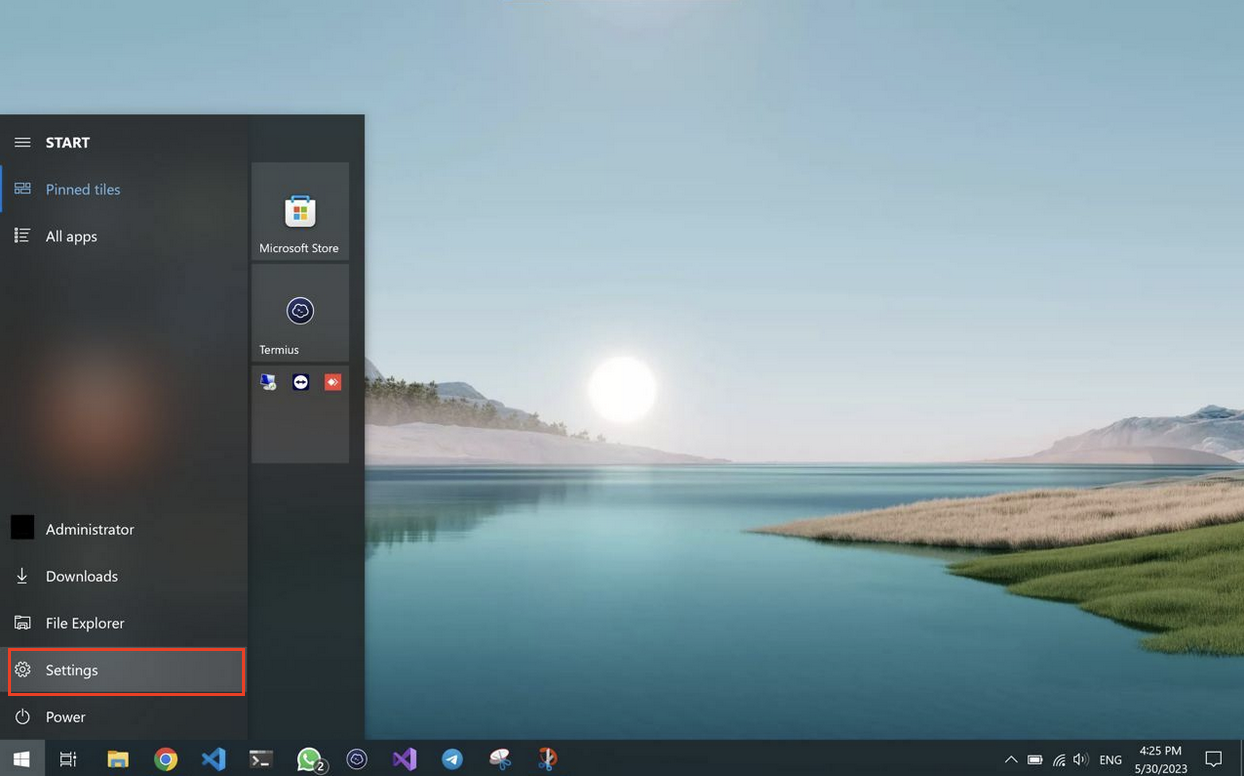
Click on Network & Internet
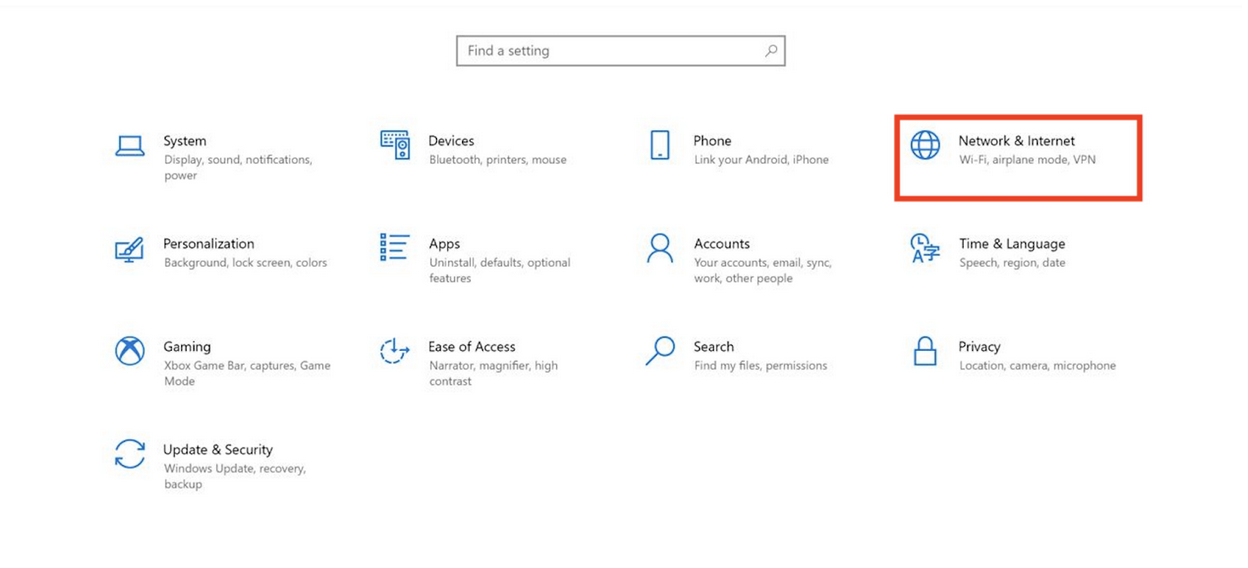
Click on VPN and then Add a VPN connection
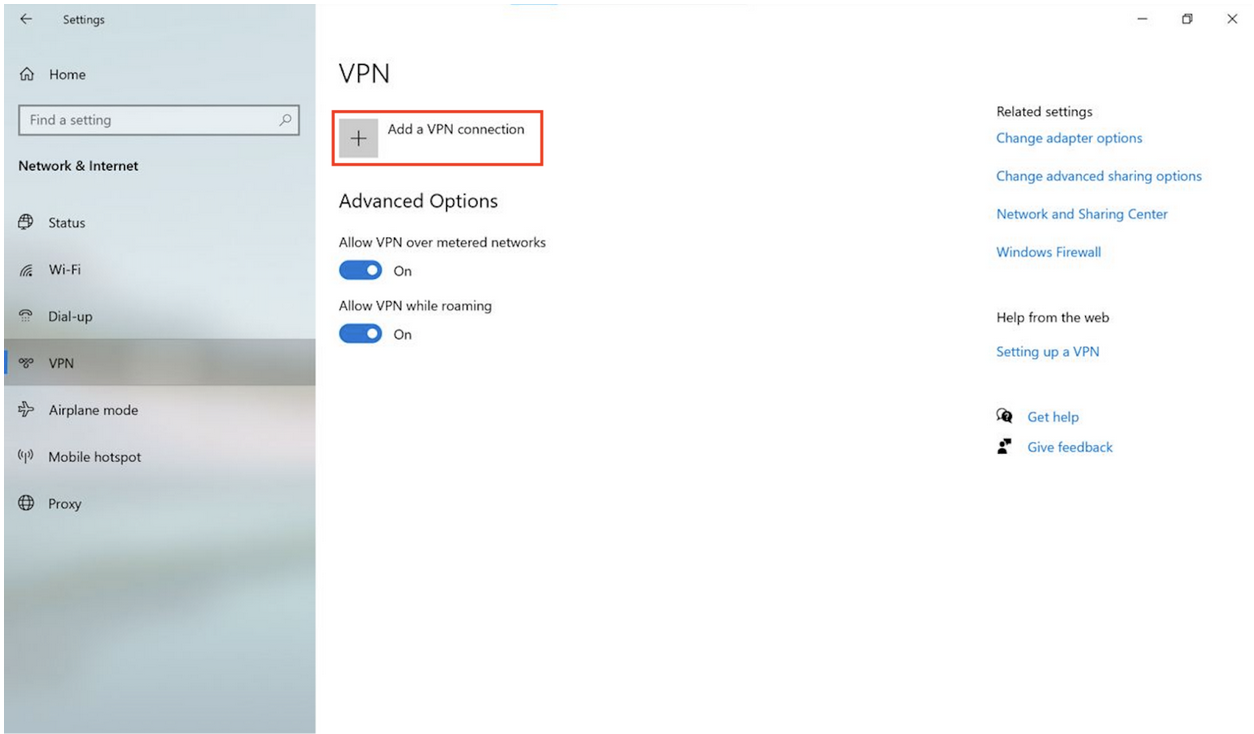
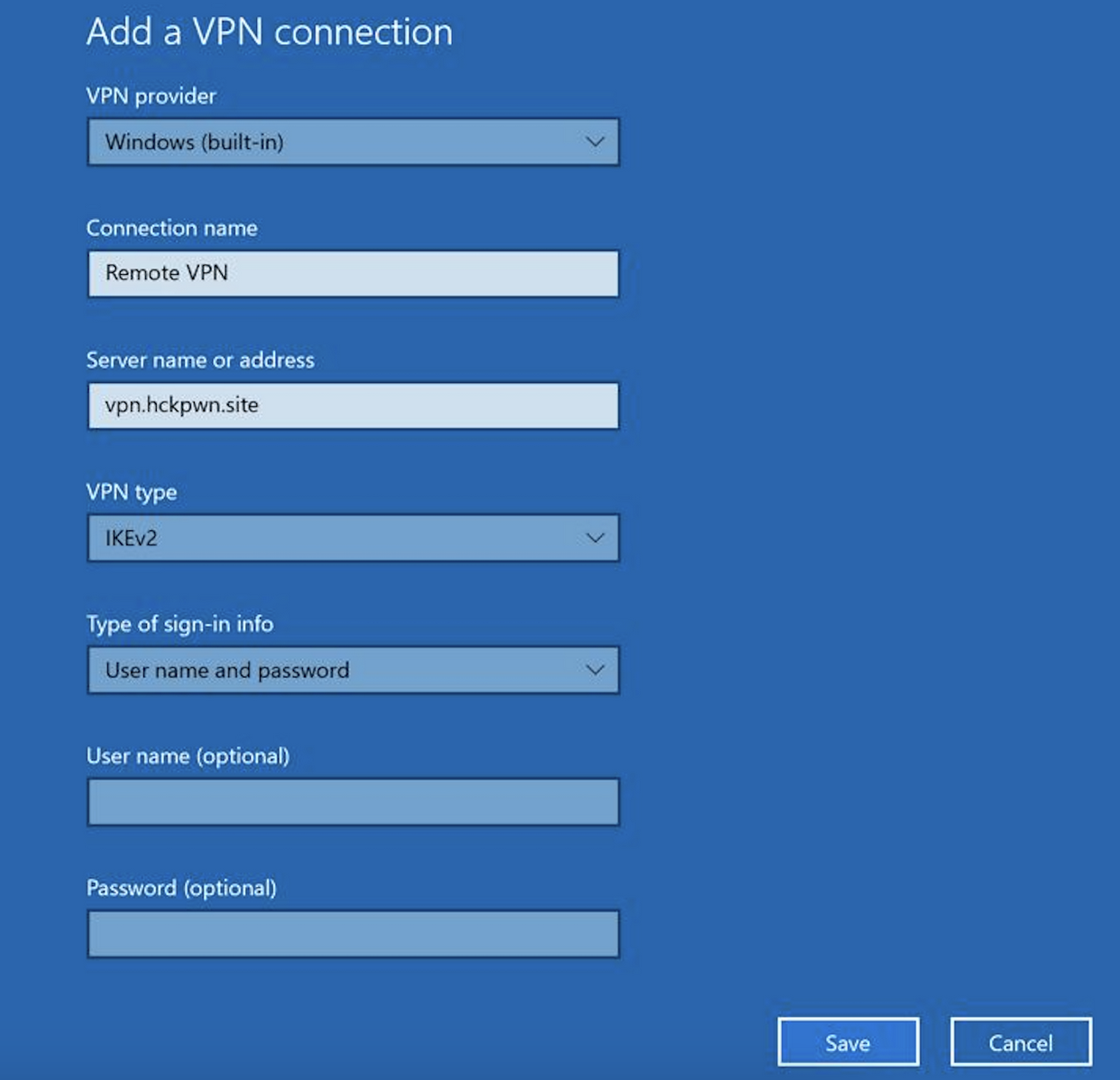
As the final step, input the following VPN information into the required fields:
- Connection name: Remote VPN
- Server name or address: vpn.hckpwn.site
Lastly, click on 'Save'.
Please be aware that when you connect to the Braiins VPN, your computer will lose internet connection. The support team needs to maintain constant communication with the user in order to provide instructions regarding the devices and installation.
2. How to find my IP range
To scan your devices and proceed with the installation, we first need to determine your IP range.
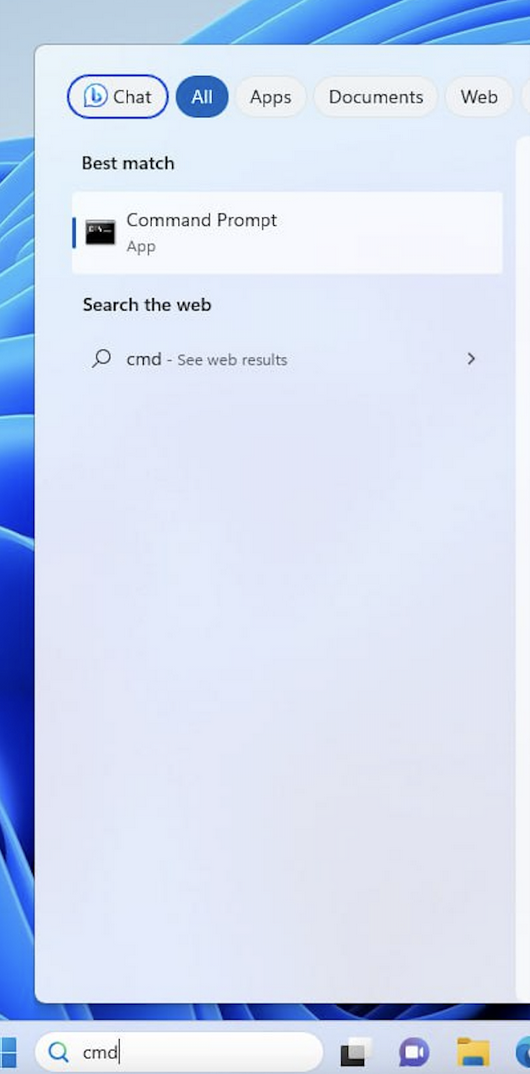
Type "CMD" into the search bar and press Enter.
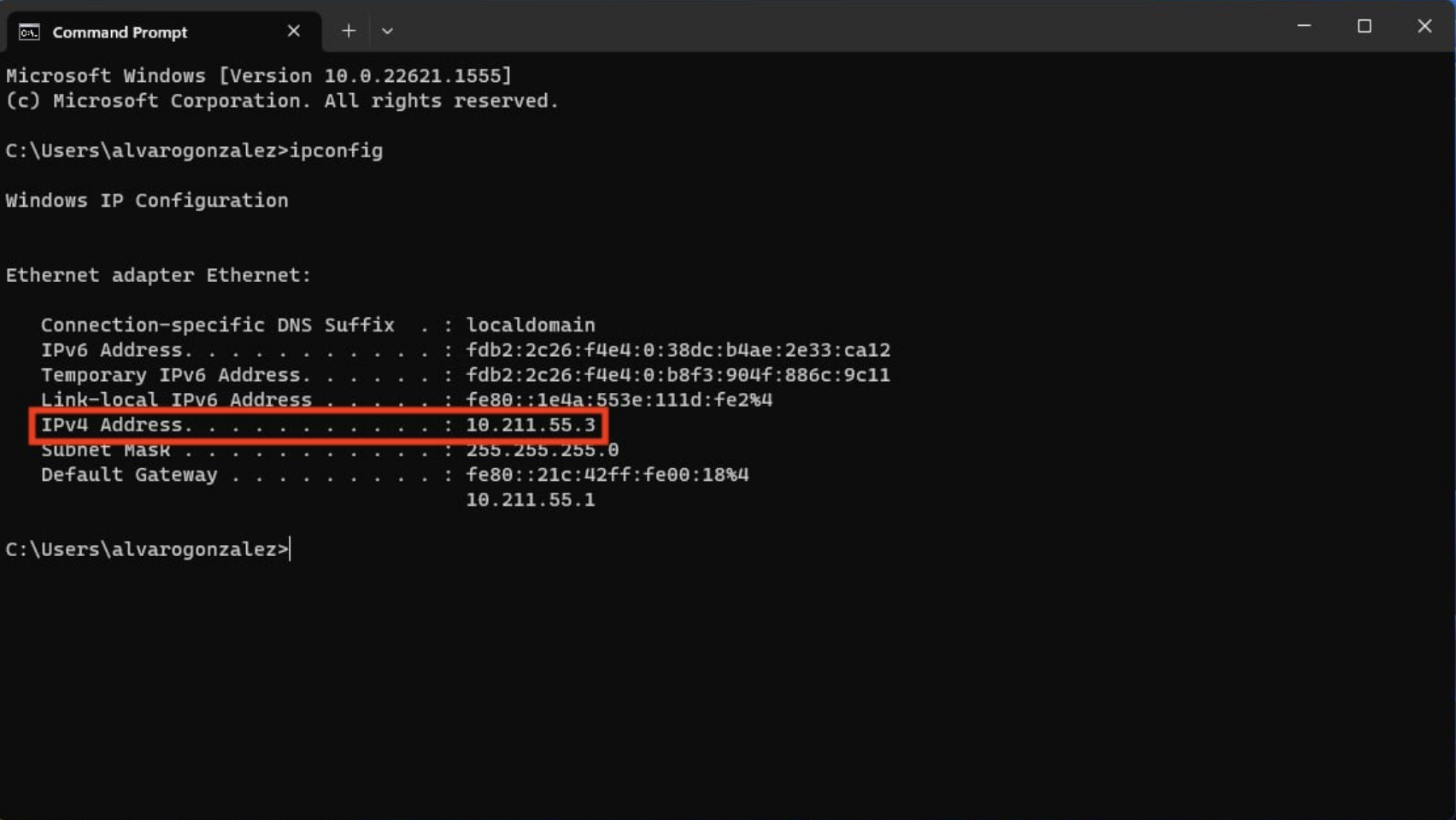
In CMD, type "ipconfig" and press Enter. You should see your IP configuration displayed, similar to the screenshot below. The crucial information for us is the IPv4 Address.
3. Scanning of the devices
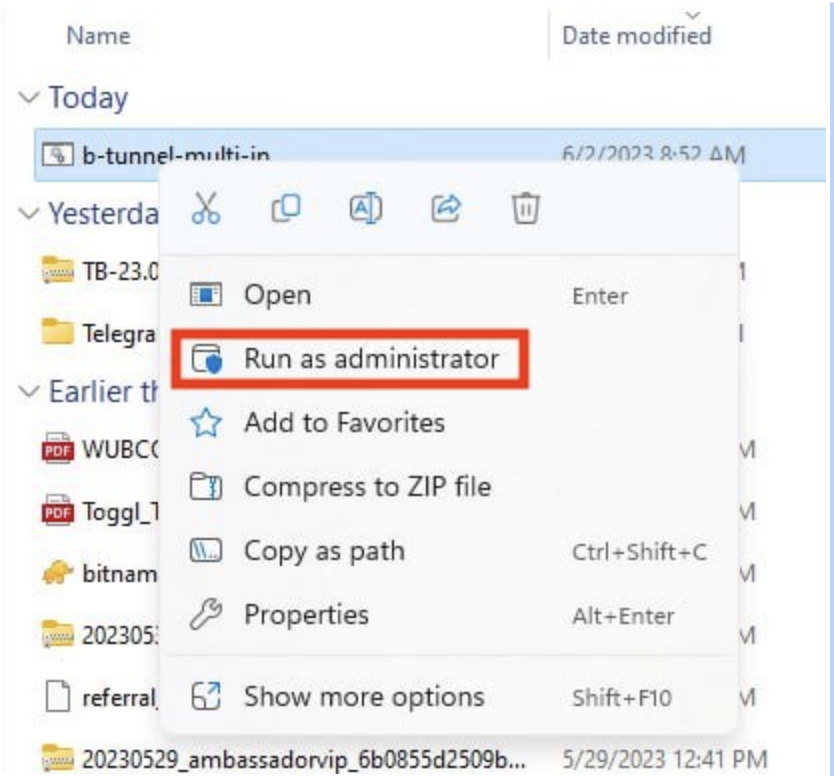
Once the VPN is connected, please right-click on the file.bat and select "Run as administrator."
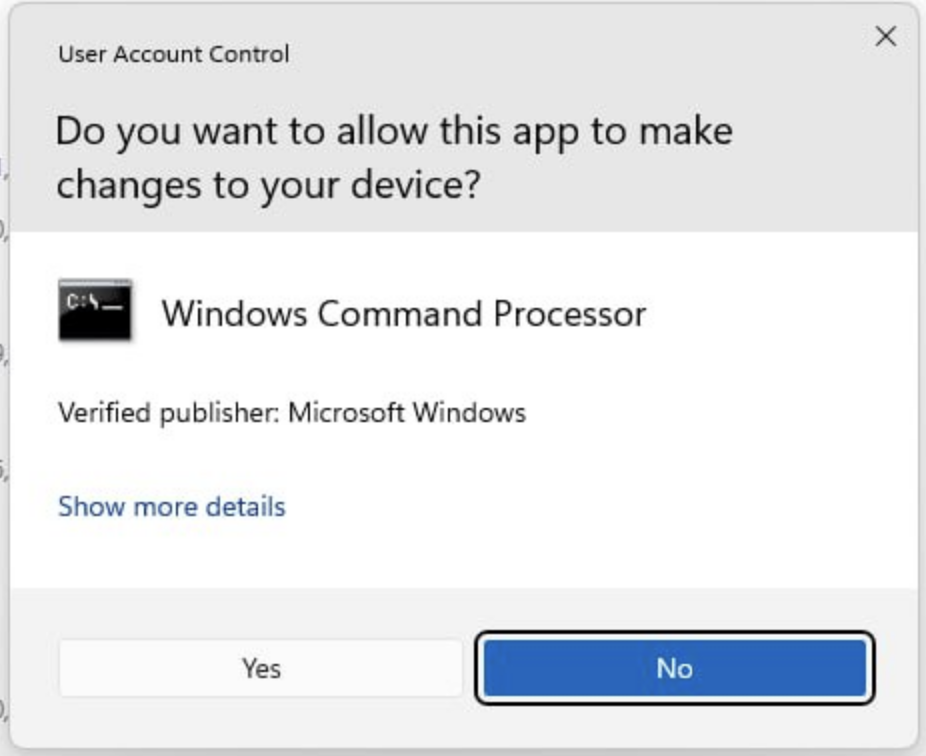
Click "YES"
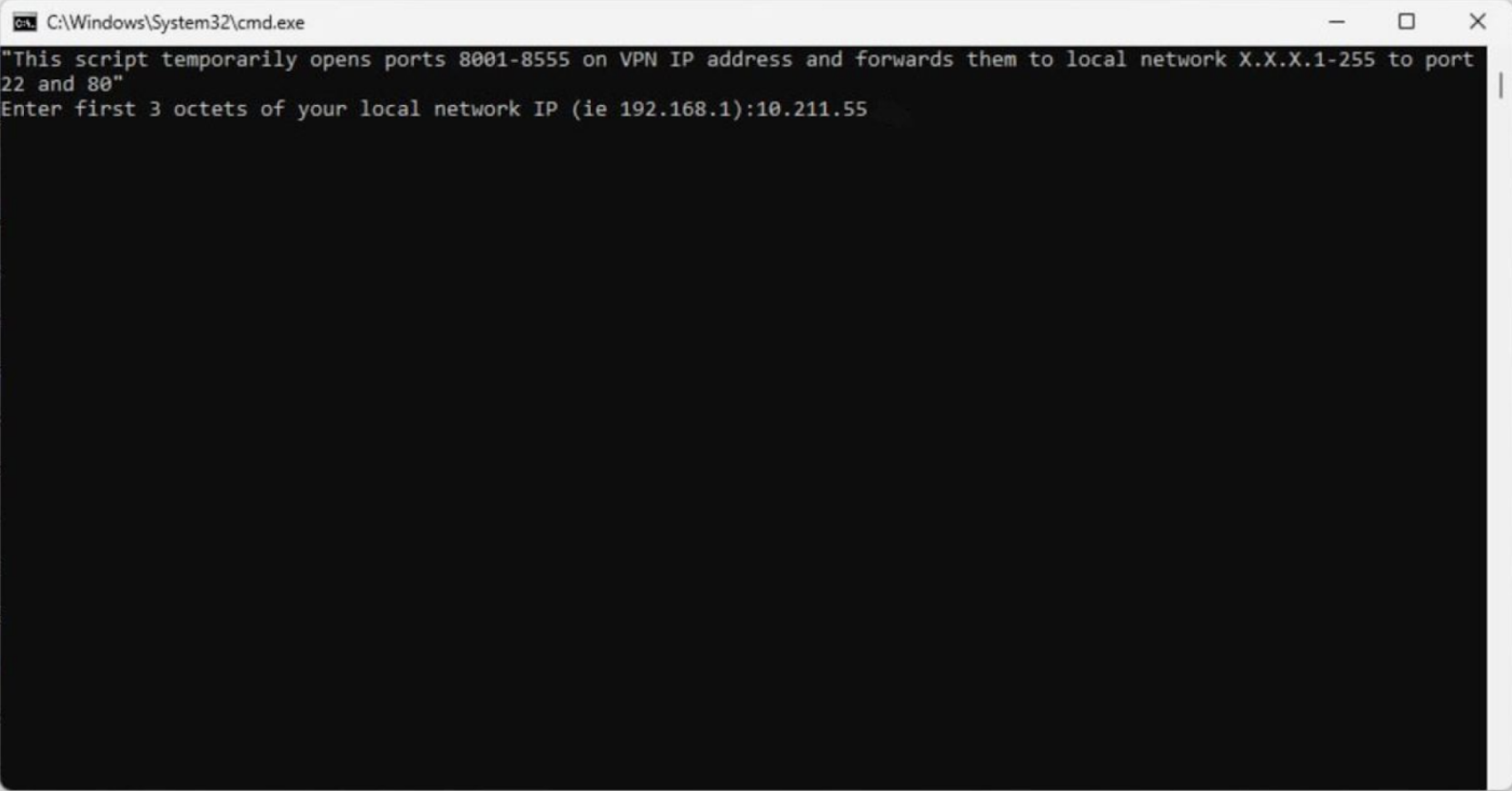
After opening the .bat file, you will be prompted to enter the first three octets of your IP range (derived from the IPv4 address you found in Step 2). Type them in and press Enter.
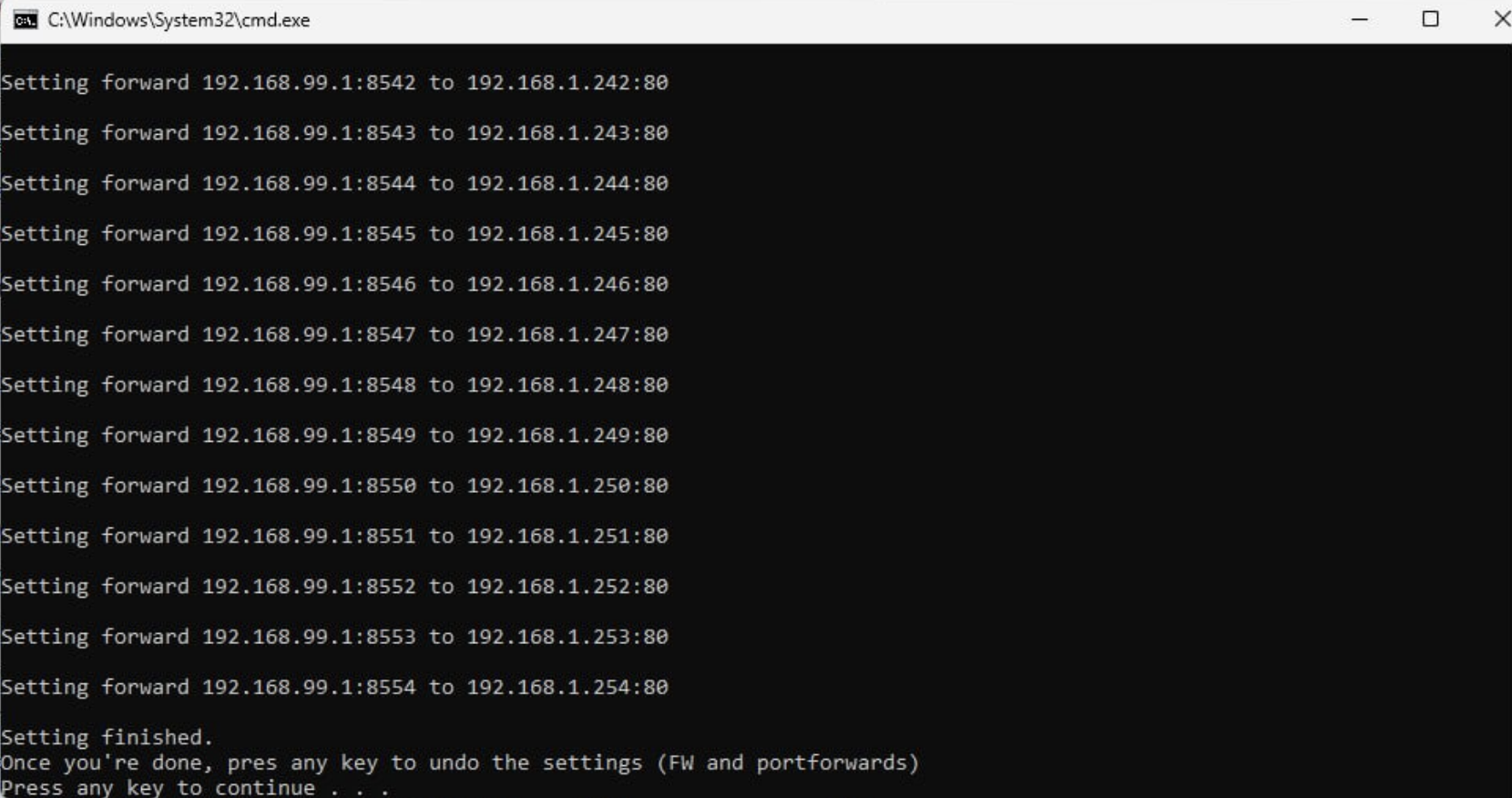
When you encounter this message on the CMD terminal, please inform the support team member you are collaborating with that the process has been completed.
4. Installation process
When everything is properly set up, the support team member will proceed with the installation on your device.
Afterward, the support team member you are working with will inform you once the installation has been completed. Please disconnect the VPN and allow the support team member to reconnect to your computer to verify the successful installation on the device.
If everything has gone smoothly and the installation was successful, please restart your computer.