Ideas for Your Deck
Each setup below takes a few minutes to build. Treat it as a starting point: swap widgets, change sizes, add your own.
To build a scene, open Display Widgets in the web interface and follow Scenes and Widgets. In a combined scene, the screen is a grid of 4 by 2 cells: Small takes 1 cell, Medium 2 side by side, Large a block of 4.
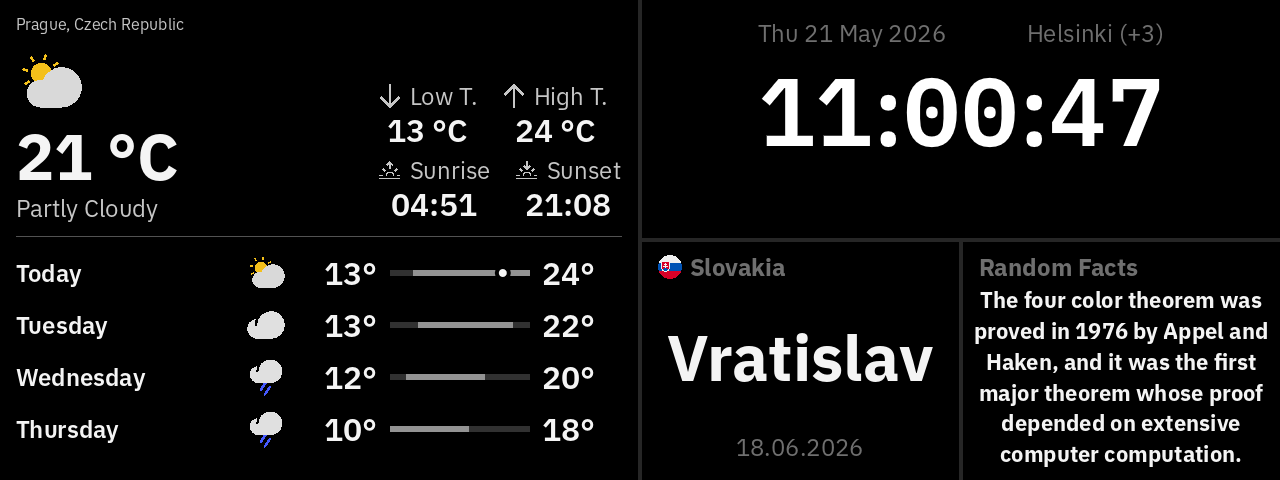
Kitchen
Check the weather before you leave, keep an eye on the time while you cook, and see a family photo.
Nightstand
Read the time in the dark without lighting up the room, and wake up to an alarm with a snooze limit.
Then:
- Set your alarms, each with its own sound and snooze limit.
- In System Settings, turn on night mode for your sleeping hours.
- Lower the Night Mode Brightness.
- For a dark room, set Screen Auto-Off.
- On the Sound & Light tab, lower the Sound Volume in Night Mode and leave Enable LED Notifications in Night Mode off.
When night mode starts, the Deck goes back to the first scene and stops cycling, so put the night clock first. An alarm always wakes the screen.
Living Room
Something worth looking at when nobody is using it.
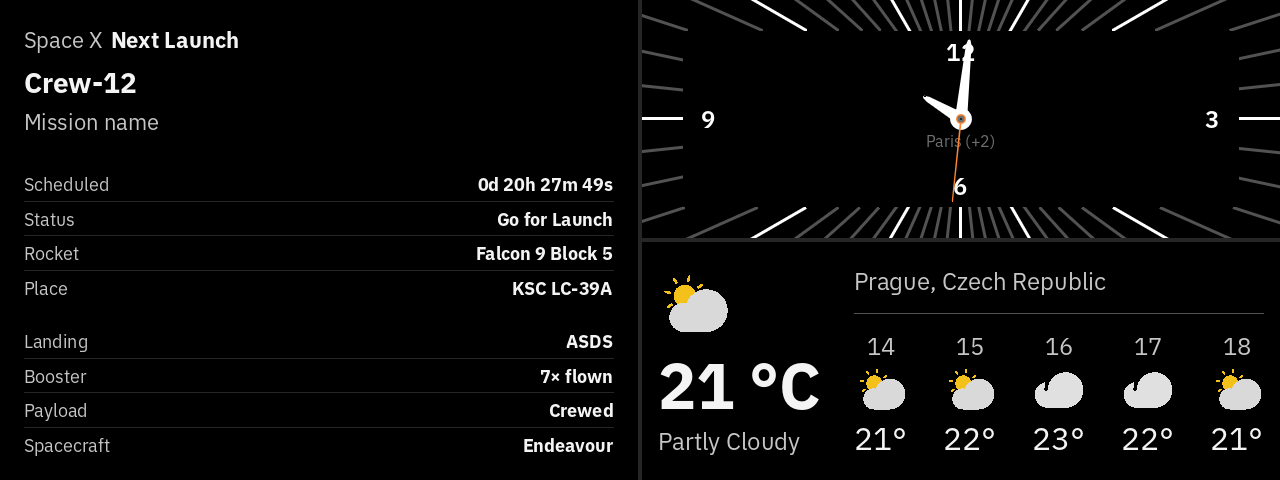
For a calmer change between scenes, set Transition Effect to Fade in the Widget cycling menu on Display Widgets.
Formula 1
See race weekends at a glance, and live timing while the cars are on track.
Turn on Use my local time to see session times on your own clock instead of the circuit's.
Trading Desk
Use the Deck as a second screen for the stocks and currencies you follow.
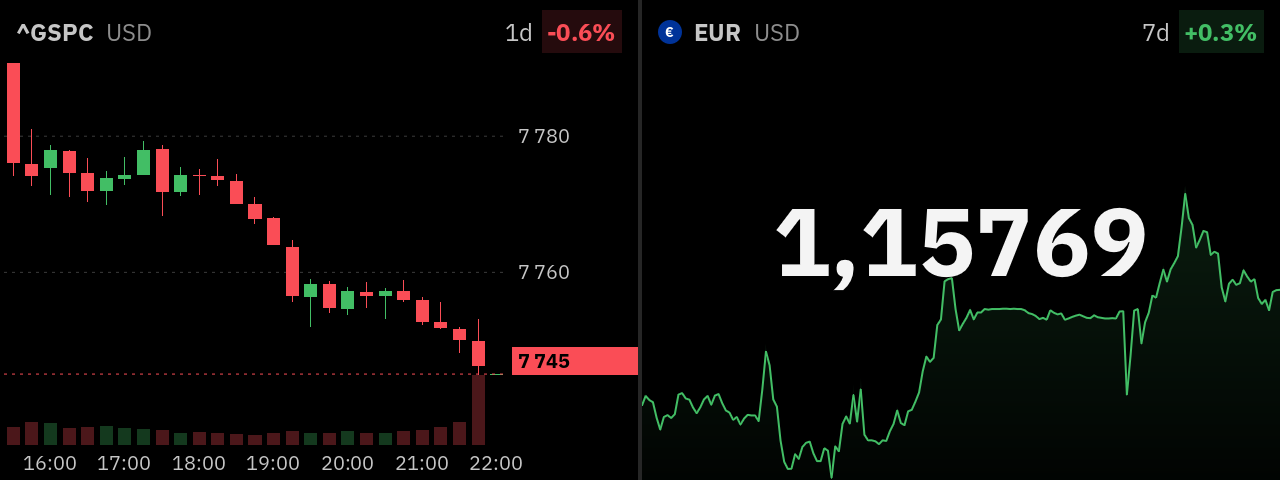
See symbol formats for indices, currencies and gold.
Bitcoin Desk
Follow the Bitcoin network and the price.
To see the price in another currency, change BTC-USD in the ticker, for example to BTC-EUR. Coverage varies, so check that the ticker shows data.
Home Mining
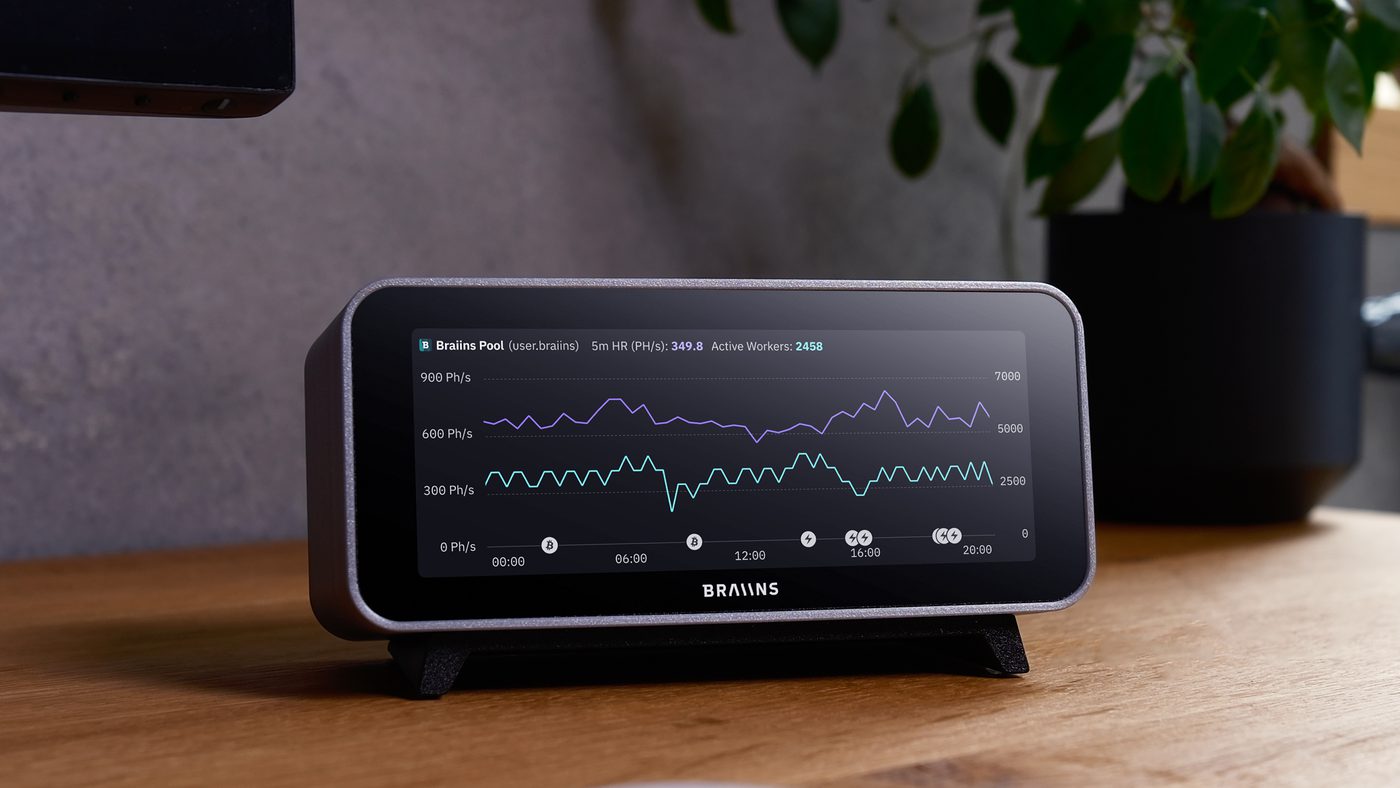
See every miner on your network on one screen.
Fleet Management finds Braiins OS (26.09 or newer), Forge Firmware and AxeOS (2.15.0 or newer) miners on its own. Braiins OS and Forge Firmware miners need a saved login; see Fleet Management.
Reception
Time zones for a team spread across the world, and your own content.
The Image widget can show anything another system draws as a picture, such as a sales chart or a guest Wi-Fi QR code. Point it at the image's web address and pick how often to refresh it.
Café Counter
Use the Deck as a menu board that changes on its own.
To change the menu, replace the image file at the same address. The Deck picks it up at the next refresh, within an hour at the default interval. Tap the image and choose Reload to see it at once.