Set Up, Replace, or Remove an Authenticator App
An authenticator app generates the six-digit codes used for two-factor authentication (2FA). You can set it up during registration, or later from your Braiins ID page.
Set Up an Authenticator App
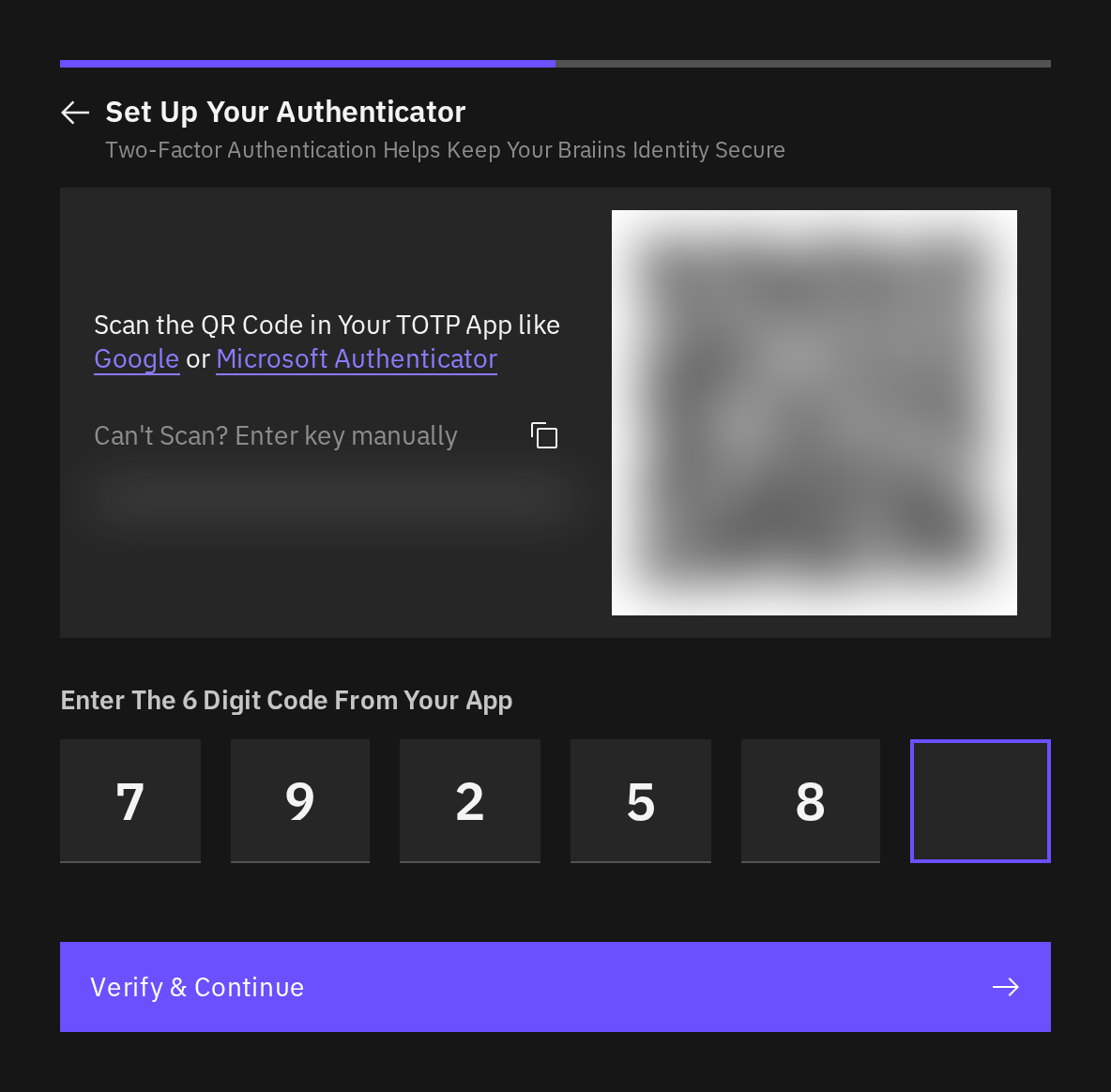
This example shows setup during registration. Scan the code displayed in your own session; the example QR code and setup key are hidden.
Have an authenticator app ready on your phone or another trusted device.
- During registration, select Set Up next to Authenticator App. If you are already signed in, open Braiins ID at identity.braiins.com, scroll to Two-Factor Authentication, and select Manage (or Set Up). Verify again if you are asked to, then select Add beside Authenticator App under Available Methods.
- In your authenticator app, add a new entry and scan the QR code shown by Braiins ID. If scanning is unavailable, enter the setup key manually.
- Continue to the verification step if it is shown separately.
- Enter the current six-digit code from your authenticator app.
- Select Verify & Continue.
- If prompted, save your recovery keys, confirm that you saved them, and select Continue during registration, or Done when you set it up later.
After setup, the Two-Factor Authentication (2FA) row on your Braiins ID page shows Active, and the authenticator appears under Active Methods on the Two-Factor Authentication page. Keep the authenticator entry: you will need its codes for future verification.
Move to a New Phone
Before removing anything, check that you have your recovery keys and can still complete a verification.
If your authenticator app supports transferring its entries, follow that app's transfer instructions. Test a Braiins verification code from the new phone before erasing the old phone.
To replace the authenticator through Braiins ID instead:
- Keep access to the old authenticator and register a working 2FA security key if you do not already have another 2FA method. You cannot remove the last method; recovery keys and sign-in passkeys do not count as a replacement.
- Follow Remove an authenticator app below.
- Immediately set up the authenticator on the new phone using the new QR code.
- Save any new recovery keys the setup presents and complete verification with the new phone.
- Delete the old authenticator entry only after the replacement works.
If the old phone is lost, use an available security key or recovery key when verification offers that option. If none is available, contact support.
Remove an Authenticator App
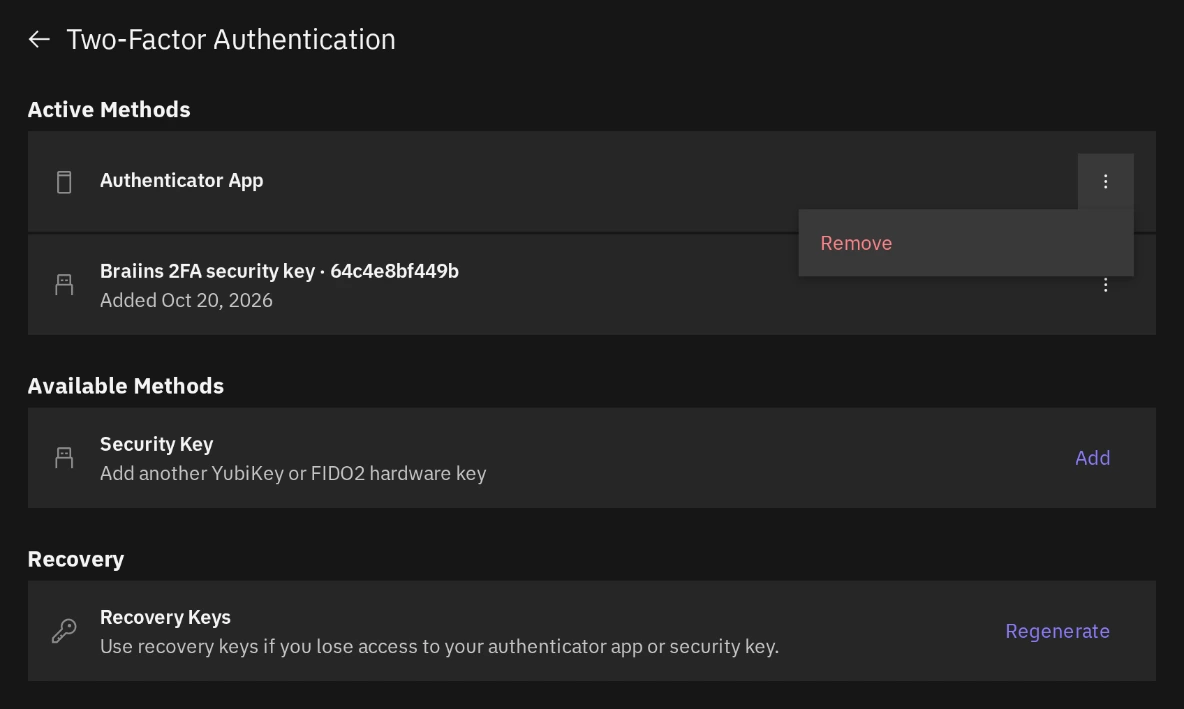
- Open Braiins ID, scroll to Two-Factor Authentication, and select Manage.
- Find Authenticator App under Active Methods.
- Open its actions menu and select Remove. If it is your only method, the row instead says To remove this, add another 2FA method.
- Complete the fresh verification. Use another offered method if you cannot access the authenticator.
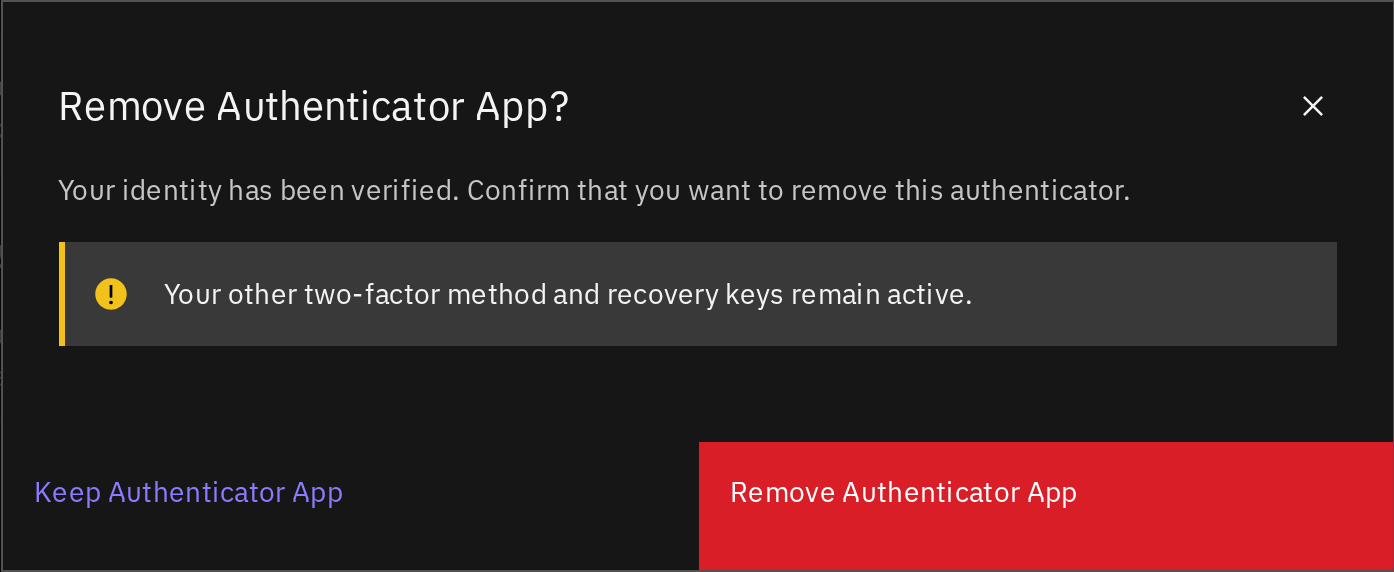
- Read Remove Authenticator App? and confirm, or cancel to keep it.
- Check that the authenticator no longer appears under Active Methods.
The last authenticator app or 2FA security key cannot be removed. Add another method first. Removing one while another remains keeps that other method and your recovery keys active.
Removing the method in Braiins ID does not erase the entry from your authenticator app. Remove that old entry separately once you have confirmed which entry is no longer needed.