Change or Reset Your Password
Your password belongs to your own Braiins Identity. Changing it affects only how you sign in. It does not change anyone else's password, and it does not rename an account.
Change Your Password While Signed In
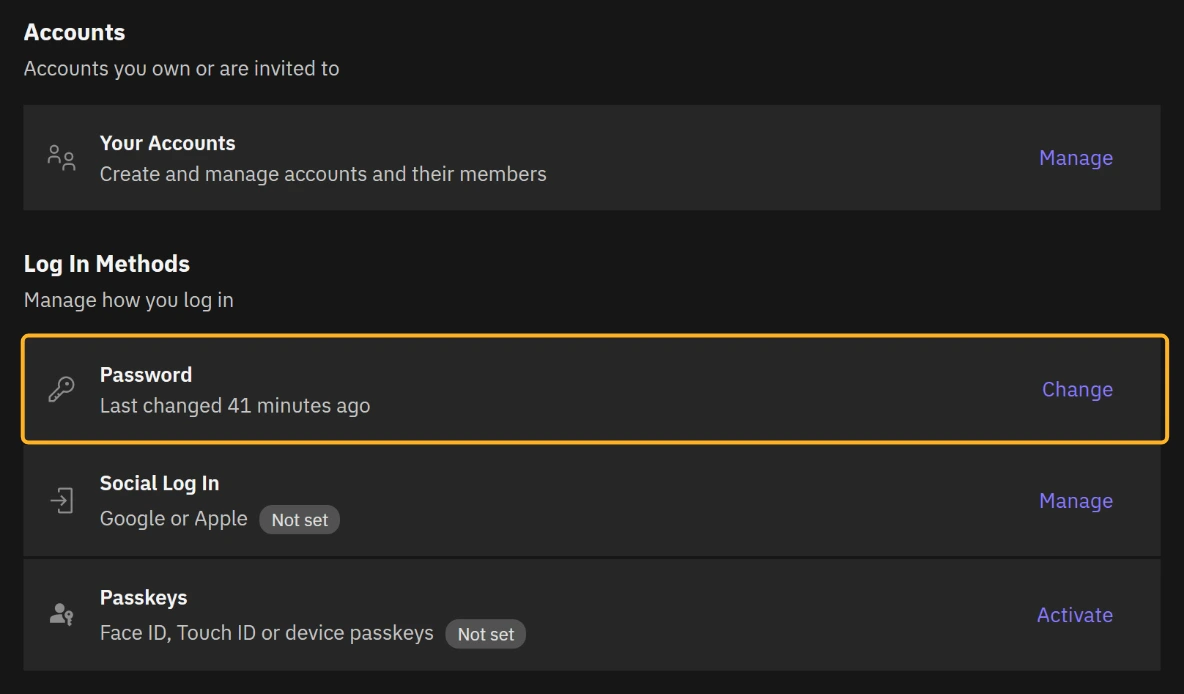
An authenticator app or 2FA security key must be active before you can manage your password. If Change or Set Up is unavailable, set up 2FA first.
- Open Braiins ID at identity.braiins.com.
- Under Log In Methods, select Change next to Password.
- Verify again if you are asked to.
- Enter your new password in New password and repeat it in Confirm password. Use at least 12 characters and follow the validation on the screen.
- Select Save Password.
- Wait for Password changed. before leaving the page. Update the saved password in your password manager.
If you have no password yet, select Set Up in the same row and follow the form. You may already sign in another way, such as with a passkey or Google.
You do not need to change your password on a schedule. Braiins ID never asks you to rotate it. Change it when you think someone else may know it. Braiins ID also checks every new password against lists of passwords known to have leaked, so a password that works elsewhere may still be refused here. Choose a different one, or let your password manager generate it.
Reset a Forgotten Password
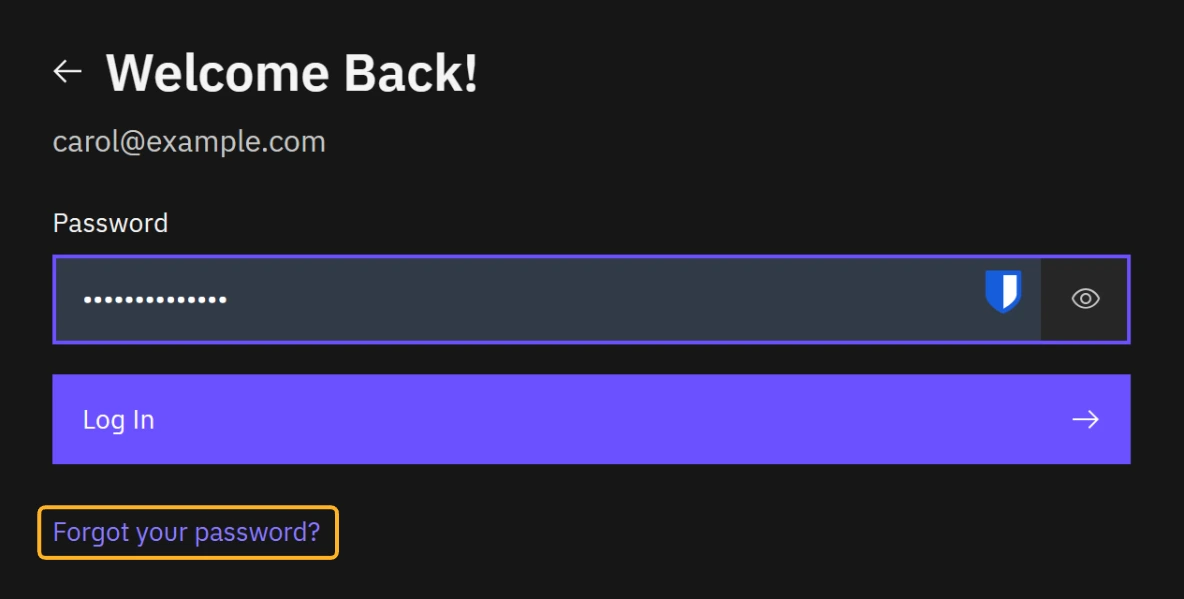
You need access to your registered email address. If 2FA is configured, also have your authenticator, security key, or an unused recovery key available.
- On the sign-in page, enter your email and select Continue With Email.
- Select Forgot your password? below the password form.
- Check the email address shown and select Send Reset Code.
- Open the reset email and enter its code in Code From Email. Select Verify & Continue.
- Complete the requested 2FA check. If your usual method is unavailable, select Use a recovery key and use a recovery key you saved earlier.
- On Choose a New Password, enter and confirm the new password.
- Select Save Password and wait for Password Updated.
- Return to sign-in and use your new password.
The screen after step 3 says a reset code has been sent if a Braiins Identity exists for that address. It is worded that way for everyone, so it does not tell you whether the address is registered. If no email arrives, check that you used the address you registered with.
An email recovery code and a 2FA recovery key are different. Resetting your password does not bypass a required 2FA check. If you have lost both your 2FA method and recovery keys, contact support.
If a reset code expires or the process stops working, use Start Again or Restart password reset to begin a new attempt. See Troubleshooting for missing email and code problems.
If You Suspect Someone Else Knows Your Password
Change the password, review browser sessions, and sign out sessions you do not recognize. Review Activity for unexpected changes and contact support if your security methods or account access have changed without your approval.