Google and Apple Sign-In
Social sign-in lets you use a linked Google or Apple identity to sign in to Braiins ID. It does not invite that identity to an account or grant access to a teammate.
Managing social log-in connections requires an active authenticator app or 2FA security key. If Manage is unavailable, set up 2FA first. This also applies when disconnecting a provider.
Link a Provider
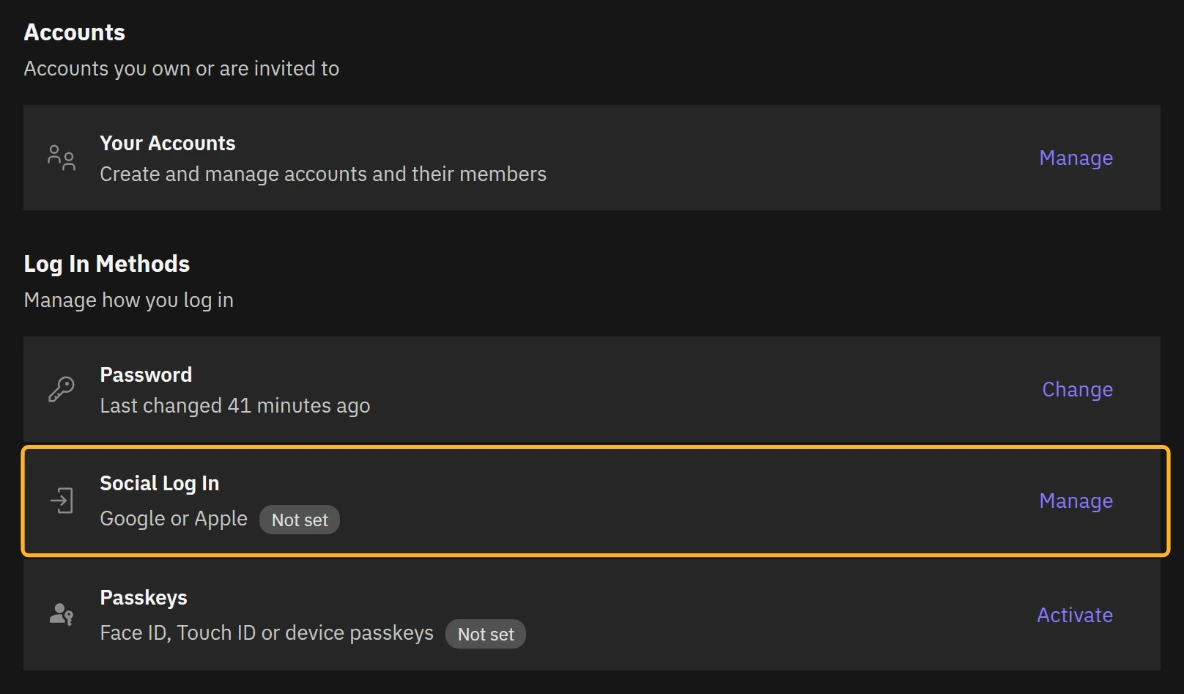
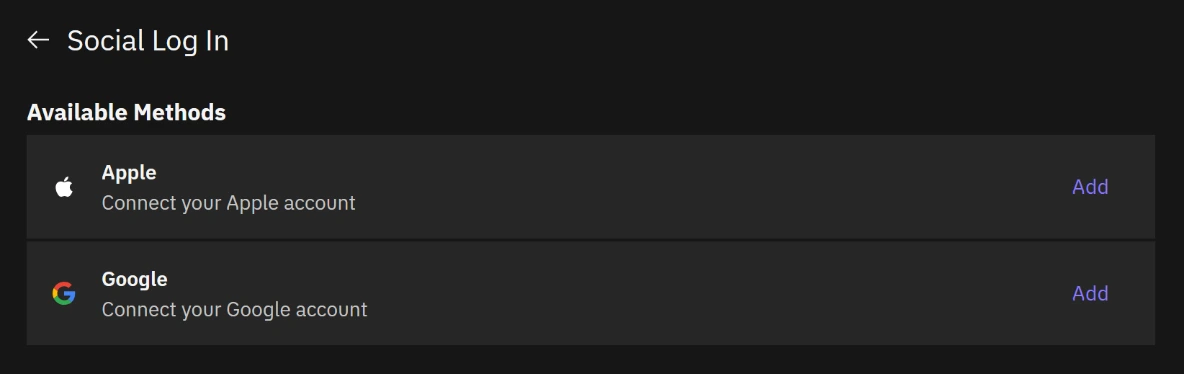
- Sign in to the Braiins ID you want to keep using.
- Open Braiins ID at identity.braiins.com, scroll to Log In Methods, and select Manage next to Social Log In.
- Verify again if you are asked to.
- Under Available Methods, select Add beside Google or Apple.
- In the provider's interface, choose your own Google or Apple identity and complete its prompts.
- Return to Social Log In and confirm that the provider shows Connected.
Provider screens vary and can open in a separate window or redirect the current page. If the flow reports a conflict or the connection does not appear, return to Social Log In and check its status before trying again.
Sign In with a Linked Provider
On the Braiins ID sign-in page, select Google or Apple under Or Continue With. Use the same provider identity you linked. Complete any further verification requested by Braiins ID.
Unlink a Provider
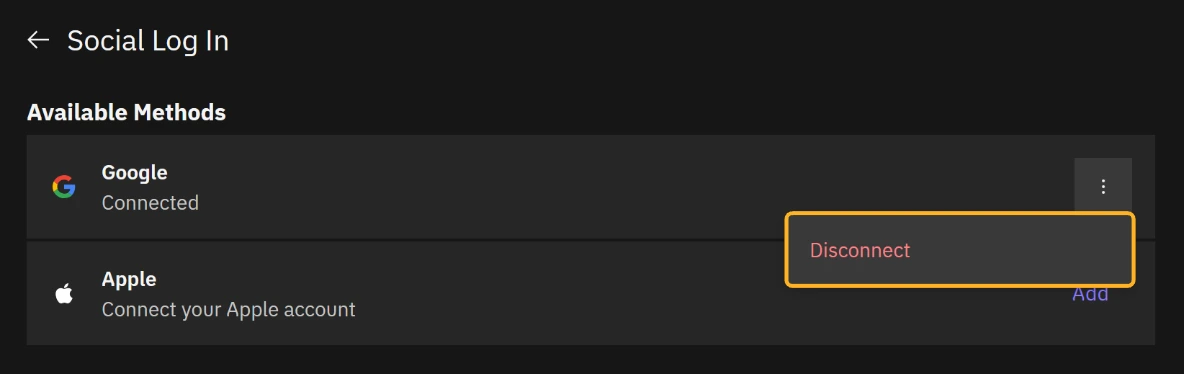
First check that you have another working sign-in method, such as a password or passkey.
- Open Braiins ID, scroll to Log In Methods, and select Manage next to Social Log In.
- Open the connected provider's actions menu and select Disconnect.
- Complete any verification or confirmation requested.
- Confirm that the provider is no longer linked.
The interface blocks disconnecting your last sign-in method. This changes the connection to Braiins ID; it does not delete your Google or Apple identity. If you lose access to the provider, sign in using another configured method. If you cannot access any sign-in method, see Troubleshooting.