Review Activity
Use Activity to review security and account events visible to you. This can help you check a change you just made or investigate something unexpected.
Find an Event
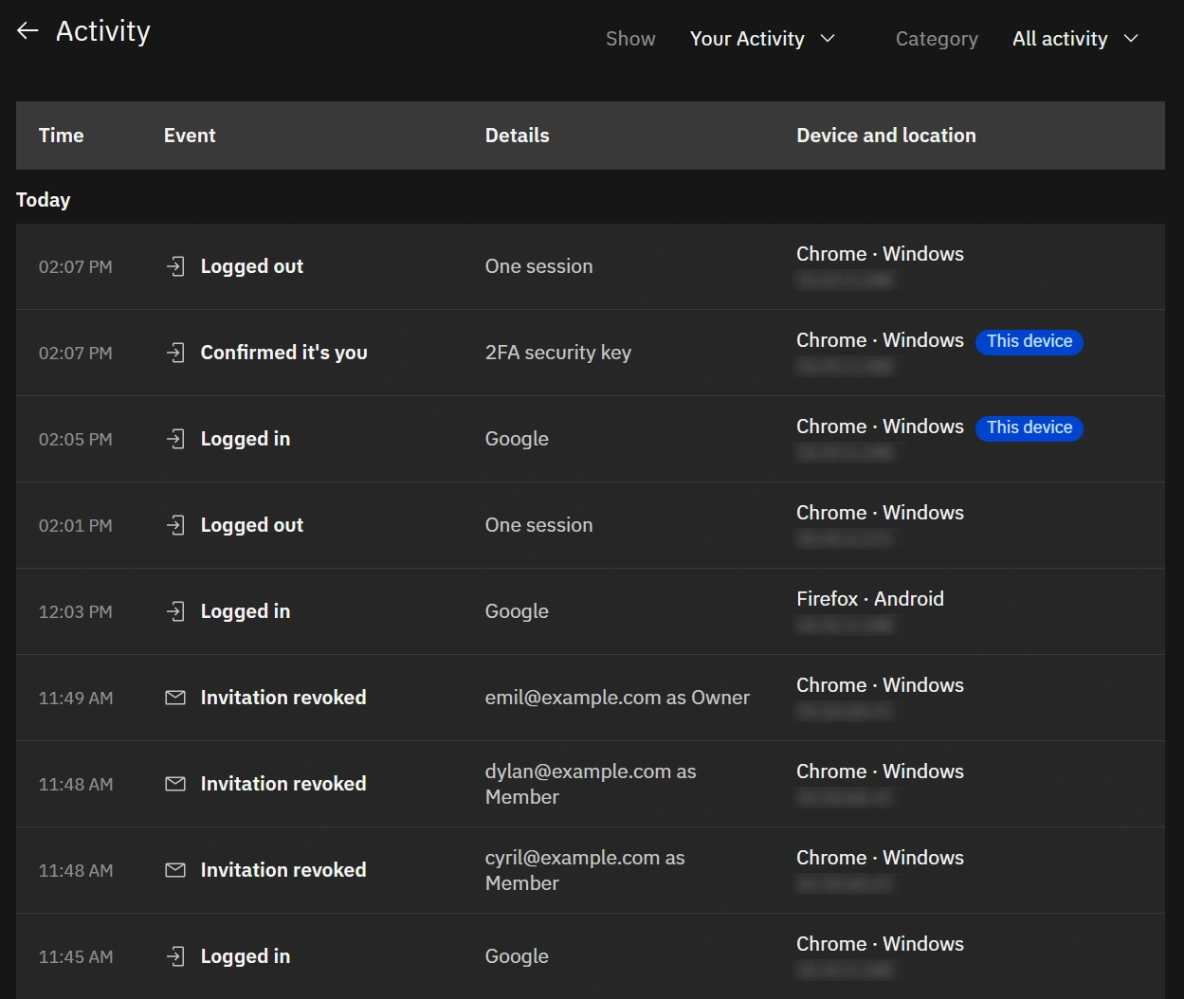
- Open Braiins ID at identity.braiins.com and select Show Detailed History at the bottom of Active Sessions.
- In Show, choose Your Activity for your identity, or Account: … for one account. You can also use View account activity on an account's page.
- Choose a Category, such as Security, Sessions, Accounts, Invitations, or Members. Use All activity to remove the category filter.
- Find the event in the table. Time and Event say when and what, and Details names the people or settings involved. The last column says where it came from: Device and location in your own activity, or By in account activity, which also names who did it.
Account activity requires the Owner account role. Your own activity is separate. The accounts and events you can see depend on your access. An empty filtered list does not prove that nothing happened: check the selected scope, account, and category.
Check a Recent Change
After changing a password, inviting someone, or updating a member's access, look for the corresponding event. Compare its account, people, and time with the action you expected.
Activity describes identity and access events. Use your product's own history for mining rewards, payouts, orders, and other product activity.
If You See Something Unexpected
Check whether another authorized member made the change. For unrecognized sign-ins or security changes, review browser sessions, end sessions you do not recognize, and change a potentially compromised password.
If you need help, contact support with the event title, approximate time and time zone, and affected account name. Never include passwords, setup keys, QR codes, or recovery keys. See What to include in a support request.