Create Your Braiins ID
Use an email address you control. Each teammate should create their own Braiins ID. The interface calls this your Braiins Identity; an account is a separate shared space.
Already use Hashpower? Register with the same email address used for your Hashpower account. If you do not know it, follow Access Hashpower with Braiins ID for the support steps before registering.
Start with Your Email
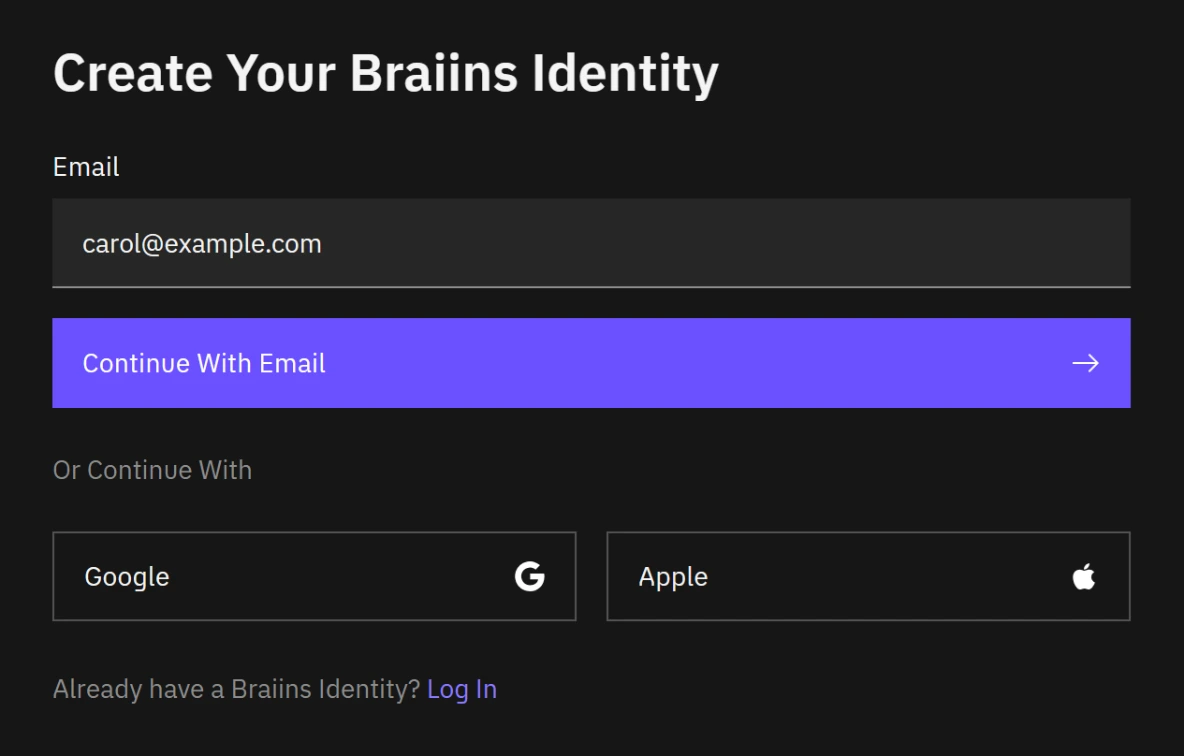
- Open the Braiins ID sign-in page from your product and select Create Identity.
- Enter your email address and select Continue With Email.
- Check your inbox for the registration code.
Google and Apple registration are offered under Or Continue With on this screen. Follow the provider's prompts and any verification Braiins ID requests. For email registration, you choose a password or passkey after verifying your email.
Verify Your Email
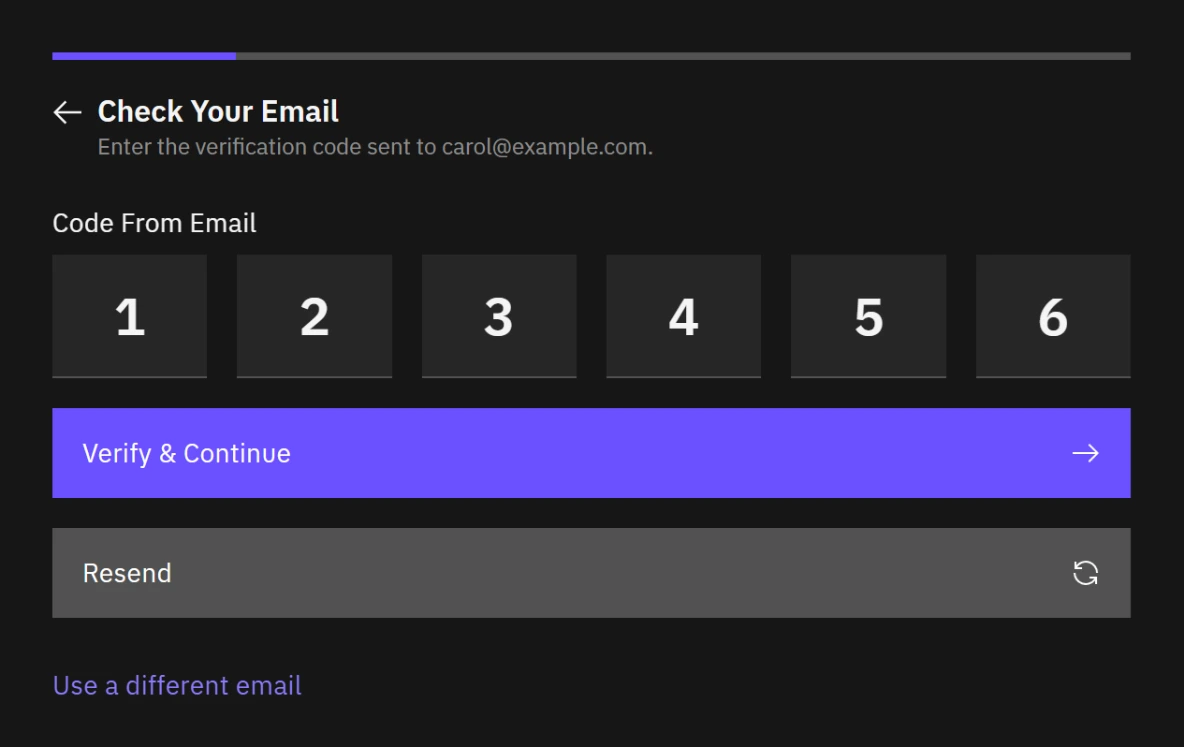
- Open the registration email.
- Enter its six-digit code on Check Your Email.
- Select Verify & Continue.
If the message does not arrive, check spam and the address shown. Use Resend when its countdown finishes, or Use a different email to correct the address. An expired registration must be started again. See Email and code problems.
Verifying the code is not the end of registration. Continue to the credential step in the same browser. If the address already has a usable Braiins ID, the interface asks you to log in instead.
Register with Email and Password
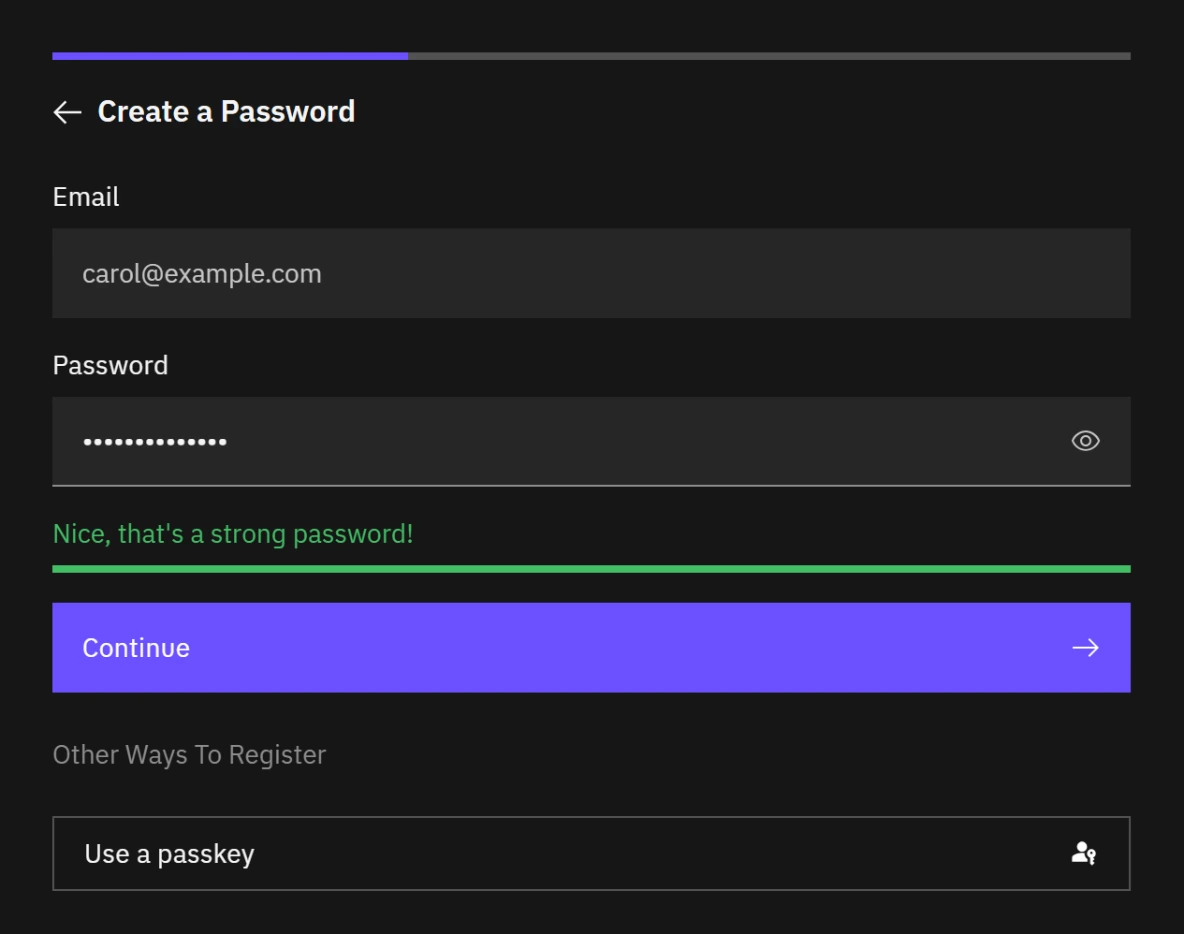
After email verification:
- Check that the email shown above the password is the address you just verified.
- Enter a unique password with at least 12 characters and follow the validation shown.
- Select Continue.
Alternatively, select Use a passkey under Other Ways To Register and follow your browser's prompt. Save the passkey somewhere you can access again. A canceled prompt leaves the password option available.
If your product has instructed you to activate an imported identity, use the exact email address from those instructions. Eligible imported identities retain their existing accounts when you finish setting up the first credential. This is not a general way to transfer an unrelated product account.
Finish Security Setup
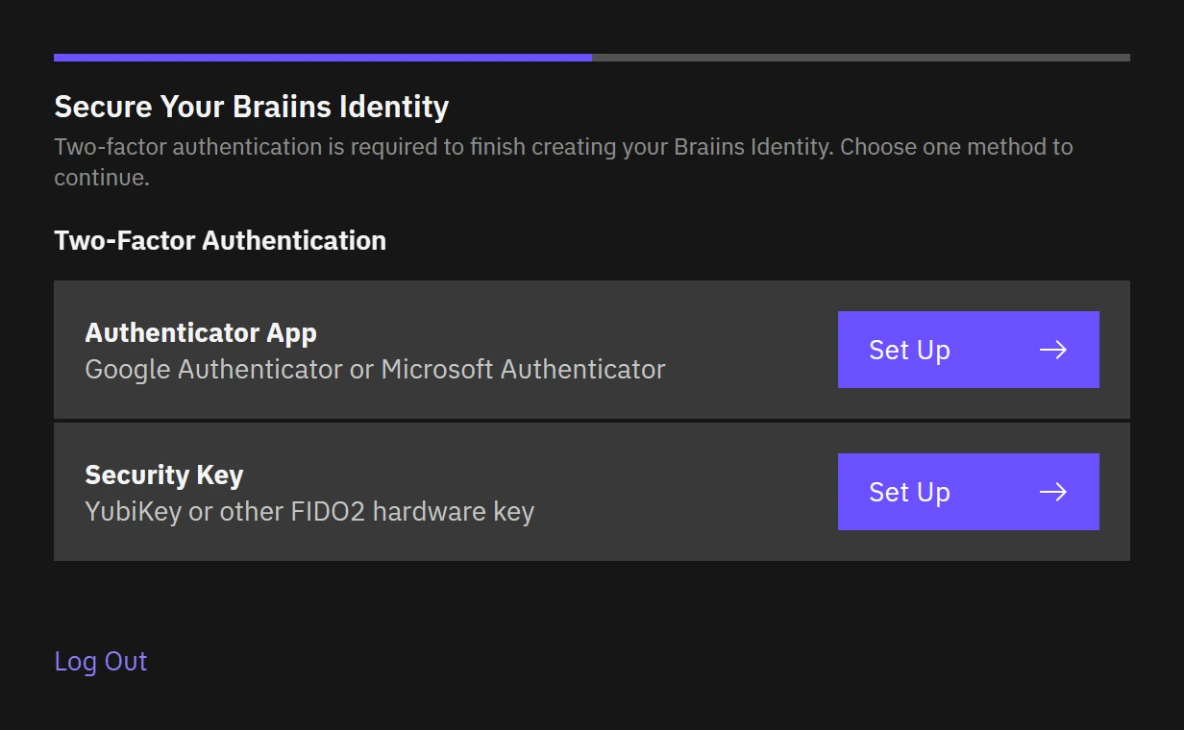
Password registration requires two-factor authentication (2FA) and saved recovery keys before you continue. Passkey and social registration do not require the same local 2FA enrollment at this point; you must set up 2FA before changing your email or managing passwords, passkeys, or Google and Apple sign-in.
- On Secure Your Braiins Identity, choose Set Up for Authenticator App or Security Key.
- Follow the authenticator setup or security key setup instructions.
- On Save Your Recovery Keys, download or copy the keys and store them securely.
- Select I've saved my recovery keys, then Continue.
Keep your authenticator setup key and recovery keys private. Do not send them to teammates or support. Secrets in these screenshots are concealed.
Confirm Your First Account
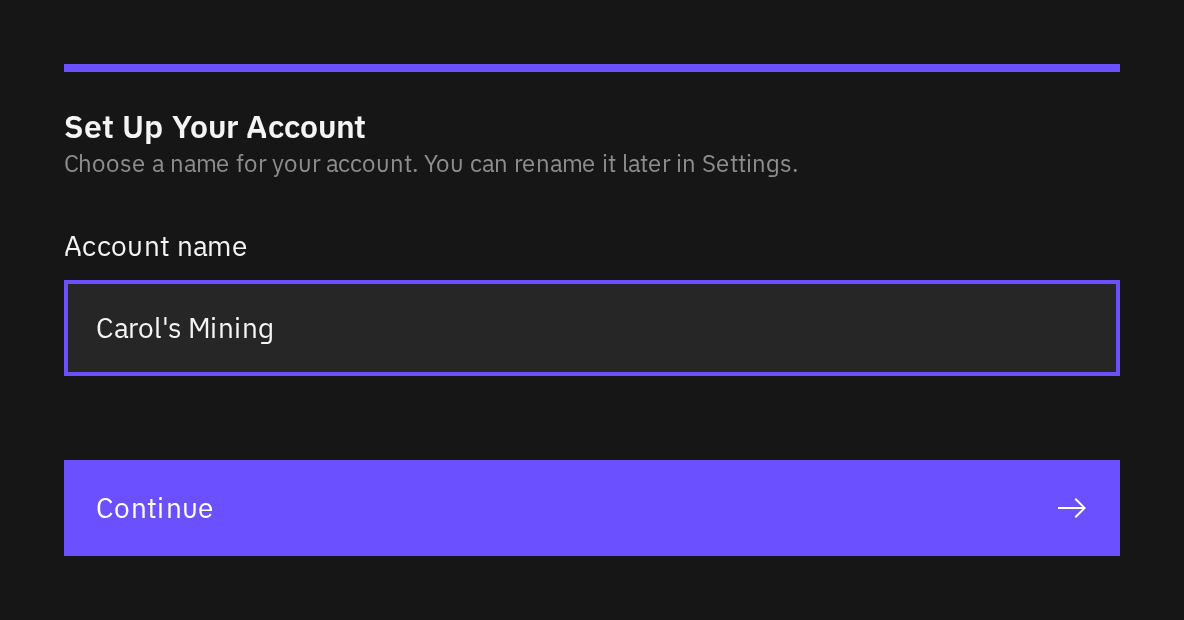
When asked to finish account setup, review or enter the name of your first account and select Continue. New identities must complete this step even when returning to Identity settings rather than a product. Leaving and signing in again resumes unfinished setup. Existing imported accounts may skip this step.
When continuing to Hashpower, setup can also ask for an optional referral code. Check the code before continuing. Continuing with an empty field permanently records that you are not using a referral for that setup; a saved choice cannot be changed here. An invalid code must be corrected or removed. Other destinations do not show the Hashpower referral field, and finishing Identity-only setup does not complete a later first Hashpower visit.
Creating or naming an account does not configure mining or move funds. Follow the product's own setup instructions afterward.
Check That You Are Ready
Open Braiins ID at identity.braiins.com and check that your email is Verified. If you completed 2FA setup, its row shows Active. You can now set your display name, manage accounts, or accept a team invitation.