Profile, Sessions, and Connected Apps
Open Braiins ID at identity.braiins.com to manage your personal Braiins Identity. These settings belong to you across every account you can access.
Change Your Display Name
- Under Identity, select Edit beside Display Name.
- Enter the name you want other members to see.
- Select the checkmark (Save), or cancel to discard the edit.
- Check that the saved name appears under Identity.
This changes your own display name. To change an account's name, use Rename an account.
Change Your Email
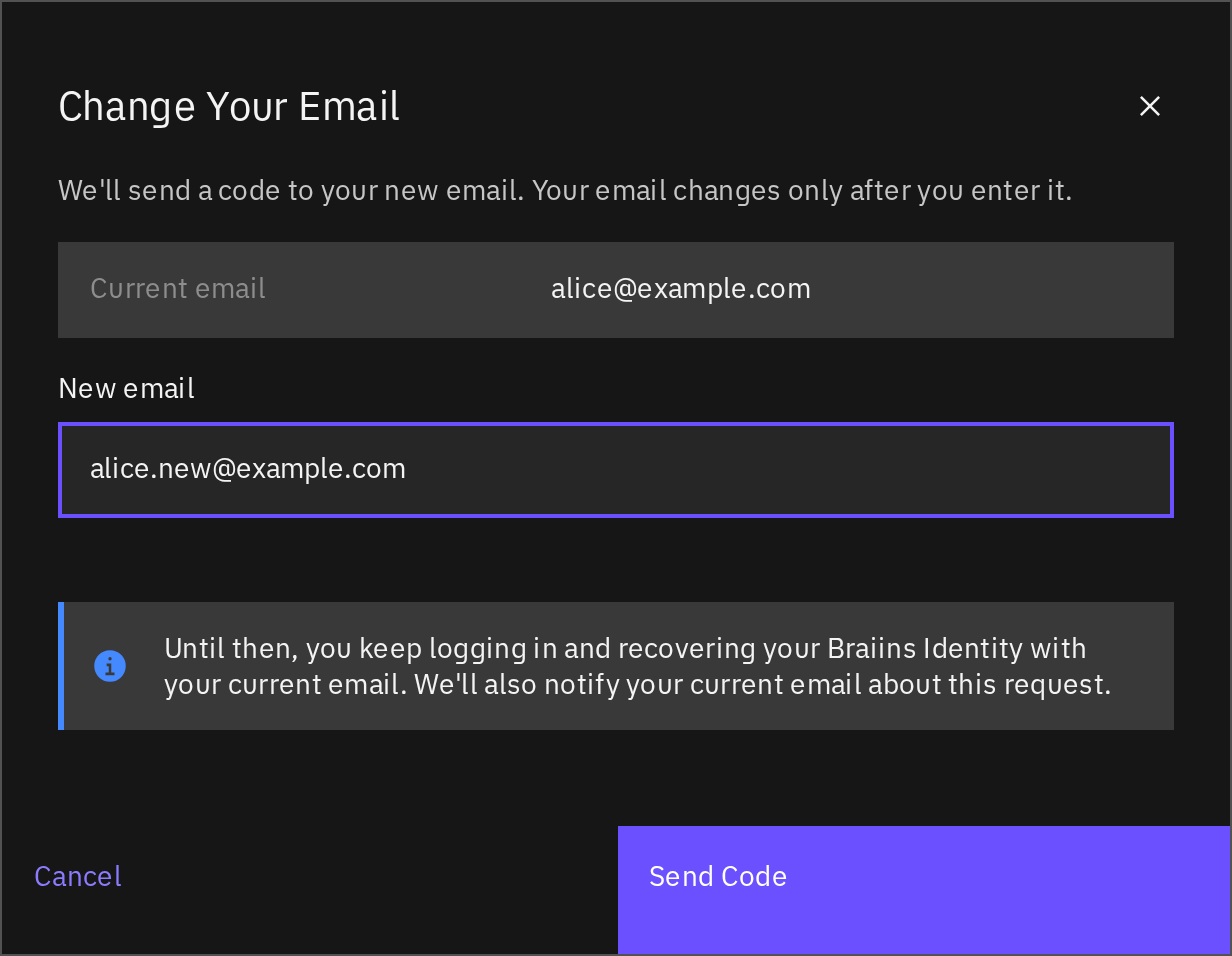
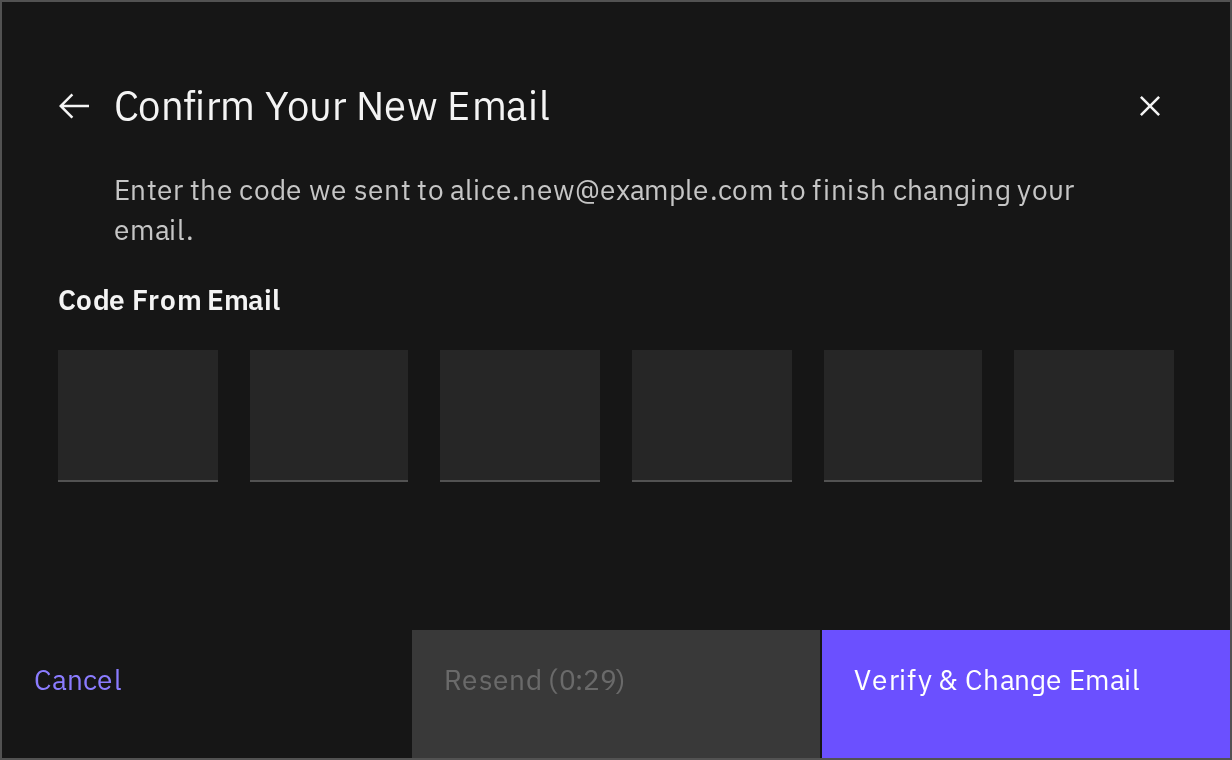
The Email row shows your sign-in and recovery address and whether it is Verified. You can change a verified email once you have an authenticator app or a 2FA security key.
- Select Change beside Email and complete the 2FA verification it asks for.
- On Change Your Email, check Current email and enter New email.
- Select Send Code. Keep this browser signed in.
- Open the message sent to the new address and enter Code From Email in the confirmation dialog.
- Select Verify & Change Email.
- Check that the Email row shows the new address as Verified, then update your password manager.
Until verification succeeds, log-in and password recovery continue to use your current address. The current address receives a notification. A new request replaces the pending change; signing out or changing profile details can cancel it. If the code or request expires, start the email change again.
An address already used by another Braiins Identity cannot be selected. If you cannot complete the required verification, contact support.
Review Active Browser Sessions
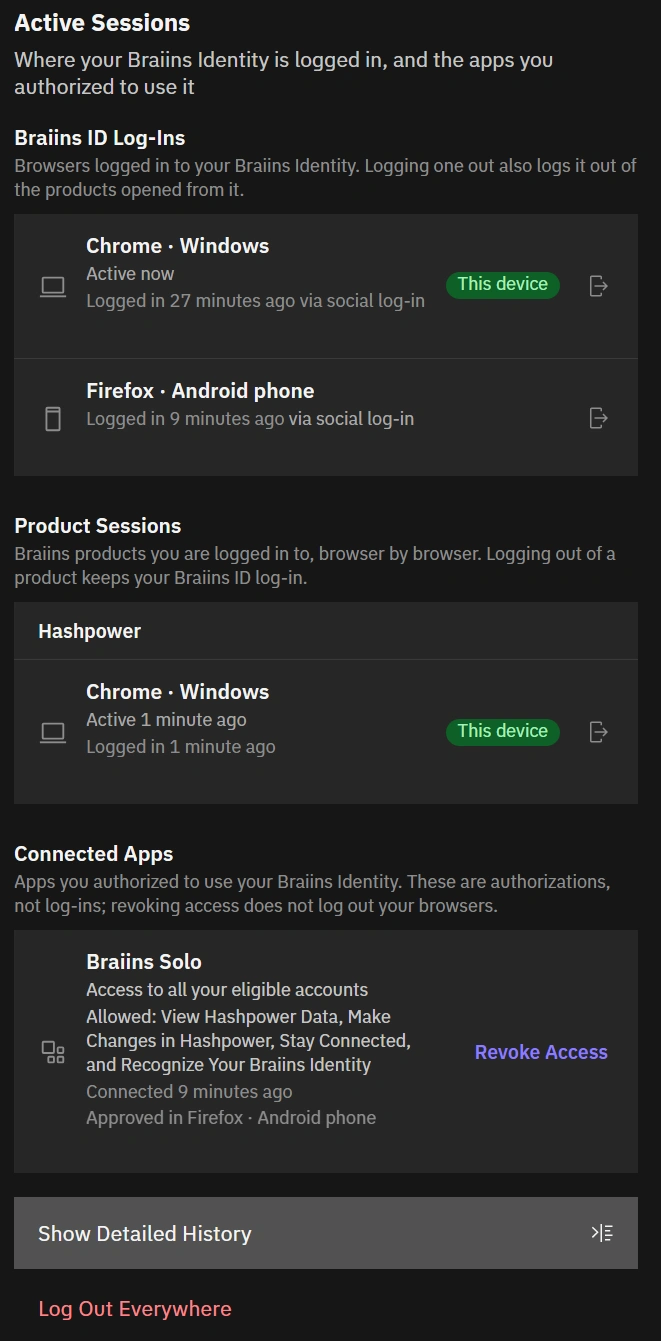
Active Sessions has three separate sections:
Session rows show available browser, device, location, last-activity, log-in, and network information. Hover over the time to see exact timestamps. Load More Sessions shows additional Braiins ID log-ins when available. Show Detailed History below the sessions opens Activity. One computer can have several sessions in different browsers or profiles. A location or network address may reflect a proxy or shared network.
The Braiins Solo mobile app appears twice. Authorizing it creates two entries here: a Braiins ID log-in that looks like a browser session on a phone, because the app signs in through one, and a Connected App named Braiins Solo. Removing them does different things. Revoke Access on the Connected App is what cuts the app off. Logging out the phone session ends that log-in only; the app keeps its own access and carries on working. To disconnect the app, revoke the connection.
End a Product Session
Under Product Sessions, use the log-out action beside the relevant product and browser. Review the confirmation and select Log Out of …. This keeps the Braiins ID log-in but ends that product session; the product will not silently log that browser back in. A new interactive log-in is required.
Ending one product session does not revoke an app connection or close the account.
Sign Out Other Browser Sessions
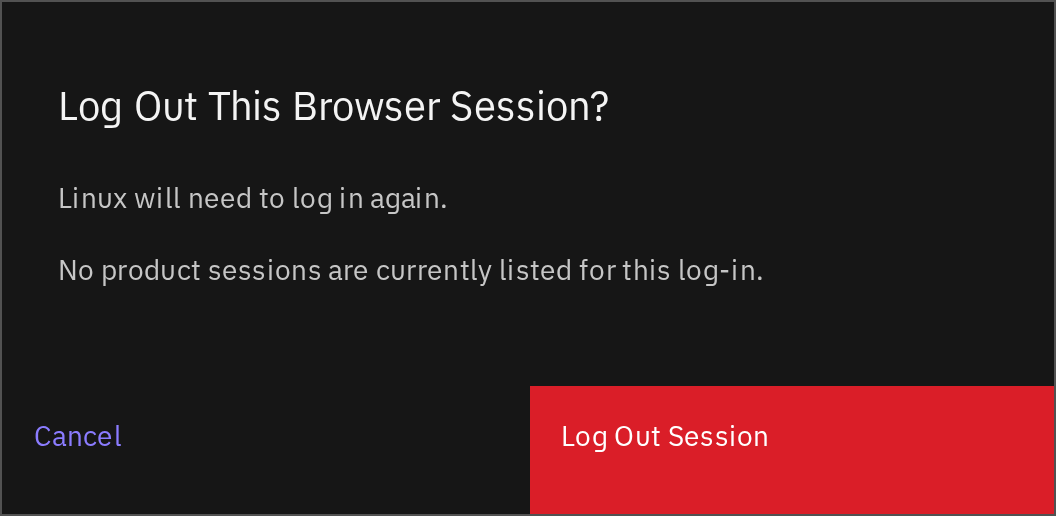
Under Braiins ID Log-Ins, use the log-out action for the browser you want to end. Review the confirmation, including the product sessions it also ends, and confirm. Check that the entry disappears. Your current browser stays signed in when you end another browser's log-in.
Ending another browser session, a product session, or an app connection requires fresh 2FA verification. Follow the setup or verification prompt if shown. Canceling it does not complete the requested log-out or revocation.
Log Out Everywhere
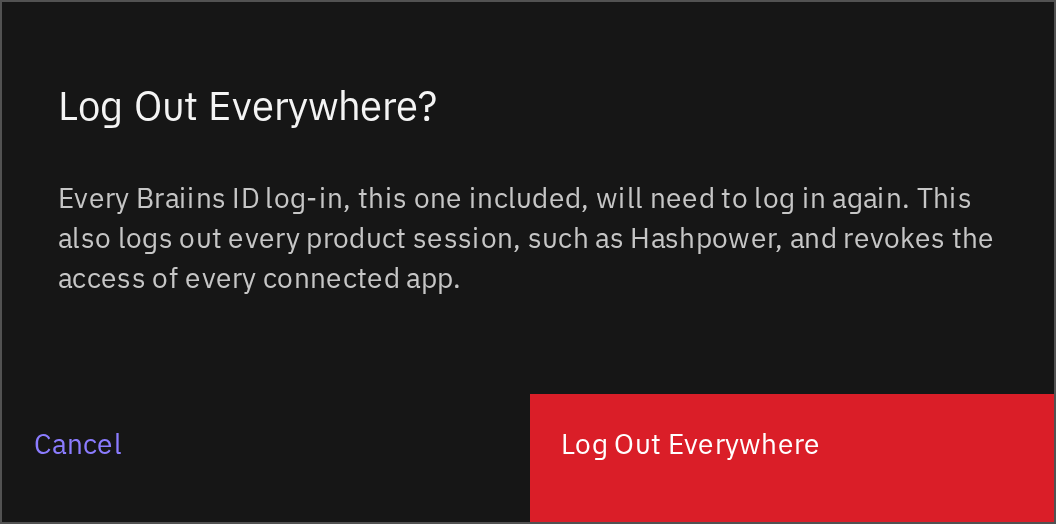
- Select Log Out Everywhere.
- Read the confirmation: it includes this browser, other Braiins ID log-ins, product sessions, and connected-app access.
- Confirm and complete any requested verification.
- Wait for the completed log-out screen before considering the action finished.
If you have a 2FA method, fresh verification is required. If you have no authenticator app or security key, a normal credential-based session can log out everywhere without enrolling one first. An unfinished password-recovery session cannot use this shortcut.
If you do not recognize a session, also change your password and review activity.
Review and Revoke Connected Apps
Connected Apps shows an app's allowed accounts, permissions, connection time, and where you approved it. That approval browser is not necessarily the device running the app. Use Load More if more connections are available.
To remove an authorization, select Revoke Access beside that connection, check the app and affected access, and confirm. Complete fresh 2FA verification if asked. Revoking one connection does not log out your browsers or product sessions, and another connection for the same app can remain.
Approve a Third-Party App's Access Request
Only third-party apps ask for your approval. A Braiins app such as the Braiins Solo mobile app connects without a consent screen and is granted every account you can already use; it still appears under Connected Apps with the permissions it holds.
When a third-party app asks to connect, check the displayed app name, permissions, and accounts before selecting Allow Access. Select Deny if you do not want to grant access.
A request may allow one account or several. An account that lacks the access the app needs cannot be selected: an app asking to make changes in Hashpower needs Admin access on that account, not Viewer. Expand Request Details for the app identifier and exact requested permissions. If a permission has no explanation, check with the app developer before approving it.
The accounts you approve are a snapshot. Accounts you join later are not added to the authorization, and widening it means approving a new request. A third-party app asks again on every new authorization, even one you approved before — but once connected it renews its own access in the background, within what you approved, until you revoke it.
Google and Apple connections used to sign in to Braiins ID are managed separately under Google and Apple sign-in.