Add or Remove a 2FA Security Key
A security key is a physical FIDO2 device, such as a YubiKey, that you plug in or hold against your phone. Braiins ID uses it as your second step after your password — the same job an authenticator app does, so a security key is an alternative to that app rather than an addition to it.
A security key is not a passkey. A security key is the second step, used after your password. A passkey replaces your password and the second step. The same hardware key can do both jobs, but each is registered in its own place — security keys under Two-Factor Authentication, passkeys under Log In Methods — and registering a key as one does not register it as the other.
Your browser or operating system controls the device prompts. Their appearance depends on your device, browser, and the key itself.
Add a Security Key for 2FA
Have a compatible physical FIDO2 security key ready.
- Open Braiins ID at identity.braiins.com, scroll to Two-Factor Authentication, and select Set Up or Manage.
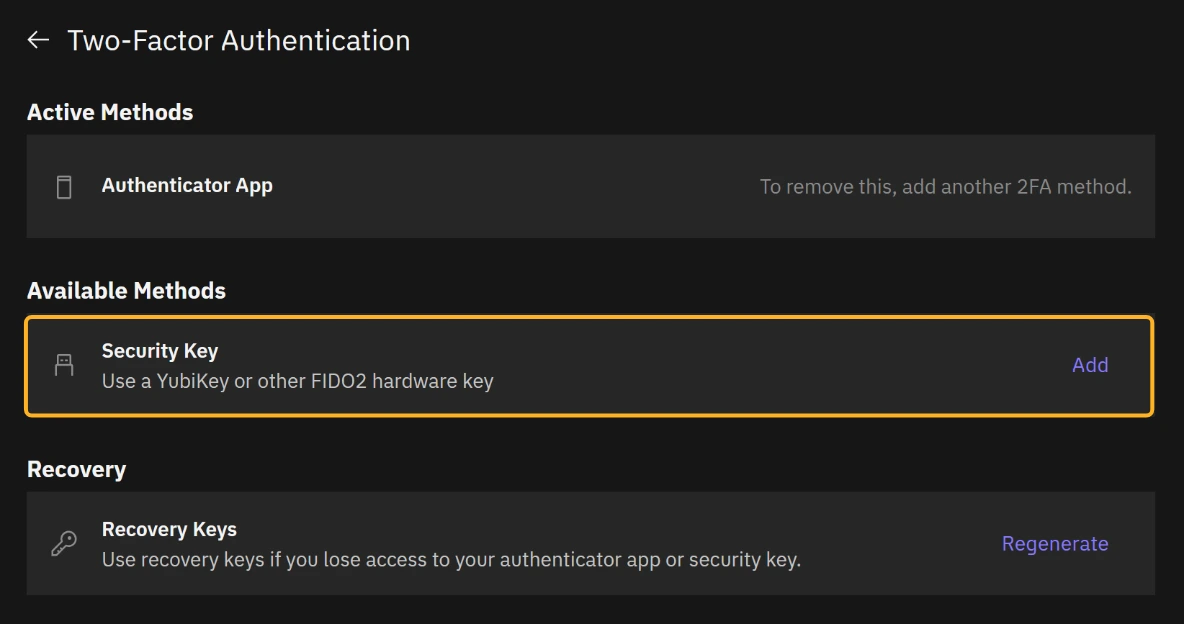
- On the Two-Factor Authentication page, select Add beside Security Key under Available Methods. This also lets you add another key.
- Verify again if you are asked to.
- Select Add Security Key.
- Follow your browser's instructions to connect or tap the key and interact with it. The browser may request the key's PIN.
- Save recovery keys if prompted, then complete setup.
- Check that the key appears under Active Methods on the Two-Factor Authentication page.
When a verification screen offers Use a security key, select it and follow the browser's instructions.
Remove a Security Key
- Open Braiins ID, scroll to Two-Factor Authentication, and select Manage.
- Identify the key under Active Methods, checking its name and added date.
- Open that key's actions menu and select Remove. If it is the only 2FA method, add another method first.
- Complete any verification requested, read the confirmation, and confirm removal.
- Check the remaining methods on the Two-Factor Authentication page.
Before removing a working credential, make sure you can still sign in and complete 2FA. The last 2FA method cannot be removed. A sign-in passkey or recovery key does not replace an authenticator app or a key registered for 2FA. If a key is lost and no alternative verification method is available, contact support.