Sign In to Braiins ID
Start from the Braiins product you want to use. When it opens Braiins ID, choose a sign-in method you have already set up.
Use Email and Password
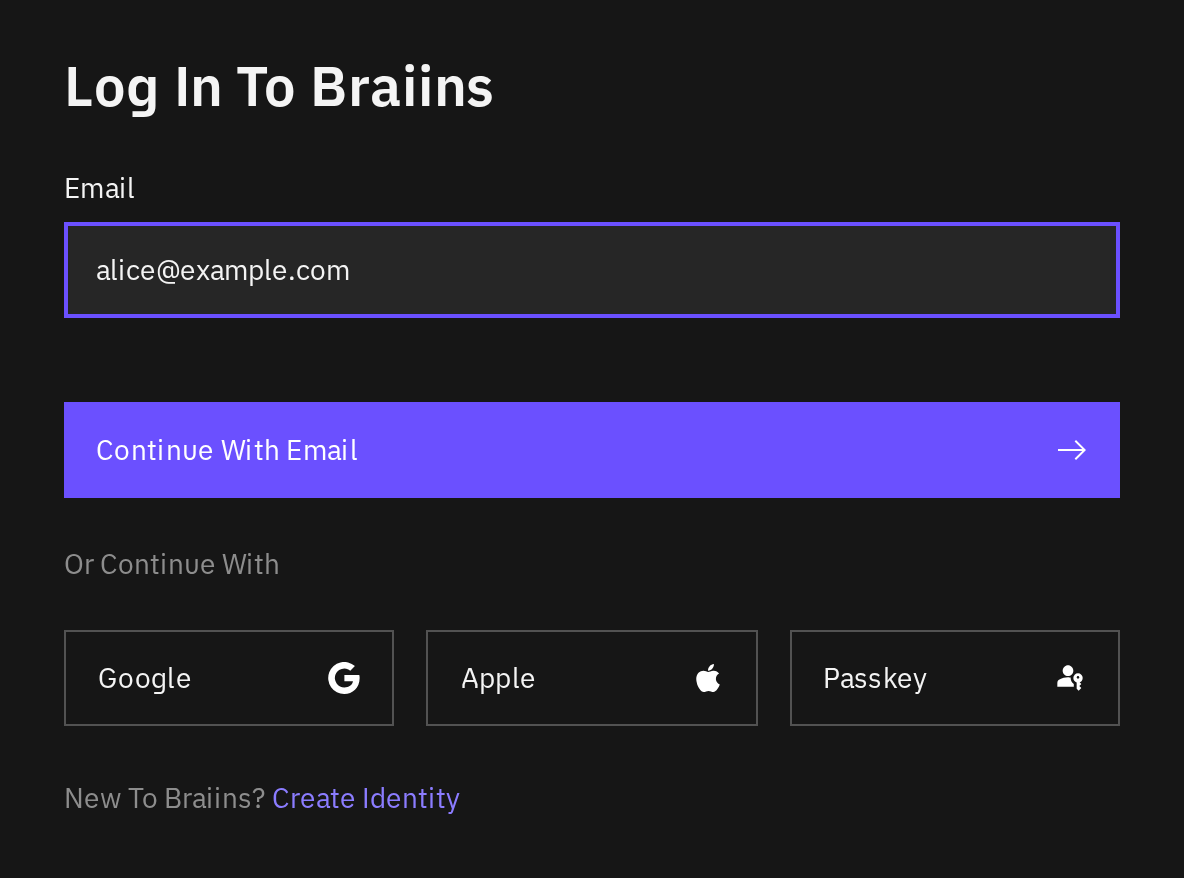
- Enter your email and select Continue With Email.
- Enter your password on Welcome Back!.
- Select Log In.
- Complete the verification requested on the next screen.
If you cannot remember your password, select Forgot your password? and follow Reset a forgotten password.
Complete Two-Factor Verification
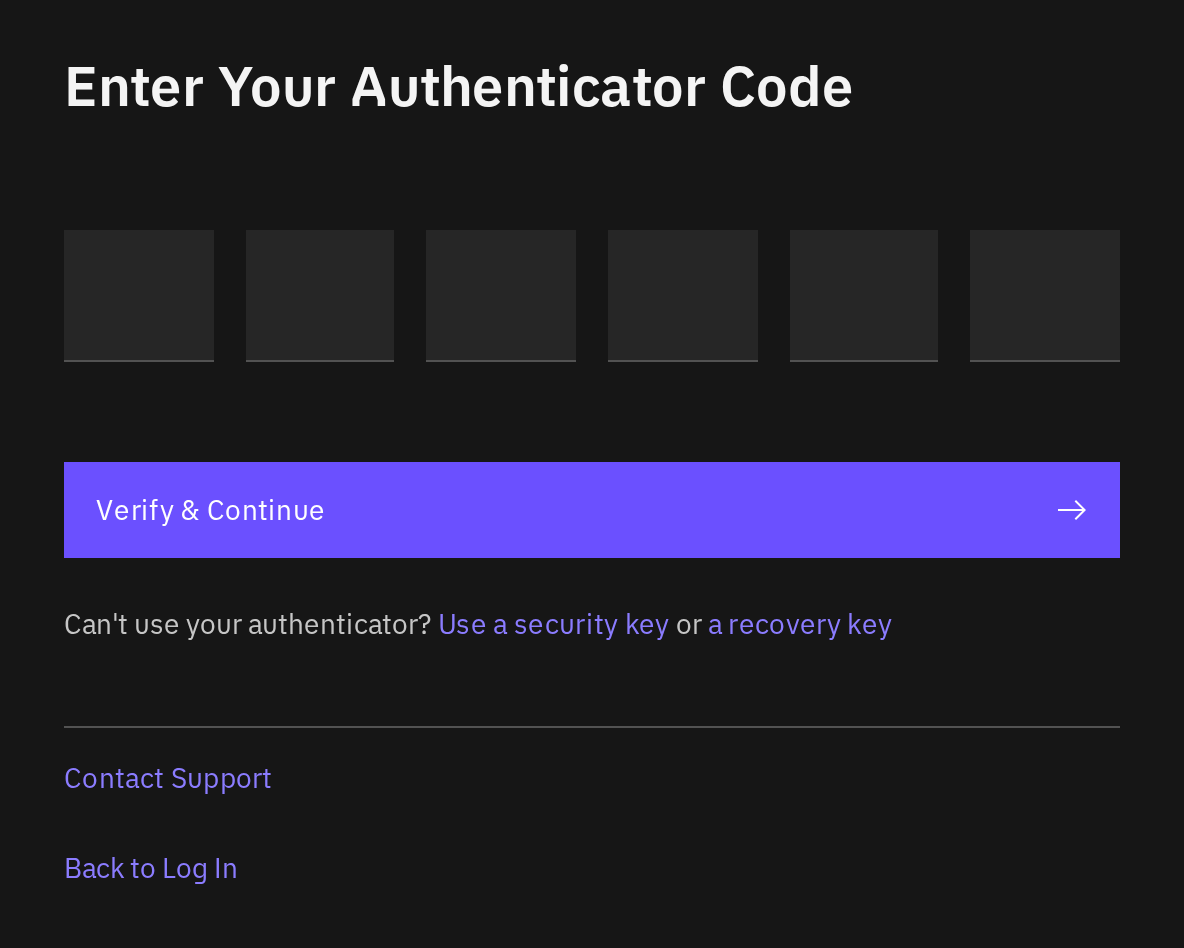
If asked for an authenticator code, open your authenticator app and enter the current six-digit Braiins code. Select Verify & Continue.
If another method is registered, use the corresponding option, such as Use a security key. If your usual method is unavailable, select Use a recovery key and enter a recovery key you have not used yet. See Recovery keys.
Signing in does not switch verification off. Braiins ID can ask you to verify again before a security change, such as changing your password or adding a passkey. Complete that prompt to return to what you were doing.
Use a Passkey
Under Or Continue With, select Passkey and follow your browser's instructions. Choose the passkey you registered for Braiins ID and unlock it using the method requested by your device. If the passkey is on another device, use the cross-device option offered by your browser, when available.
To register a passkey after signing in, see Add a sign-in passkey.
Use Google or Apple
Under Or Continue With, select Google or Apple and choose the identity linked to your Braiins ID. Complete the provider's prompts, then any verification requested by Braiins ID. See Google and Apple sign-in to manage these connections.
After Sign-In
When a product asks Continue as …, check which Braiins Identity is signed in. Change Account at that step signs this browser out so you can sign in as someone else. That is different from switching between your accounts inside a product.
When a product offers several accounts, check which one is selected before making changes. You can reorder that list, and hide accounts you do not need, under Accounts.
If sign-in stops at email verification, security setup, account setup, or a required password reset, complete that screen before returning to your product. For other problems, see Troubleshooting.
To end another browser session, see Profile, sessions and connected apps.