Save, Use, or Regenerate Recovery Keys
Recovery keys let you complete a 2FA check when your authenticator app or security key is unavailable. Each key works once. They are different from the email recovery code sent during a password reset.
Save Your Recovery Keys
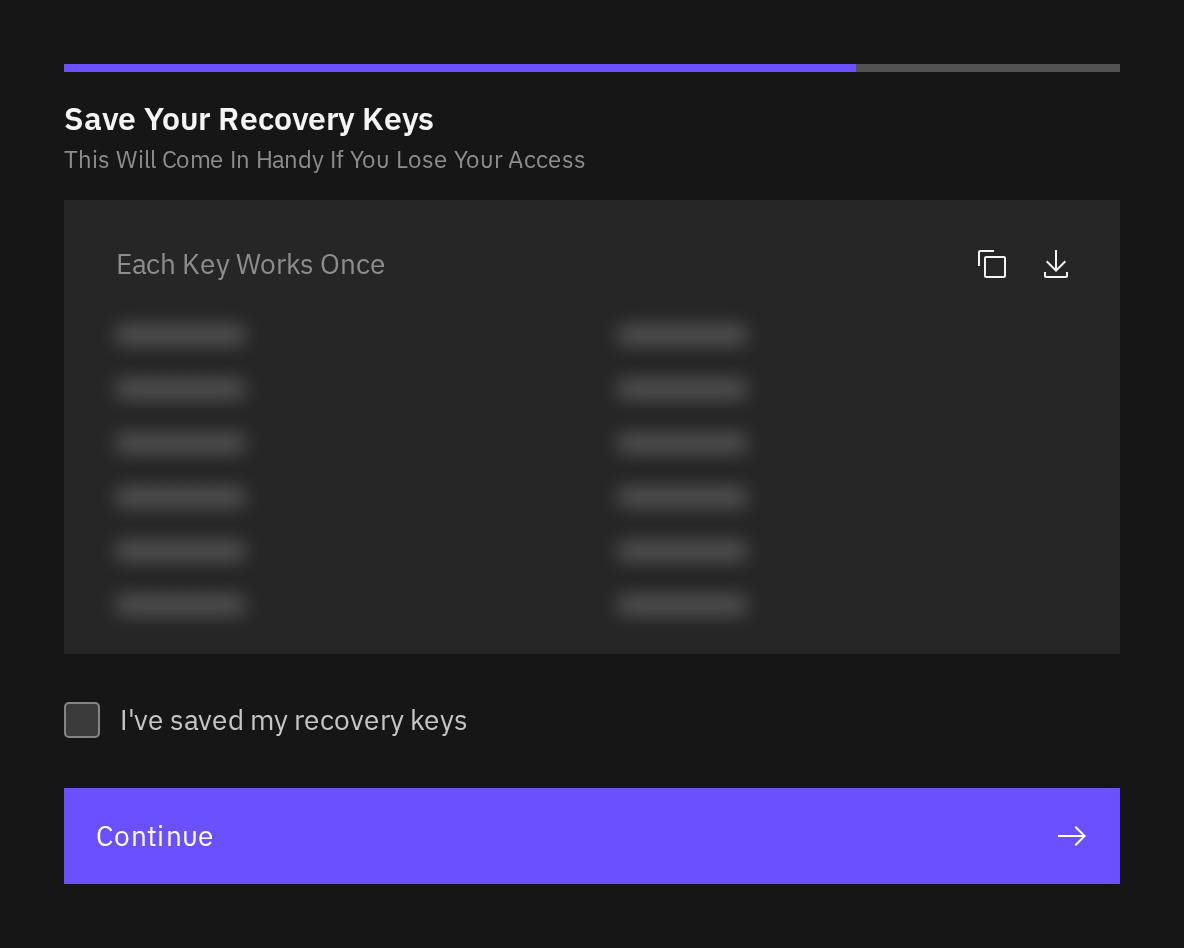
When 2FA setup displays Save Your Recovery Keys:
- Use the download or copy control to save the keys in a secure location.
- Make sure you can retrieve them if you lose the device with your authenticator app. For example, use a secure password manager you can recover separately, or a printed copy stored safely.
- Select I've saved my recovery keys.
- Select Continue during registration, or Done when setting up or regenerating keys later.
Treat recovery keys like passwords. Do not share them, paste them into a support case, or store them in a shared team document. The recovery keys in this screenshot are concealed.
Use a Recovery Key
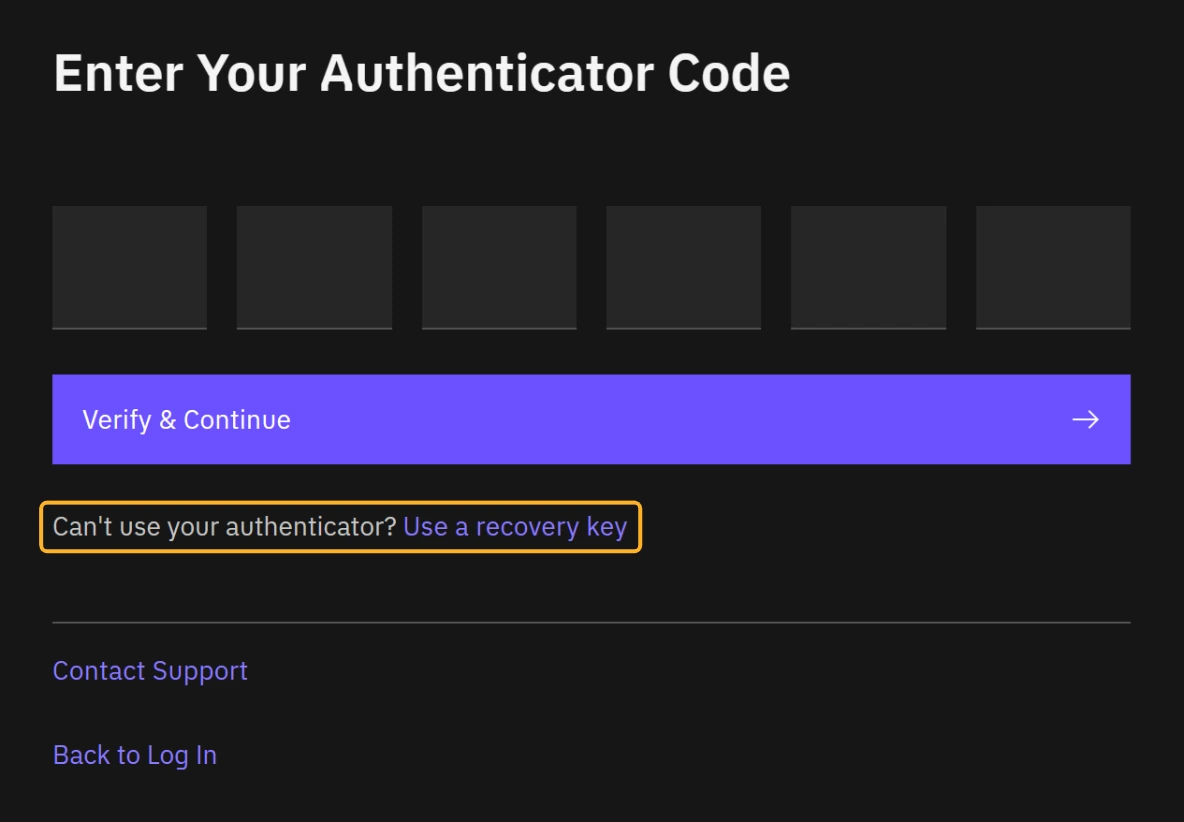
- Start the sign-in or security action you need to complete.
- At the 2FA prompt, select Use a recovery key.
- Enter one unused saved key in Recovery key.
- Select Verify.
- Mark that key as used in your saved copy. Continue the original action.
Using a recovery key does not remove the authenticator or security key. If you lost a device, replace the authenticator or remove the missing security key after regaining access.
Regenerate Recovery Keys
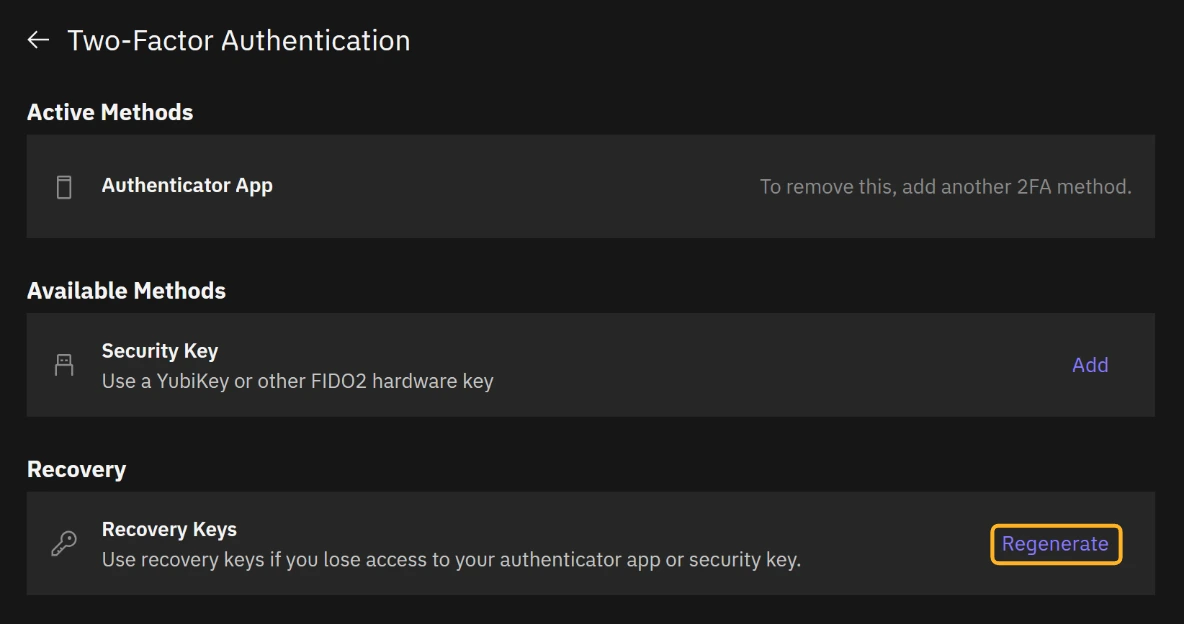
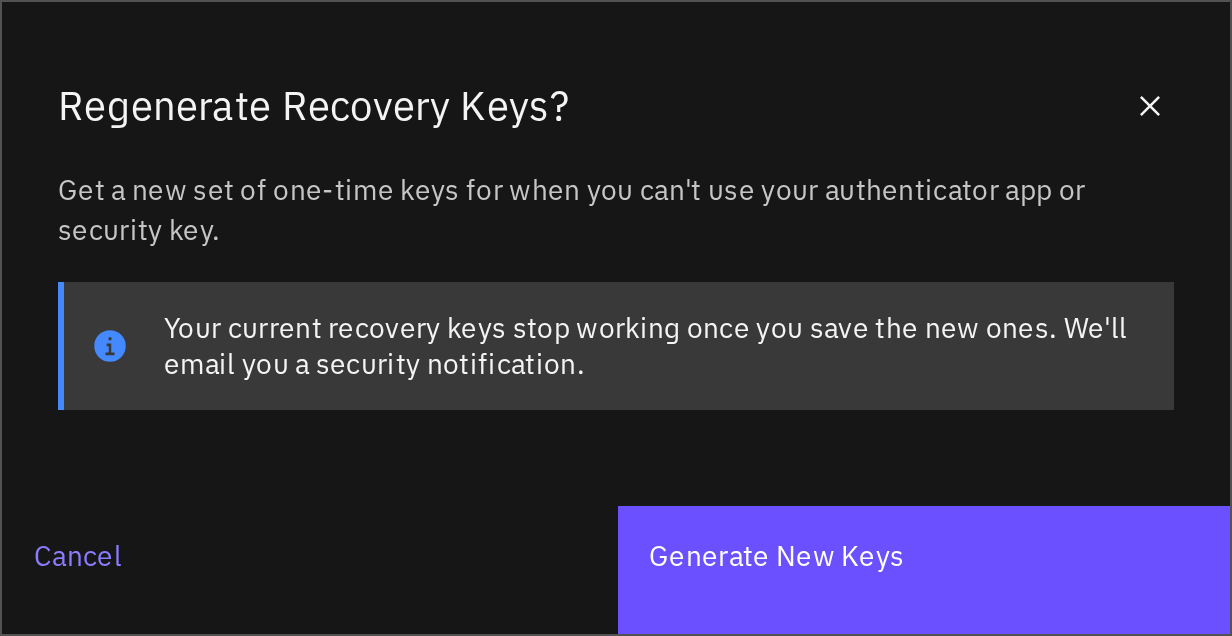
If you still have a working authenticator app or 2FA security key:
- Open Braiins ID at identity.braiins.com, scroll to Two-Factor Authentication, and select Manage. Verify again if you are asked to.
- Under Recovery, select Regenerate beside Recovery Keys.
- Read Regenerate Recovery Keys?, then select Generate New Keys.
- Save the new keys, select I've saved my recovery keys, and select Done.
- Replace the old saved copy after the interface confirms the new keys were saved.
Your old keys continue to work until you save the new set with Done. After that, only the new set works. Leaving before saving does not replace the old keys. Saved keys cannot be displayed again, and regeneration is unavailable until an authenticator app or 2FA security key is active.
If Your Keys Are Missing or Do Not Work
Check that the key belongs to this Braiins ID, has not already been used, and comes from the current set. If setup issued a new set, use that set.
The settings panel can show whether recovery keys are active; that status does not mean you still have an unused copy. Keep track of the keys you have used. Save them during setup rather than relying on being able to display them again later.
If you still have a working authenticator or security key, use it to sign in and regenerate your keys. Do not remove your working 2FA method to obtain replacement keys. If you have lost every 2FA method and all unused recovery keys, contact support for help recovering access.