API Keys
An API key lets an application or a script use one account without a browser sign-in. The key belongs to the account, not to the person who created it, so it keeps working if that person leaves the account.
Braiins Hashpower accepts these keys in its v2 API. See Connect with an API key for the request format and the API reference.
The screenshots show sample accounts and keys, so the names in them will not match yours.
Who Can Manage API Keys
Only account owners manage API keys. Owners find the API Keys section on the account's page: open Accounts and select the account name or row. Other members see no such section, and a member who follows a link to it reads Only account owners can manage API keys.
A key has its own access, chosen when it is created. It is not a member of the account and does not appear under Members.
Create an API Key
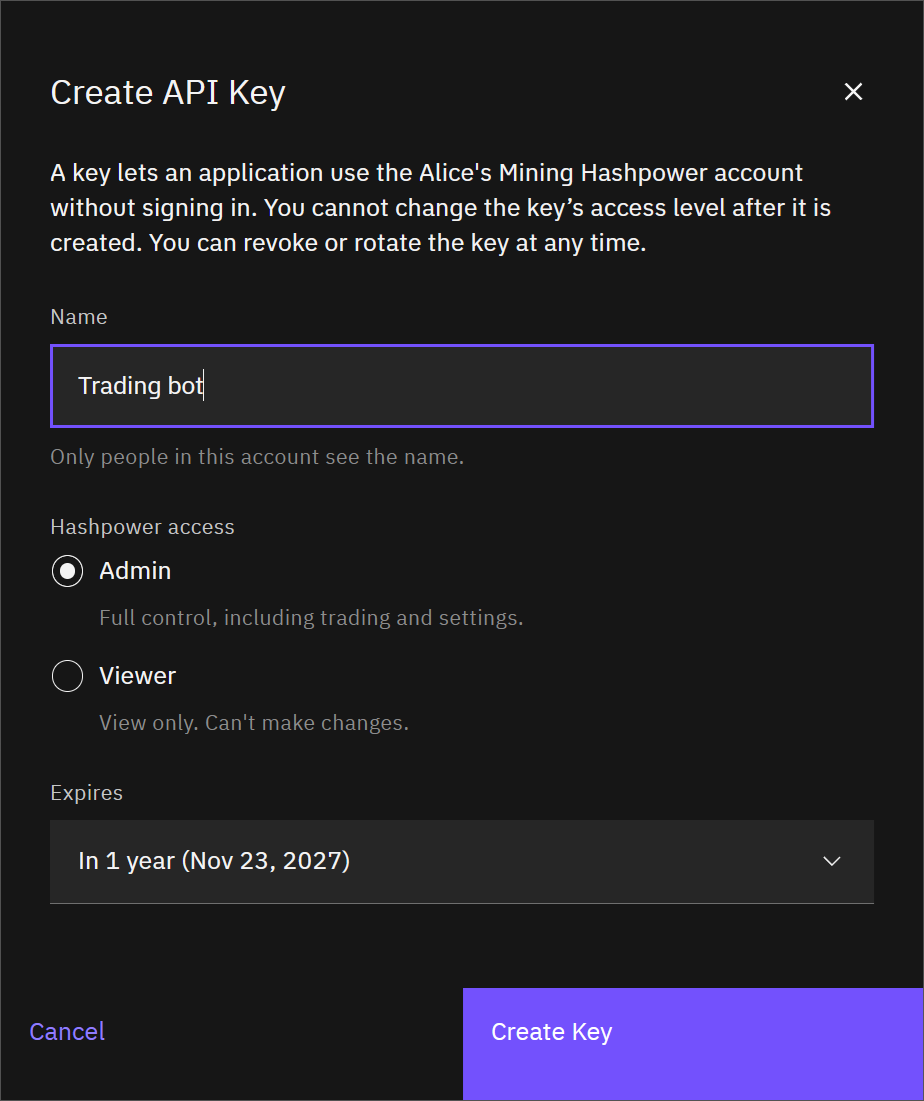
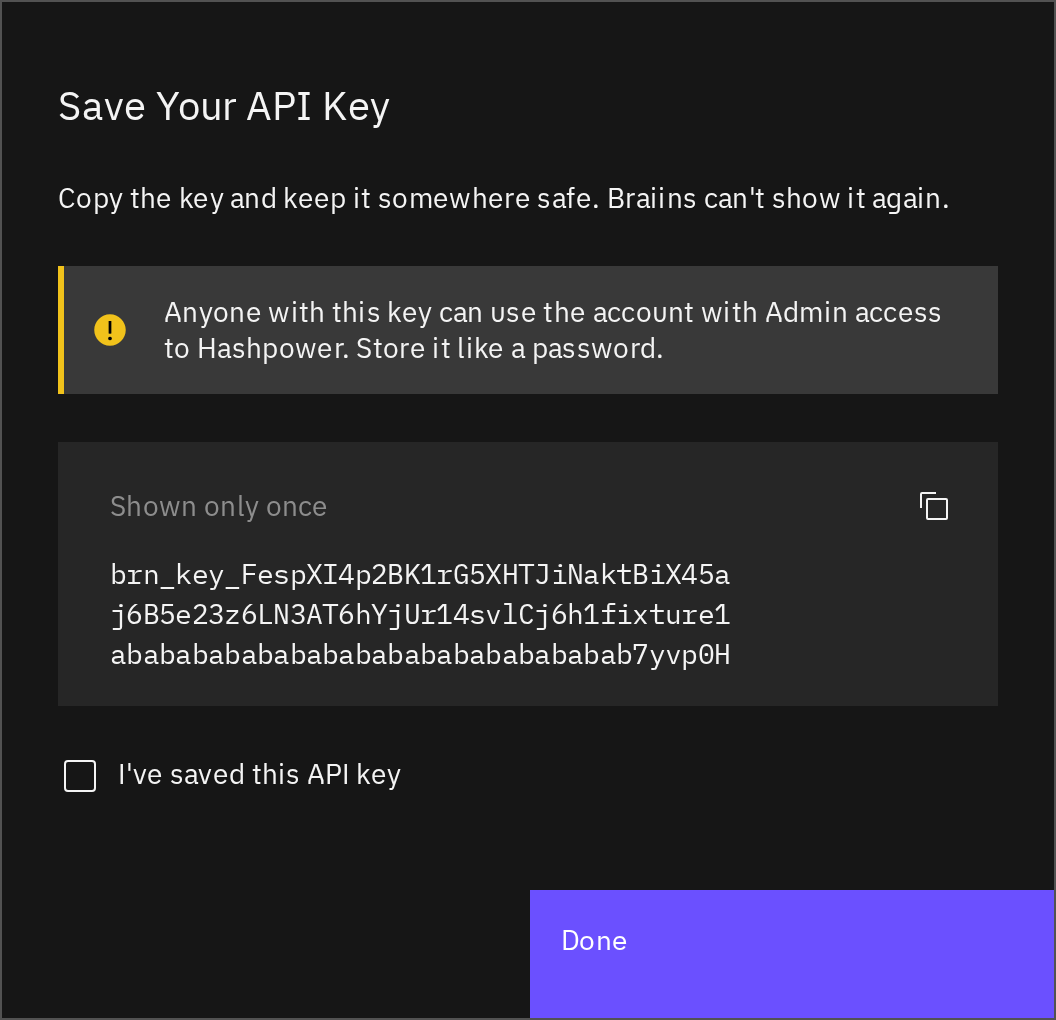
You need to be an account owner.
- Open Accounts and select the account name or row.
- In API Keys, select Create API Key.
- Enter a Name that says what will use the key, for example
Trading bot. Only people in this account see the name. - Under Hashpower access, choose Admin for full control including trading and settings, or Viewer for view only. Give the key the lowest access that works for the application.
- Under Expires, keep In 1 year, or choose In 90 days, In 30 days, or Never.
- Select Create Key. Creating a key needs a recent 2FA verification, so complete the verification if Braiins ID asks for it. Braiins ID keeps what you entered and creates the key when you return.
- On Save Your API Key, select Copy API key and store the key in a password manager or in your application's secret storage.
- Check I've saved this API key and select Done.
The key is shown only once. Braiins cannot show it again, so a key you did not save has to be replaced: rotate it or revoke it and create another. Anyone with the key can use the account with the key's access. Store it like a password, and never put it in client-side code, a public repository, a log, or a support ticket.
You cannot change a key's access after it is created. To give an application different access, create a new key and revoke the old one.
The verification uses your authenticator app or 2FA security key. If you have neither yet, set one up first: see Authenticator app or Security keys.
Recognize a Key
A key is a single word of 114 characters that starts with brn_key_. Its first 24 characters are the Key ID, which Braiins ID shows under the key's name. The Key ID is not a secret and cannot be used to sign in. It tells you which key an application holds, and it is what you give Braiins Support to identify a key.
Review Your Keys
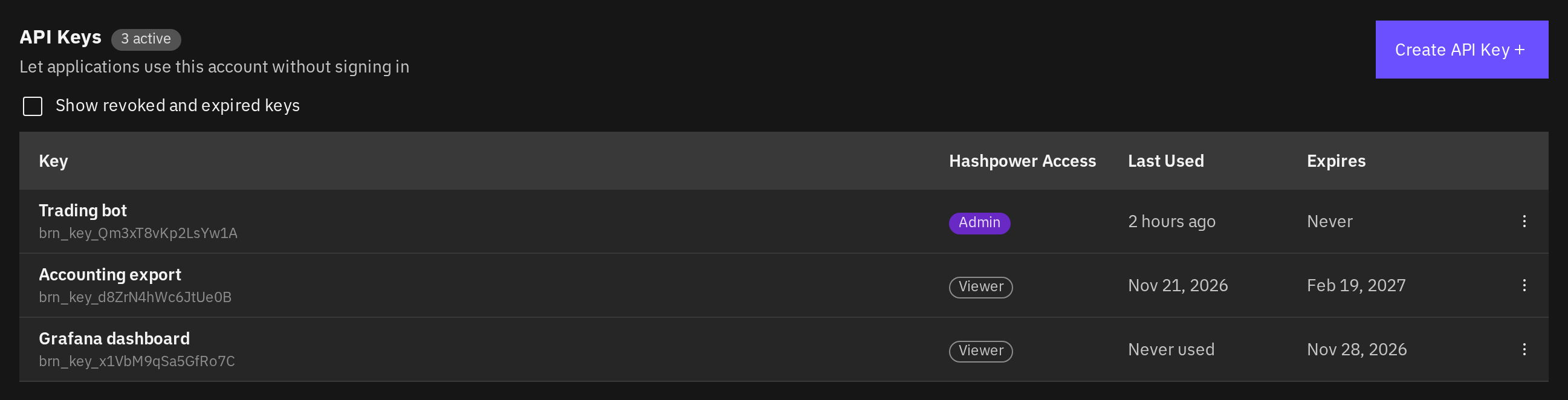
The API Keys section lists the account's active keys, newest first, and shows how many are active.
Check Show revoked and expired keys to also list keys that no longer work, with the date each was revoked or expired.
Last Used is approximate. Braiins records a key's use at most once every five minutes, so a key in constant use can show a time a few minutes old.
Open a key's actions menu with the ⋮ button at the end of its row. Key details shows the Key ID with a copy button, who created the key and when, its last use, and its expiry. For a rotated key it also shows the Key ID of the key it replaced or the key that replaced it. For an active key, the same menu holds Rotate key, until the key has been rotated once, and Revoke key. A revoked or expired key has neither.
Rotate a Key
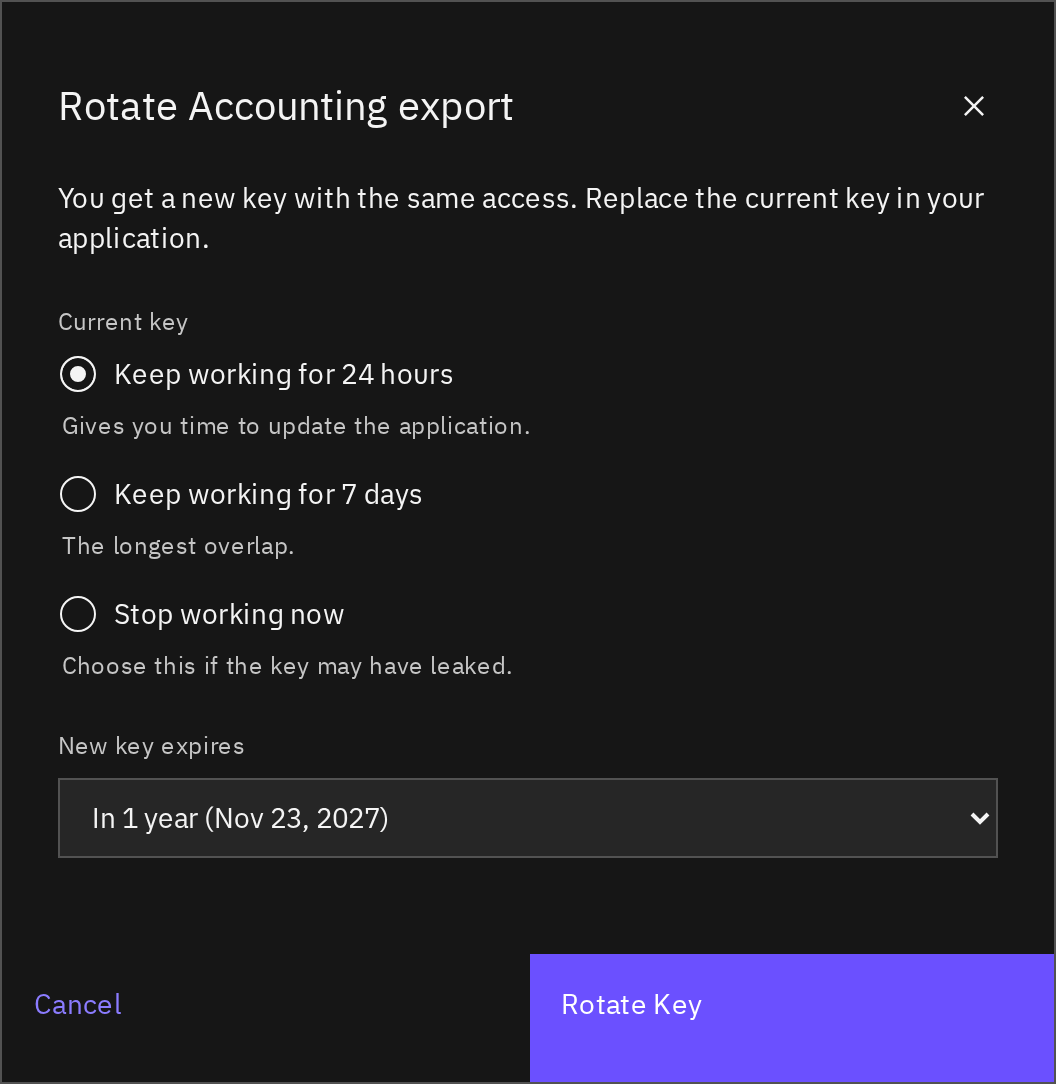
Rotating gives you a new key with the same access, so you can replace a key without interrupting the application.
- Open the key's actions menu and select Rotate key.
- Under Current key, choose what happens to the key you are replacing. The table below explains the choices.
- Under New key expires, choose the new key's expiry.
- Select Rotate Key and complete the 2FA verification if asked.
- Save the new key as you did when creating one, then put it into your application.
During the overlap both keys work. The replaced key never works past its own expiry date, even if the overlap is longer.
A key can be rotated once. After that, rotate the key that replaced it. The new key has its own Key ID, and rotation never changes access.
Revoke a Key
- Open the key's actions menu and select Revoke key.
- Check the key's name in the confirmation and select Revoke Key.
Revoking cannot be undone. New requests with the key may still be accepted for up to 15 seconds. After that, applications using the key have no access. The key moves to the revoked and expired keys.
Limit of Active Keys
By default, an account can have up to 50 active keys. Revoked and expired keys do not count. If you reach the limit, revoke a key you no longer use, then create the new one.
You can still rotate a key at the limit. Braiins ID refuses a rotation only when too many replaced keys of the account are still working. In that case choose Stop working now, or try again after one of them stops.
Emails and Activity
Every time a key is created, rotated, or revoked, Braiins emails each owner of the account, including the owner who made the change. The email names who made the change, the key, its Key ID, and the account. For a new or rotated key it also lists the access and the expiry, and for a rotated key when the previous key stops working. It never contains the key itself.
The same changes appear in the account's activity under the API keys category as API key created, API key rotated, and API key revoked, with the key's name and Key ID, and the access of a created or rotated key. See Review activity.
A key that reaches its expiry date stops working without an email or an activity entry, so note the date for keys your applications depend on.
Recent API Key Usage
Open Braiins ID at identity.braiins.com. In Active Sessions, below Connected Apps, Recent API Key Usage lists the active keys of accounts you own that were used in the last 60 minutes, each with its last recorded use. If you have more than one account, each key also names its account. Because use is recorded about every five minutes, the times are approximate.
Select Revoke Key beside a key to revoke it from there, with the same confirmation as on the account's page.
If a Key May Have Leaked
Act immediately. Select Revoke key, or select Rotate key and choose Stop working now if the application must continue with a new key. Do not wait for an overlap to end.
Then check Last Used, Recent API Key Usage, and the account's activity for use or changes you do not recognize, and review the product's own history, such as bids and transactions in Hashpower.
If no owner can sign in to revoke the key, contact support with the Key ID and the account ID from Account actions → Account details. Support can revoke a key, but cannot create, rotate, or show one. Never send the key itself.